Seasons
In this tutorial you will:
- Learn about seasons
- Create new season
- Add days-off within the season
- Change seasons
Packages
The feature is available in subscription: Standard, Professional, Enterprise
Before you start
We know that work in the queen breeding apiary is seasonal, which is why we have introduced the ability to set seasons in the application.
Setting seasons allows you to filter most of application sections to selected season and focus on current matters only, helping you to hide not-important informations from your default view.
We’ve observed that our clients use seasons to separate data for:
- seasonal or yearly cycles
- company products, for example different seasons were used for hive production and queen breeding
Hint
Adding or editing a season will automatically assign existing orders, series or queen batches to the selected season! We’ve make an extra effort so you don’t need to do that manually.
To add a season, you must have:
- Administrator rights
- An active Start, Standard, Professional or Enterprise subscription
Set your first season
- Go to the seasons settings: Left menu > Settings > General.
- Select the Seasons section
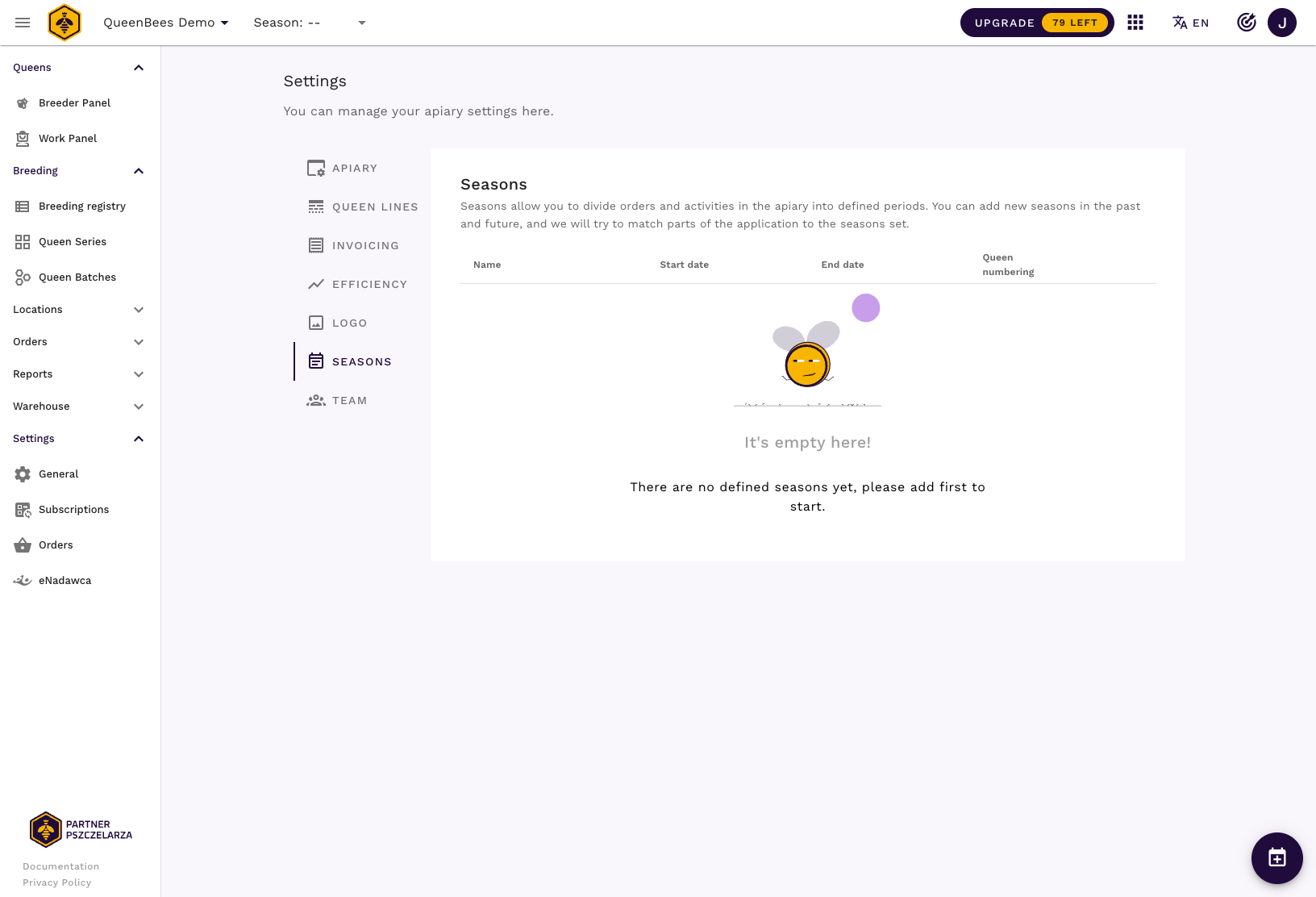
- Using the button in the lower right corner, open the
Add new seasonwindow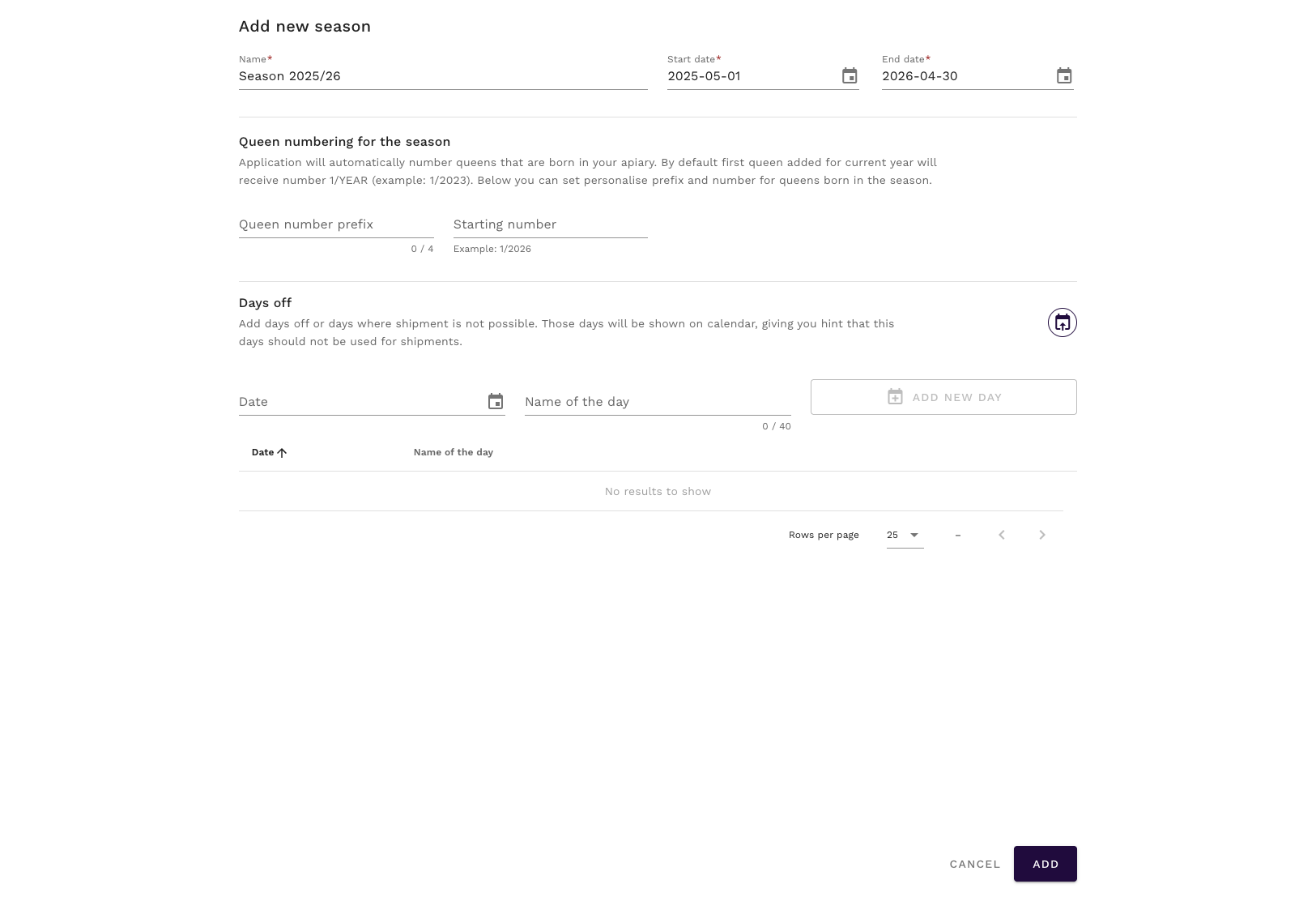
- For now we will enter basic data for the season:
- name: your custom name for the season. We recommend to keep it short, but significant to avoid confusion while switching between seasons.
- start date: start of your season, might depend on your queen breeding cycle or orders queue
- end date: end of your season
- Save changes, new season should be available on the list.
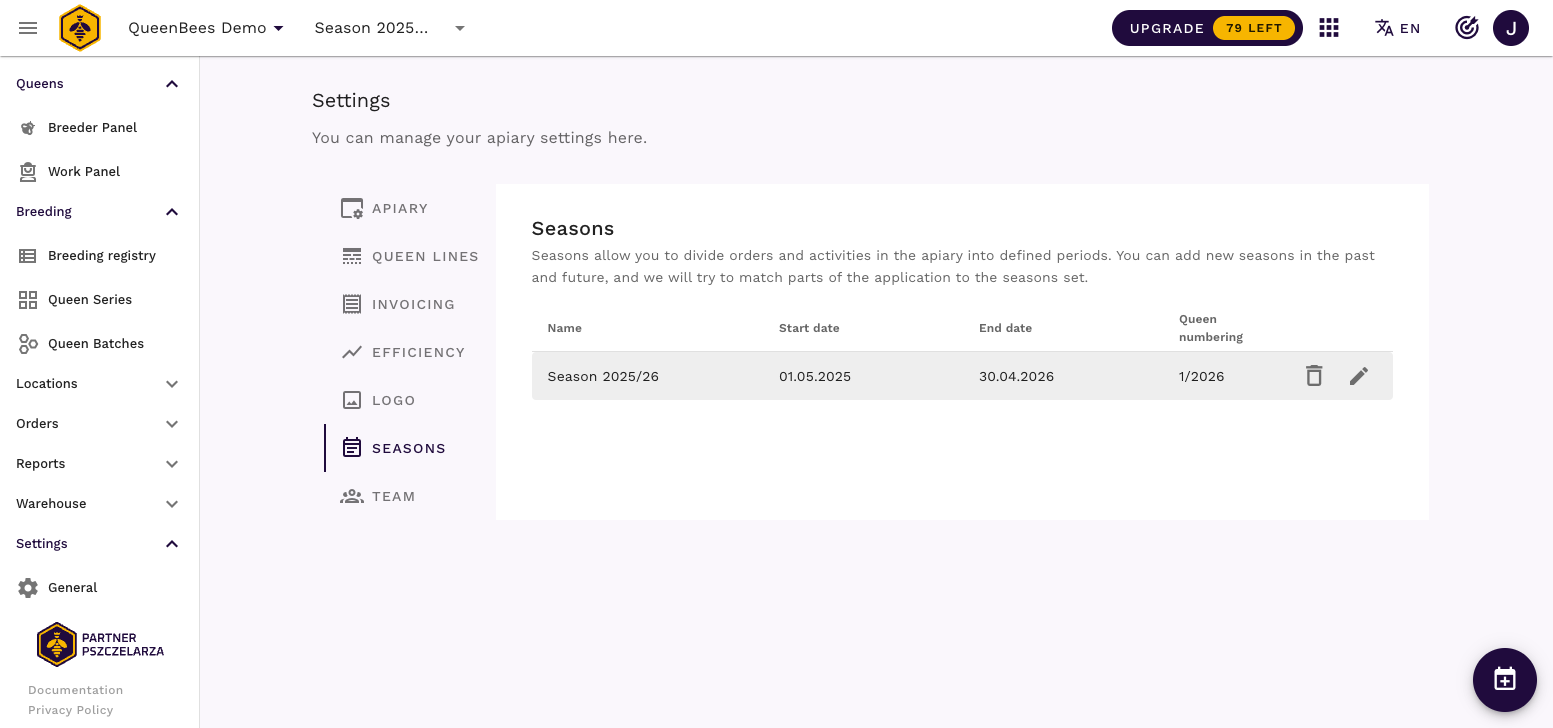
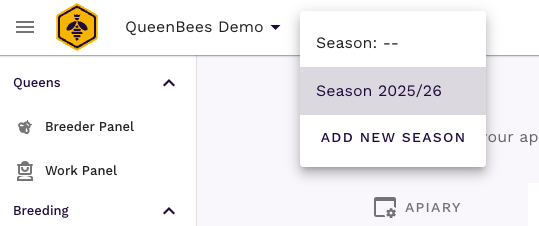
- If the season was added within current period, it will be automatically selected and visible in menu near your apiary logo:
Hint
You can use
Add new seasonaction directly from this menu, to quickly add new seasons.
Managing multiple seasons
You can set multiple seasons in QueenBees application, it might be helpful to quickly access data specific for selected season.
Following seasons
The natural cycle for seasons is that each next happen after previous one, so the dates are not overlapping. You can setup your seasons in a way that reflects your queen breeding cycle.
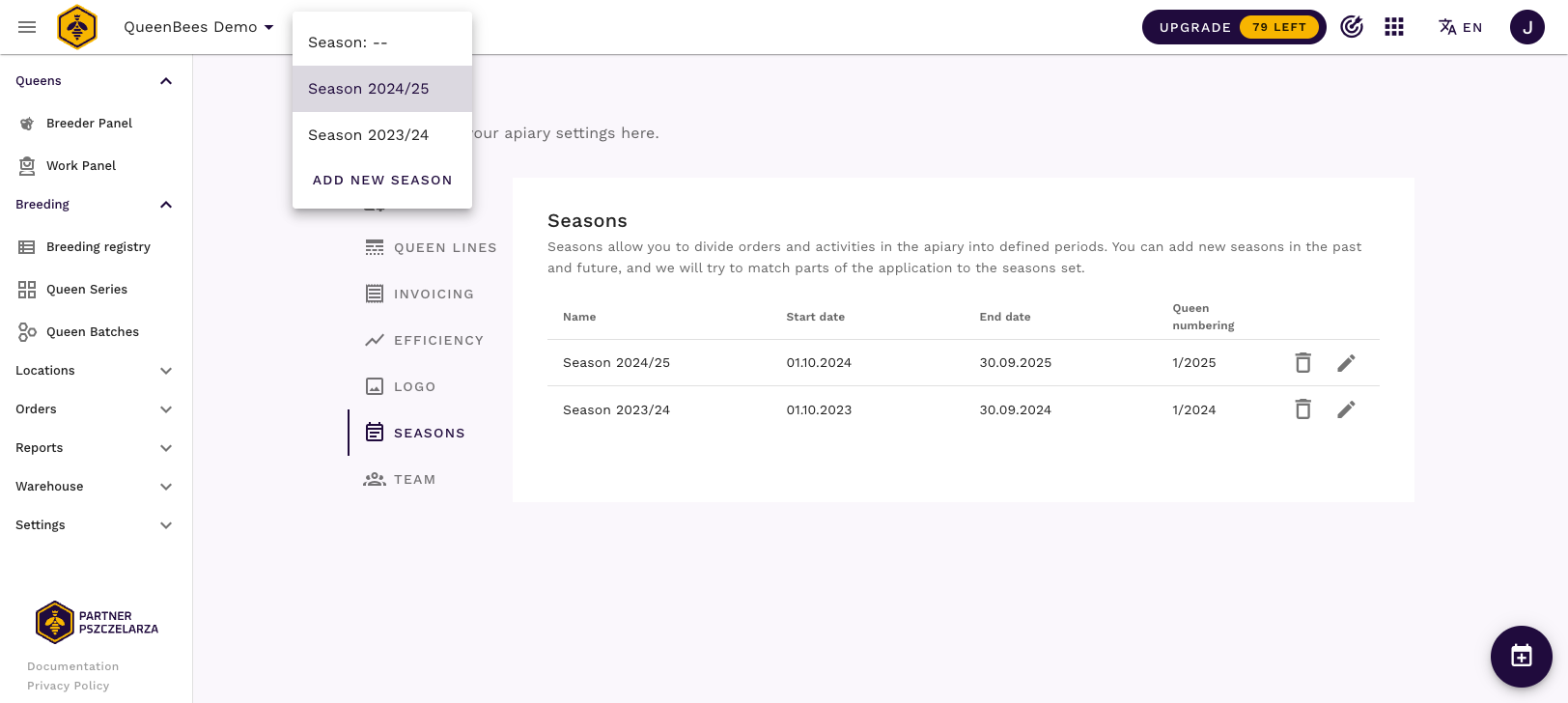
Unless you manually select the season, the one within current dates will be set as active after you log in into our application.
Parallel seasons
If you want to separate your context for the same year, it’s also possible. You can set multiple seasons for the same time frames and for example limit your context only to specific orders.
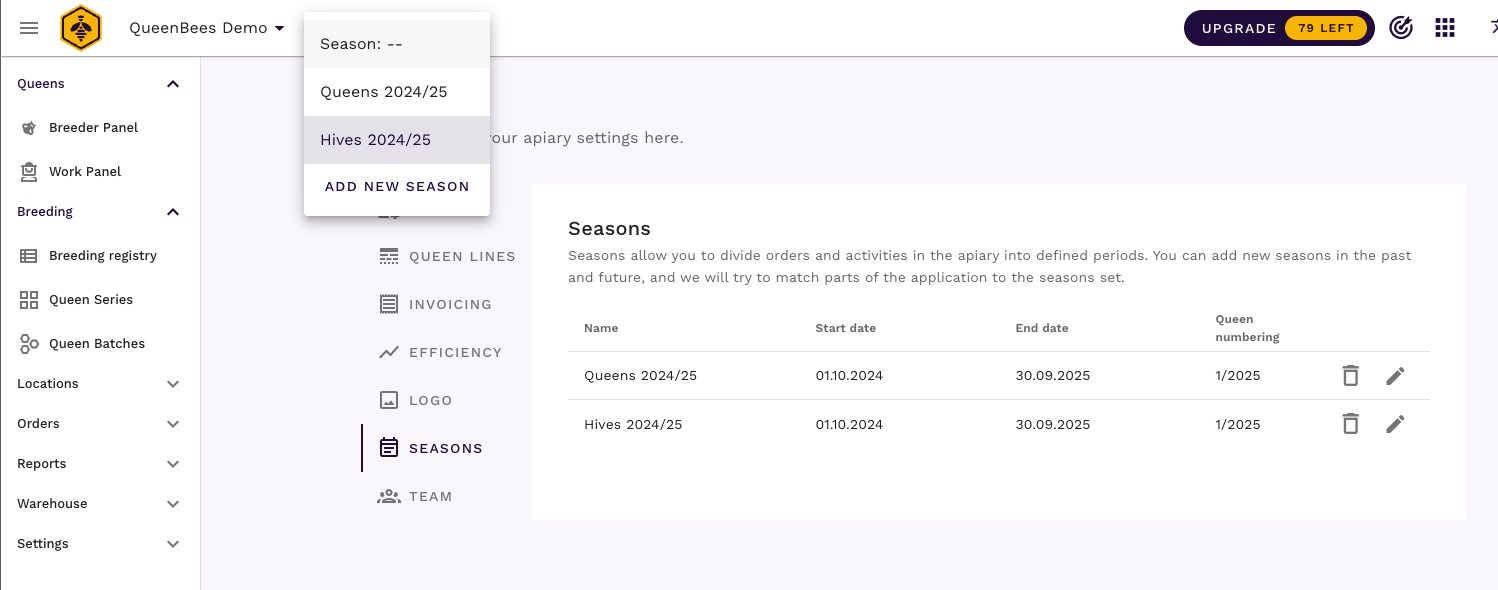
We recommend this approach if you have:
- different product in your company
- separated people working in company divisions, for example: one person responsible for queen bees shipments, other responsible for honey or hive products
Queen numbering for a season
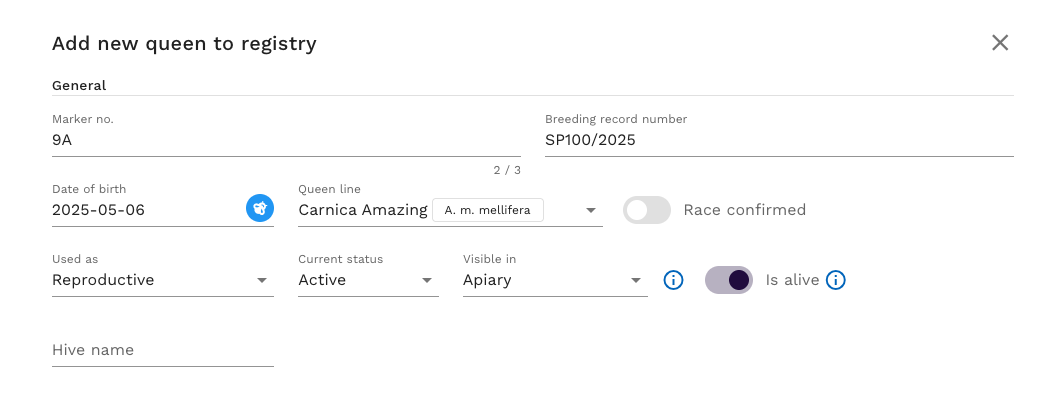
Queen numbering settings in season is related to Queen Bees Registry.
Optionally, you can fill in the queen numbering options for this season, which will be used in the Breeding Registry.
By default queen bees born in our application will start the numbering from 1/current year, so 1/2025 in year 2025, 1/2026 in year 2026 etc.
Each newly born queen will receive next number from the queue, so 2/2025, 3/2025 etc.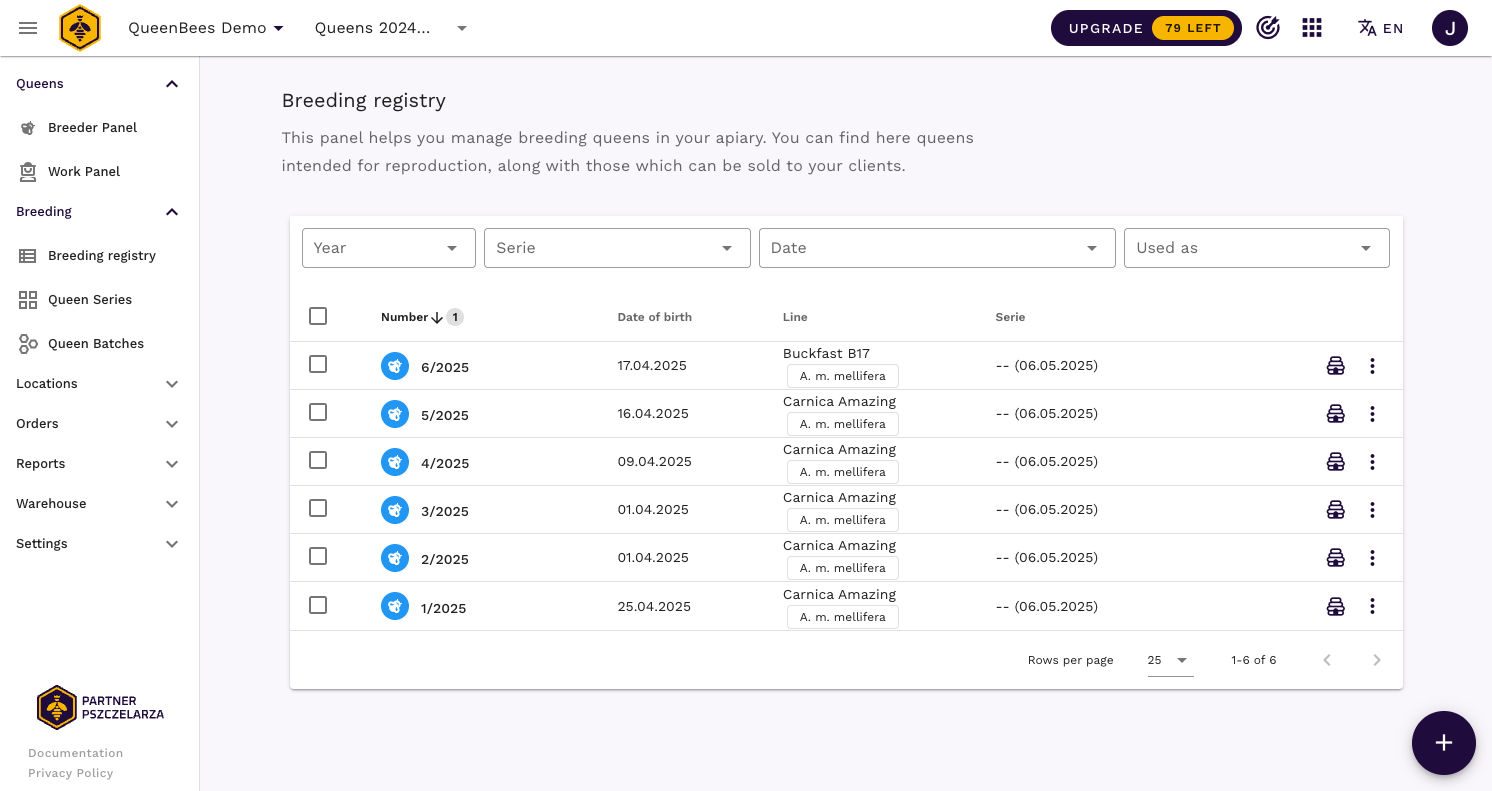
While managing seasons, in season edit / create window, you can setup up:
- prefix: max 3 chars for numbering prefix, specific for your needs
- starting number: if you don’t want to start the numbering from 1, you can set up your own starting number
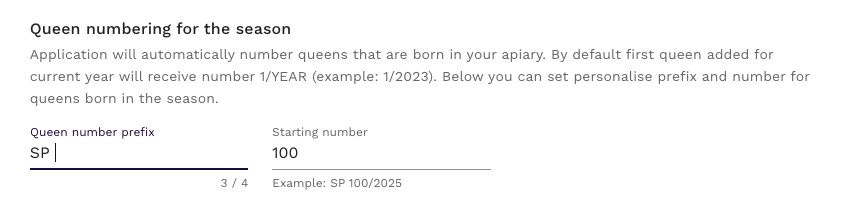
If there are no other queens created in this season, all newly created queens will follow the numbering schema defined in the season.
Marking days-off in a season
Additional settings for seasons allow you to set a days-off, that will be visible in orders calendar.
In the heat of the season it’s easy to forget that there are some days that you will not include in shipping If there is a day off that you will not want to use for shipments. You can mark such days for your season.

Importing public holidays for current year
Based on the country you’ve selected while creating your apiary, we will check the public holidays for current year and add it for your season.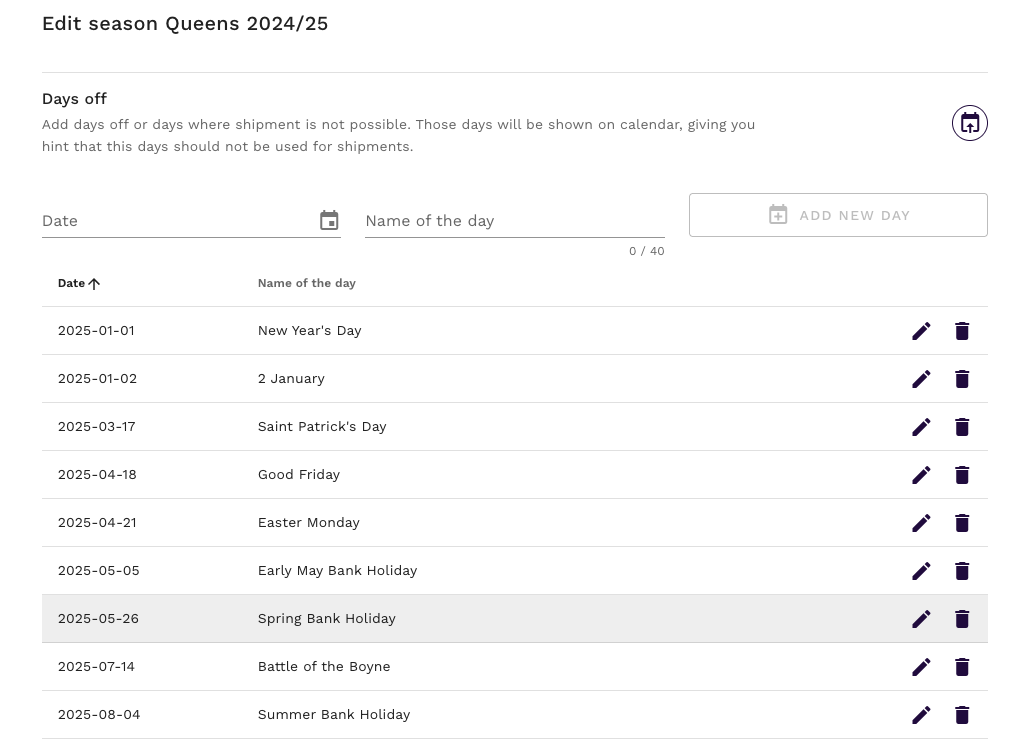
Adding custom days off
You can always expand the list of days off by adding your custom dates:
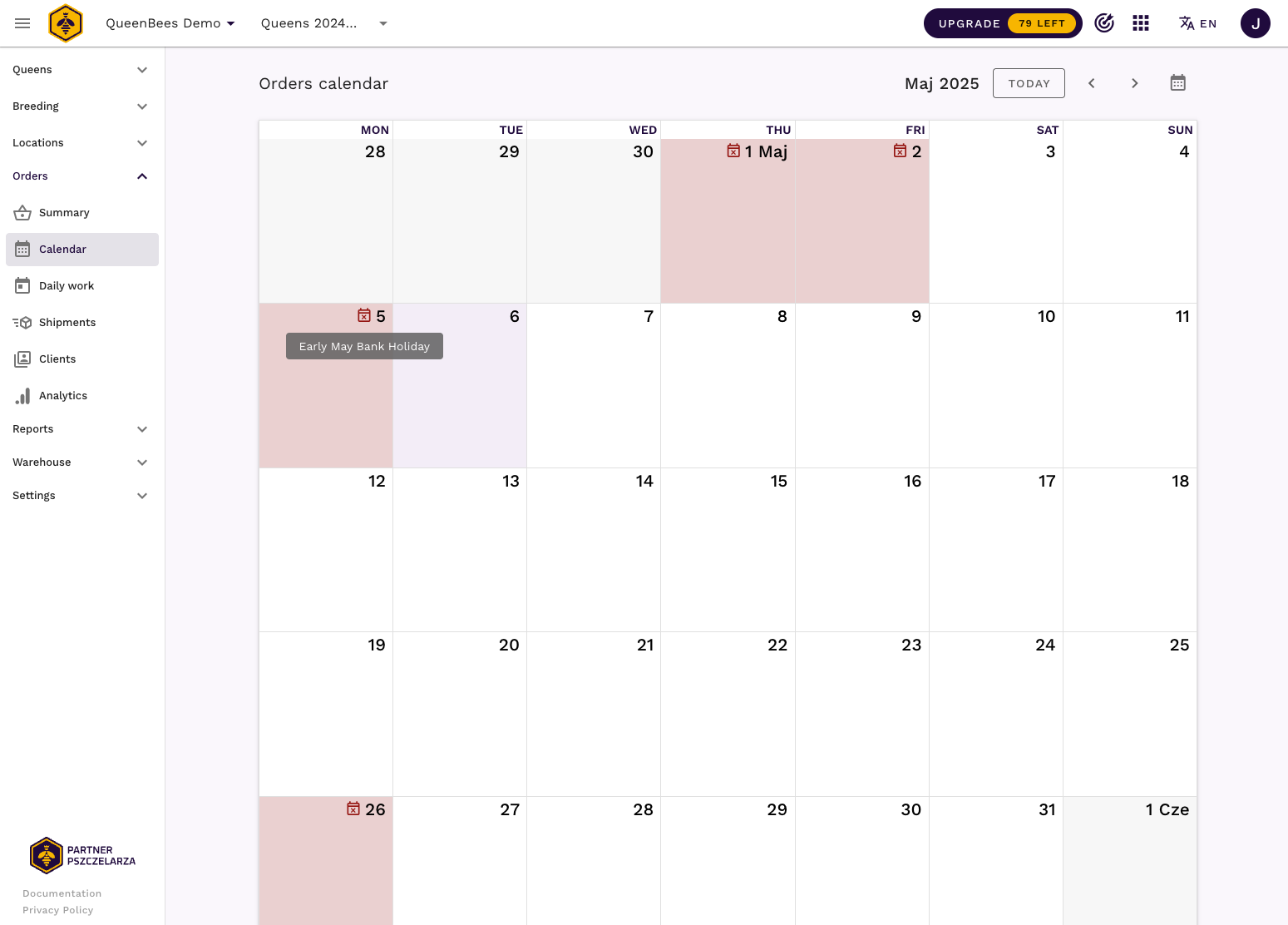
Days off in your shipments calendar
Days marked in season settings will be visible in your shipments calendar, marking days as red with an additional description available on the mouse hover.
Read more about shipments calendar.