Account personalisation
Personalize your QueenBees account with your logo and company data. Configure invoicing details and branding for professional queen breeding business presentation.
In this tutorial you will:
- Add your own logo
- Add invoicing & contact details
- Learn where those elements are used
Packages
The feature is available in subscription: Standard, Professional, Enterprise
Before you start
To add a logo, you must have:
- Administrator rights
- An active Start, Standard, Professional or Enterprise subscription
Add your own logo
You can personalize your apiary account with your logo. It’s not only used in application interface, but also in all files generated in application.
- Go to the logo settings: Left menu > Settings > General.
- Select the Logo section
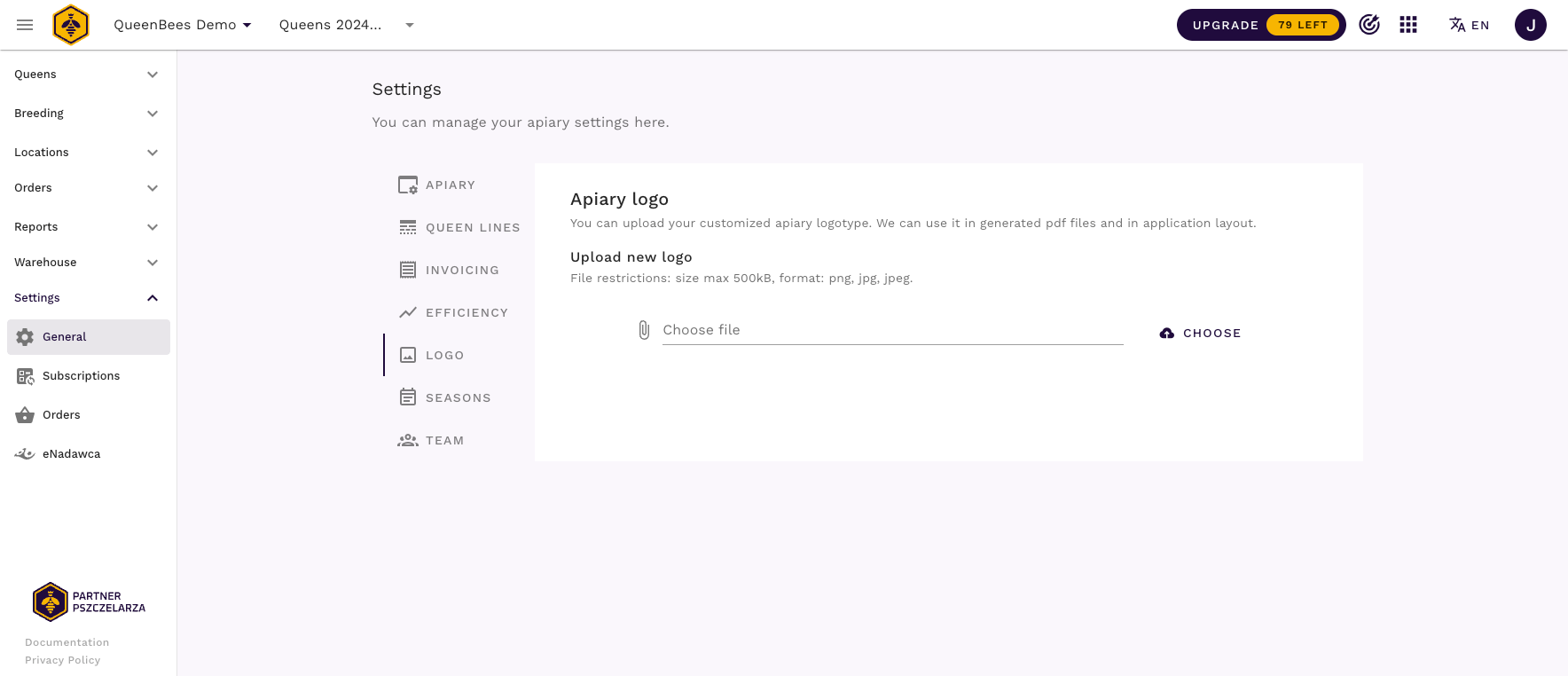
- Upload your logo file:
- size: max 500kB
- format: png, jpg, jpeg
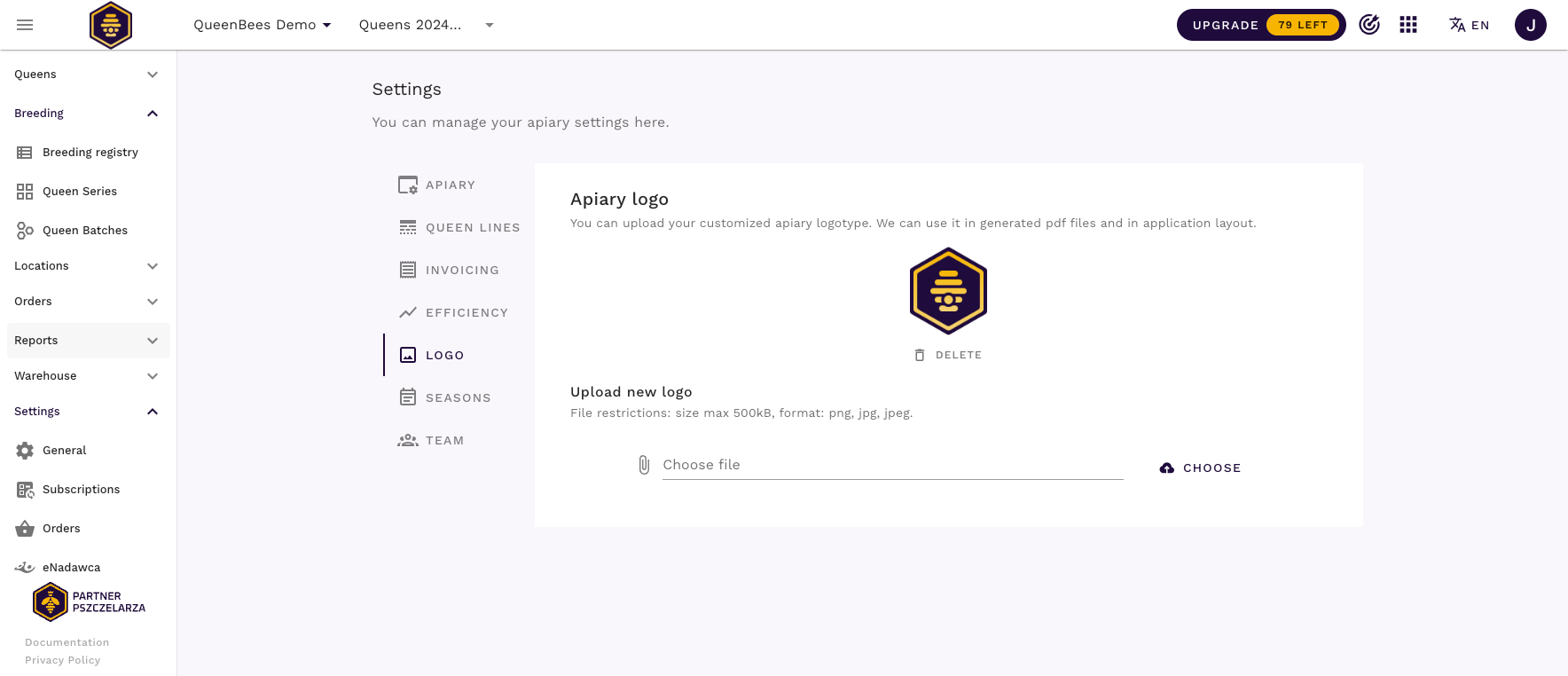
- ratio: for best experience, use 1:1 square logo, without text, sized 100px x 100px
- Your uploaded logo will be visible on settings page and near your apiary account name
Add your company & contact data
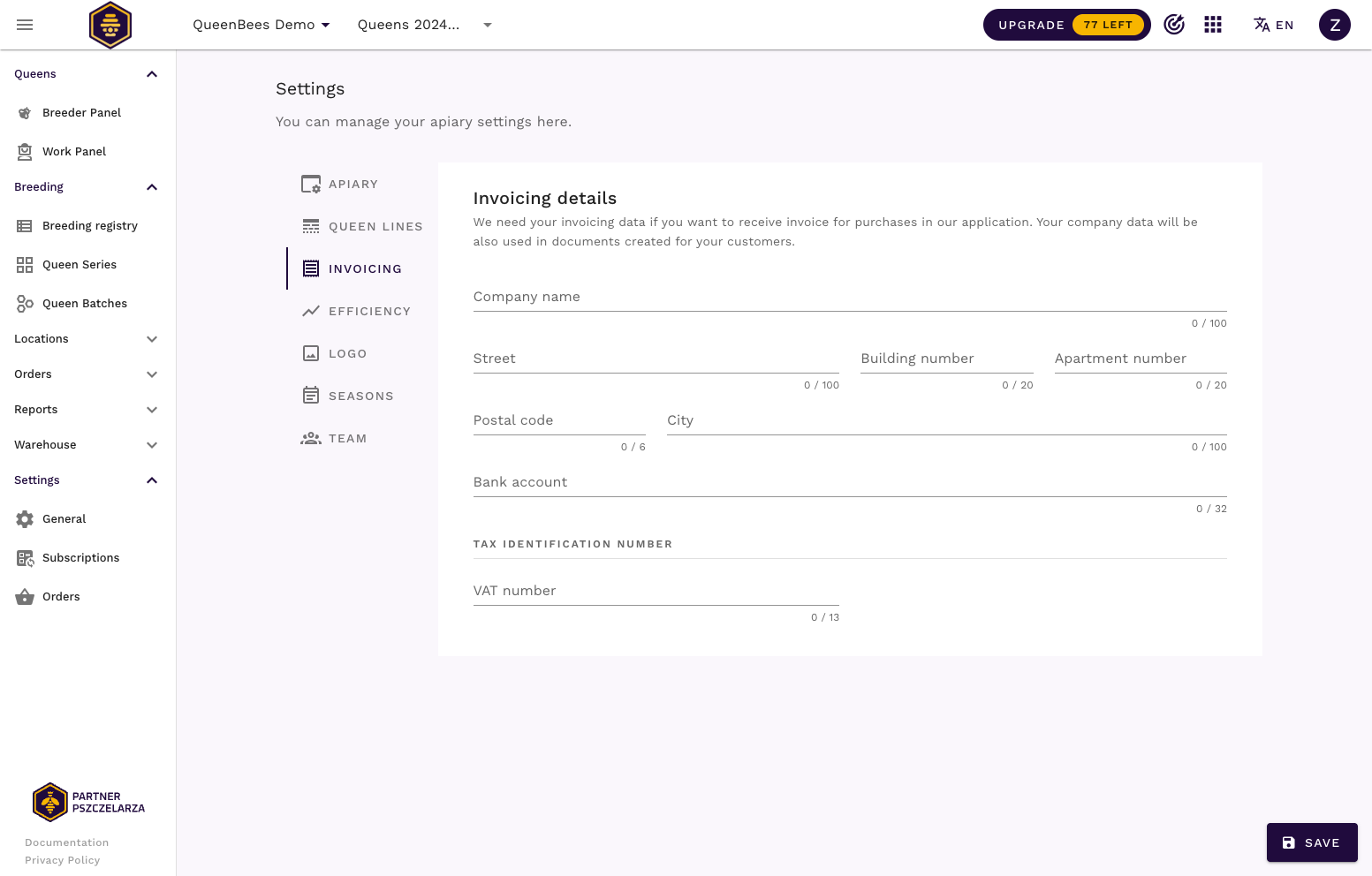
We might need your company and contact data for invoicing and generating documents in the application.
Invoicing data
- Go to the invoicing settings: Left menu > Settings > General.
- Select the Invoicing section
- Add your company data
Contact details
- Go to the apiary settings: Left menu > Settings > General.
- Select the Apiary section
- Add your contact data
