A Customer is Calling: A Practical Guide to Handling Phone Orders
The phone rings in the middle of a busy day in the apiary. It could be a new customer, someone checking on an existing order, or a request for a last-minute change. Handling these calls quickly and professionally is crucial for customer satisfaction and your own sanity.
This guide walks you through three common scenarios, showing you how to use QueenBees to manage any customer request with confidence and efficiency.
What you’ll learn
- How to instantly find a customer and their order history when they call.
- How to handle requests to change an order’s products or shipping date.
- How to seamlessly create a new order for both new and existing customers.
The first 10 seconds: find the customer instantly
When the phone rings, the first step is always to identify the customer. QueenBees is optimized for this, allowing you to use the phone number from your caller ID to find them in seconds.
- Use the search bar at the top of the Orders screen.
- Start typing the customer’s name, phone number, email, or address.
- The system filters in real-time, showing you matching customers and their order history.

Once you’ve selected the customer, you’re ready for any scenario.
Scenario A: “I’m just calling to confirm my order.”
A customer wants peace of mind. They need to know their order is confirmed and when to expect it.
- Find the customer using the search bar as described above.
- Click on their most recent order from the search results.
- The order screen gives you a complete overview. You can instantly confirm:
- Confirmation status: in Shipment tab for each package.
- Products ordered: The exact items and quantities.
- Total price: The final cost, including any discounts or shipping.
- Scheduled delivery date: The date you agreed upon for shipment.
Other ways to confirm details include checking the Shipments section and search for customer there.

You can confidently tell them, “Yes, I see your order #1234 right here. It’s confirmed, and we’re scheduled to ship your 15 queens on May 20th. Everything is on track.”
Scenario B: “I need to make a change to my order.”
Changes are inevitable. A customer might need more queens, fewer queens, or a different delivery date.
Changing the shipping date
The customer asks, “Can you ship my queens a week later?”
- Open the order and scroll down to the Shipments section.
- Click the delivery date field to open the interactive Delivery Calendar.
- The calendar shows your daily commitments and availability. Find a new date that works for both you and the customer.
- Select the new date and save the order.
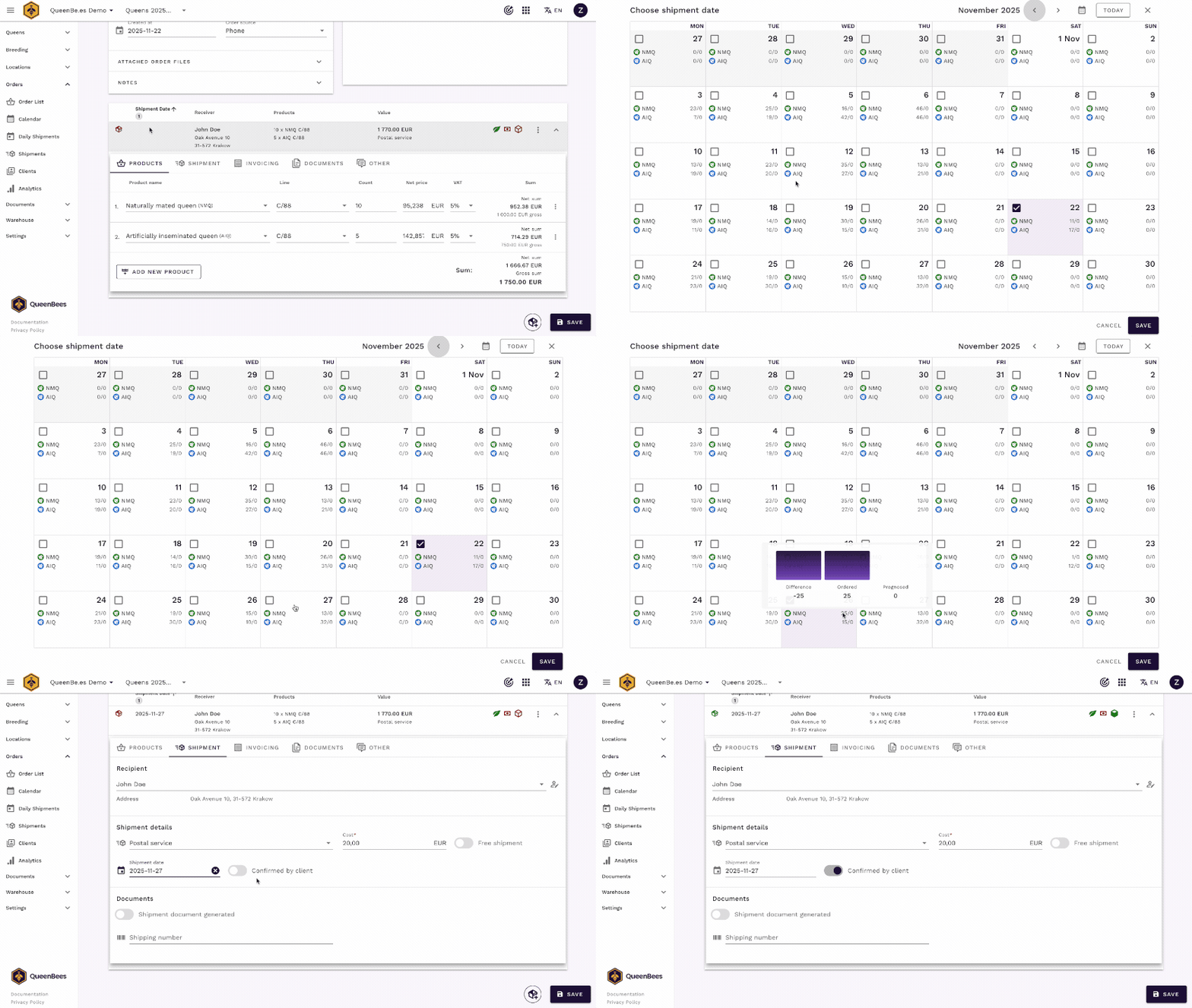
You can tell them, “No problem. I’ve moved your shipment to May 27th.”
Changing the products
What if they say, “I actually need 10 more queens”?
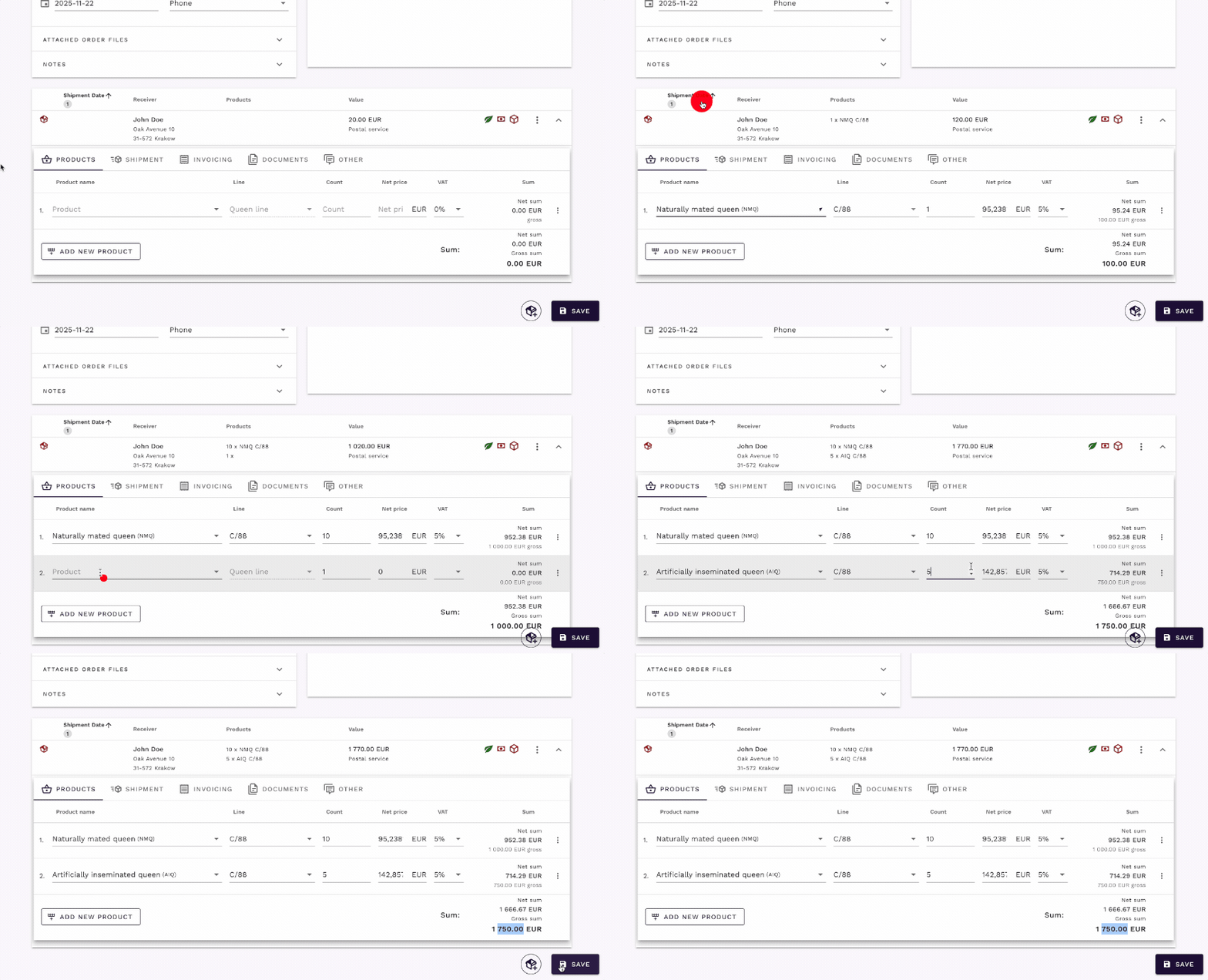
- In the Shipments section, find the product list.
- Adjust the quantity of the existing item. The price will update automatically.
- Check queens availability compared with shipment calendar to ensure you can fulfill the new quantity.
- If they want a different product, you can add a new item from your catalog.
- Save the order. The new total and product count are now recorded.
Scenario C: “I’d like to place a new order.”
This could be a returning customer or someone entirely new. Whether you are creating a new order for a new customer or viewing an existing customer’s profile, the process starts from the order screen. If you need a refresher, check our basic order scenario guide.
For an Existing Customer
- Find the customer using the search bar.
- Click the main action button (+) in the bottom-right corner and select ‘Create new order’.
- In the new order panel, start typing the customer’s name in the client search field. Because you just searched for them, they will appear at the top of the list.
- Select them, and their details (address, phone, etc.) will be filled in automatically.
- Proceed to add products and select a delivery date as usual.
For a new customer
If the search yields no results, they are a new customer.
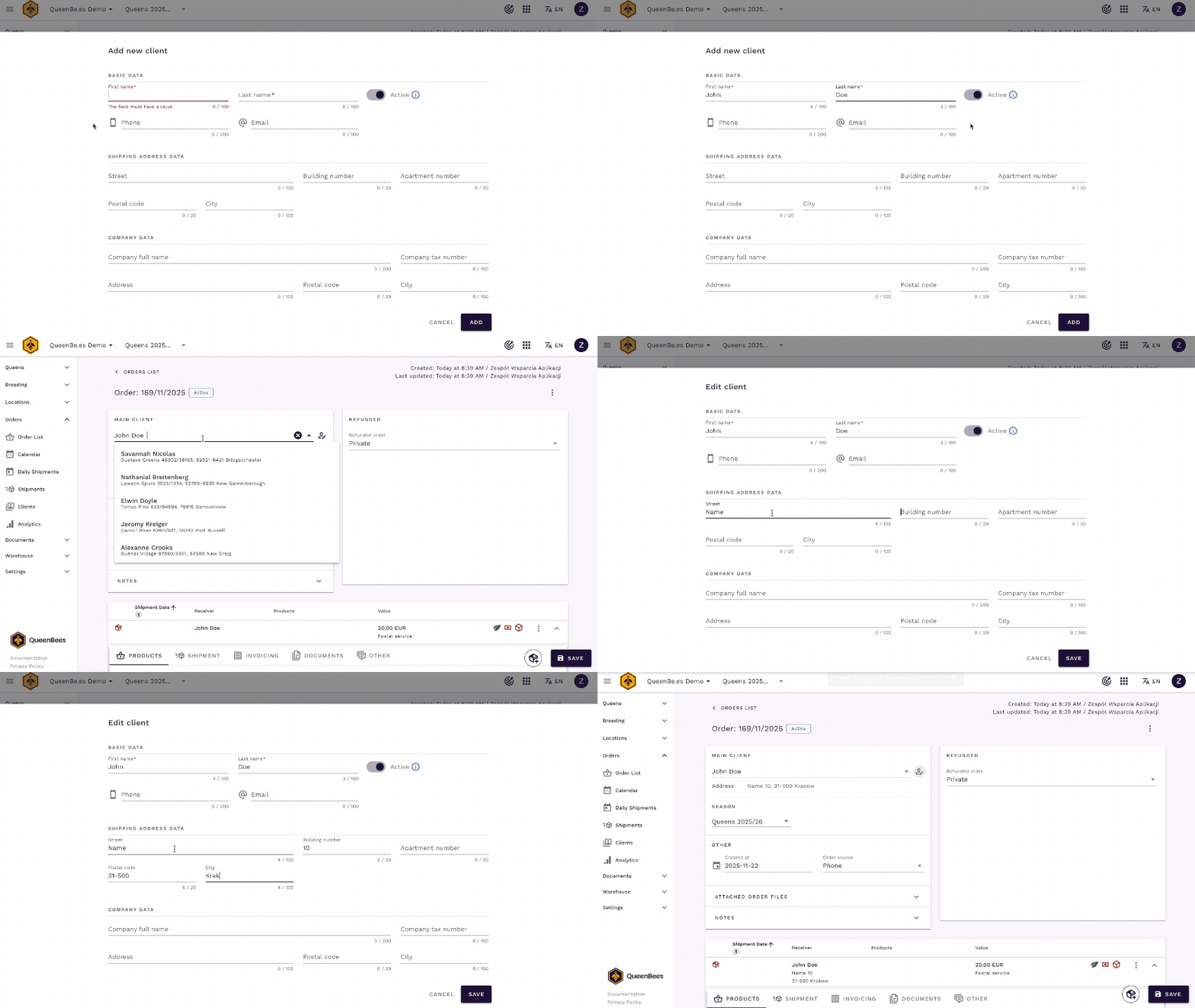
- Click the main action button (+) to create a new order.
- In the client search section, click ‘Add new client’.
- Fill in their details. For a quick order, a name and phone number are often enough. You can add more information later.
- The new client is automatically added to the order. Continue by adding products and scheduling the delivery.
Conclusion
With QueenBees, a ringing phone is an opportunity, not an interruption.
By using the streamlined search and order management tools, you can handle any customer request with speed and professionalism. This not only saves you valuable time during the busy season but also enhances your customers’ experience, building loyalty and trust in your business.