How many queens do I need to prepare today?
During the peak breeding season, knowing exactly what to prepare for the day’s shipments is critical. The Daily Shipments panel is your command center for shipping operations, designed to give you a clear, at-a-glance answer to the question: “What do I need to prepare today?”
This guide will walk you through using this powerful tool to see a summarized list of all products required for a specific shipping day, helping you stay organized and efficient.
Tip
If you have dedicated employees responsible for shipments, this view becomes their operational dashboard. You can assign them the “Logistic” role, which gives them access to this panel without needing to see other parts of the system.
Answering the question: What to prepare?
The Daily Shipments panel consolidates all orders for a given day into a single, actionable view. Here’s how to use it to get your answer in seconds.
Step 1: Navigate to the Daily Shipments panel
You can access the panel directly from the main Orders section of the application. It will default to today’s date, showing you exactly what’s scheduled for shipment.
Step 2: Check the preparation summary
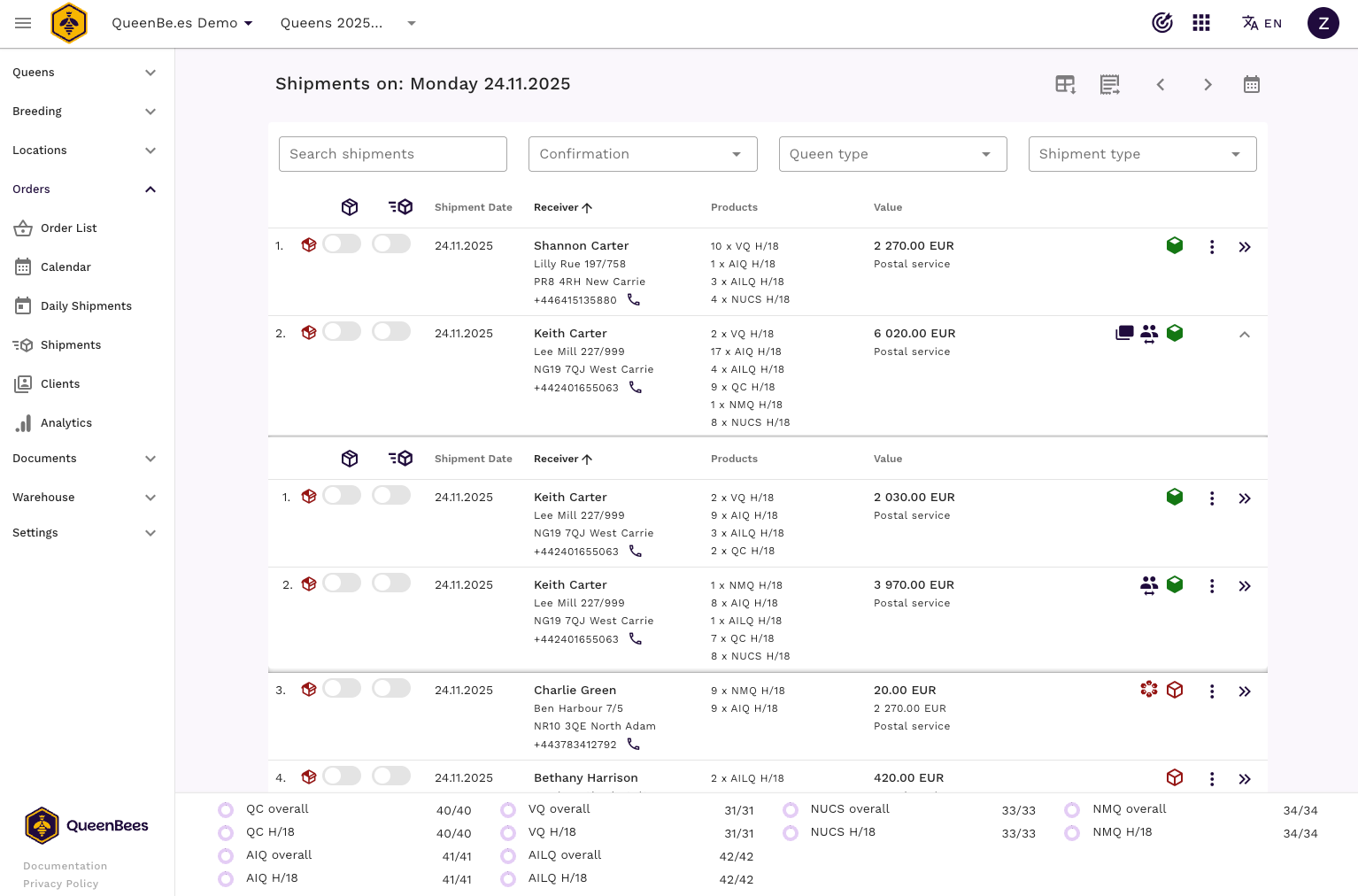
At the bottom of the panel, you’ll find the Shipments Preparation Summary. This is the most important section for daily planning. It provides a consolidated list of every product type and the total quantity needed for all of the day’s shipments.
- Total quantities: See the exact number of Naturally Mated Queens, Virgin Queens, and any other products (like honey or wax) you need to pack.
- Real-time updates: As you mark shipments as prepared, these numbers will decrease, showing you what’s left to do. The goal is to get all counts to zero.

Step 3: Review the shipment list
The main part of the panel lists every shipment for the day. This is where you can see the details behind the summary.
- Customer details: Each shipment is listed by customer name.
- Multi-packages: If a customer has multiple orders scheduled for the same day, QueenBees automatically groups them into a multi-package. This allows you to prepare and ship them together, saving time and materials. You can expand the group to see the individual orders inside.
- Shipment status: As you pack each order, click “Mark as Prepared”. This updates the overall progress for the day and reduces the quantities in the preparation summary.

A dynamic workflow for your team
The Daily Shipments panel is designed for a fast-paced environment.
- Live updates: The view updates in real-time. If a new order is added for the day or an existing one is changed, it will appear automatically without needing to reload the page. This is perfect for teams where one person takes orders while another prepares shipments.
- Forgotten shipments alert: The system highlights any shipments from previous days that weren’t marked as completed, ensuring nothing gets missed. You can then decide whether to complete or reschedule them.
- Quick actions: You can perform quick actions like confirming or rescheduling a shipment directly from this panel. For more complex changes, use
Ctrl + left mouse clickto open the full order details in a new browser tab without leaving your daily view.
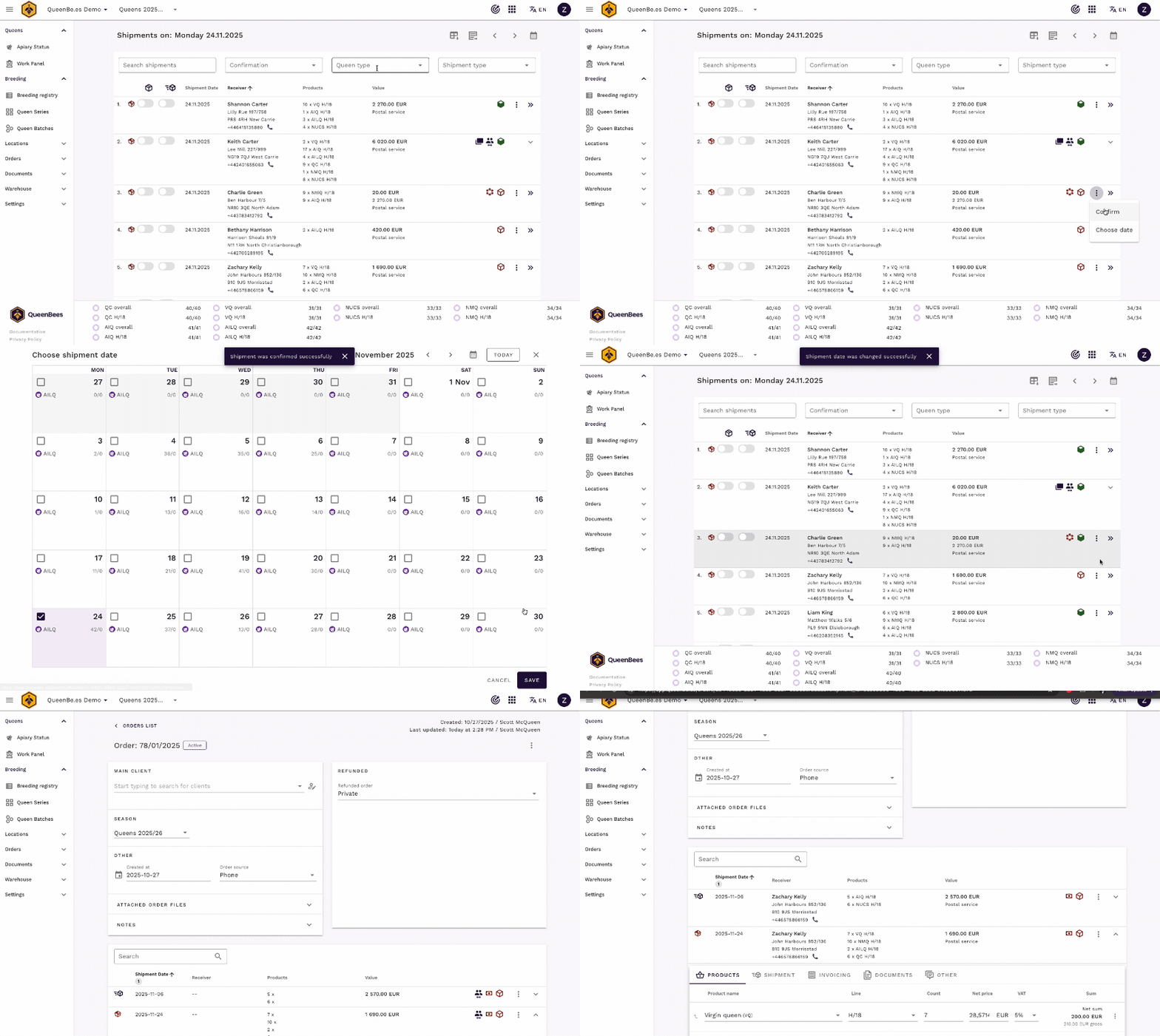
By following this simple workflow, you can start each day with a clear plan, track your progress efficiently, and ensure every order is fulfilled accurately and on time.