Working at Apiary Level: Bulk Actions
At the height of the breeding season, working hive by hive can be too slow. QueenBees offers bulk actions that let you handle hundreds of queens at once — without clicking into each hive individually.
This guide covers two useful features: Distributing a queen batch to empty hives and Fast queens take out at the end of a mating cycle.
What you will learn
- How to distribute queens from a batch to empty hives across all locations with one click.
- How to collect mated (MQ) or potentially breeding (PB) queens from an entire location or a single area without opening each hive individually.
Part 1: Distributing a queen batch to empty hives
How it works
A queen batch is a planned group of queens, originating from a selected series, assigned to specific locations. Think of it as a basket of queen cells or freshly hatched queens that need to be placed into mating nucs to start natural mating. When the queens in the batch are ready to be placed in hives, the Distribute button lets you automatically assign them to empty hives according to the batch limits.
Info
Queens are only placed in empty hives (hives with no active queen). If a location has fewer empty hives than the configured limit, the batch will be distributed only to the available hives.
When to use it
The typical moment: you have 50 hives to populate and 50 hatched queens (or queen cells) ready to be placed at your chosen apiary.
Step by step
1. Go to Queen Batches
Open the Batches section in the left navigation. You will see all active batches for the selected apiary. If you do not have a batch yet, you can always create one following the instructions.
Before distributing, make sure:
- The batch is Active, meaning it has queens ready to distribute.
- The locations have empty hives — the batch will only go to hives with no active queen.
2. Click “Distribute”
In the batches table, find the batch you want to process. Click the three-dots menu on the right and choose Distribute.
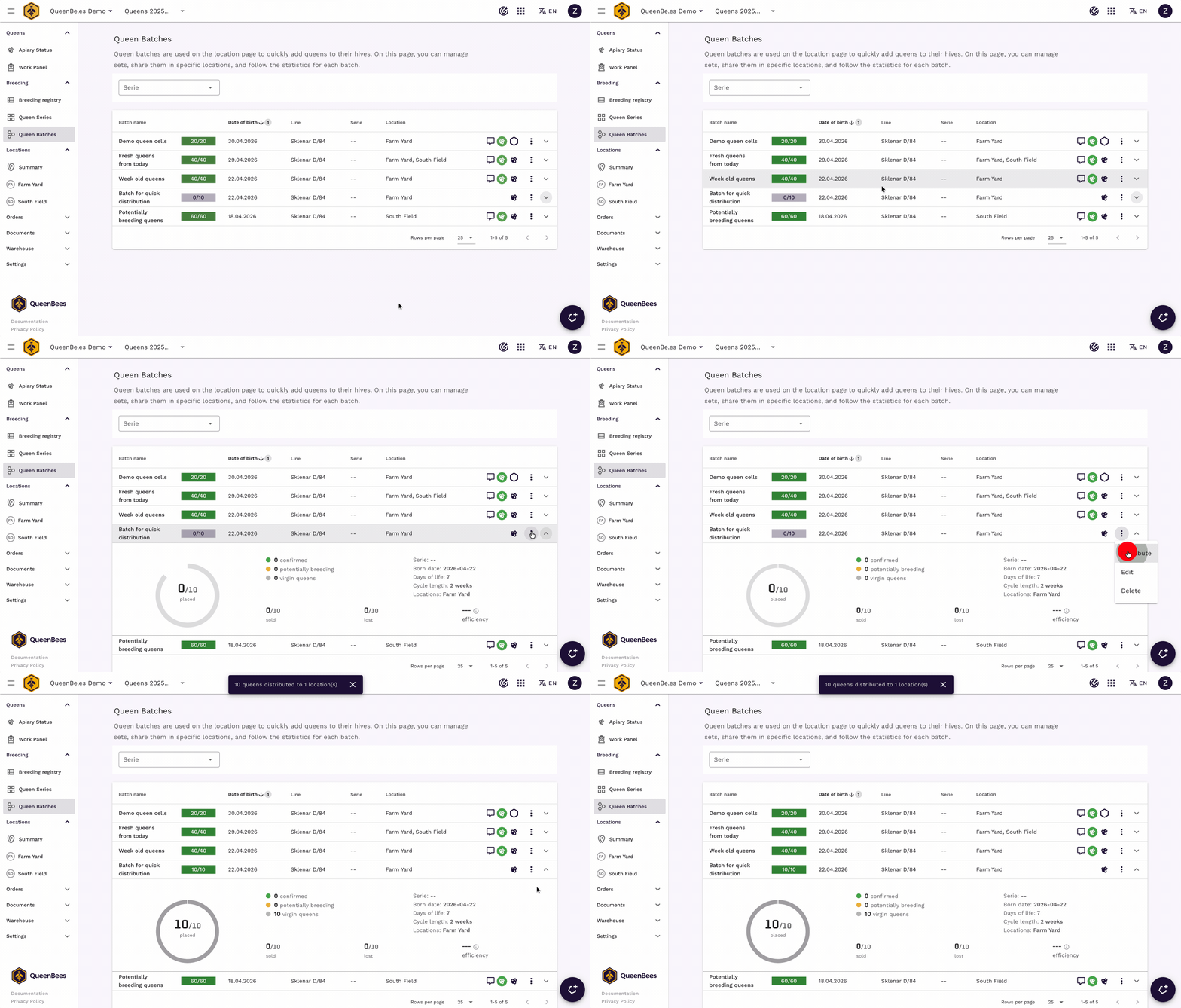
The system will automatically assign available queens to empty hives in the configured locations, respecting the per-location limits.
If no queens were distributed (no empty hives available), you will see an informational message instead.
Note
Distribution is an immediate, one-way operation. Once queens are distributed they are assigned to specific hives — to make changes you will need to edit individual hives.
Part 2: Fast queens take out from a location
How it works
When queens have completed their mating cycle and are ready for sale or transfer, Fast queens take out lets you collect or mark as lost multiple queens at once — without entering each hive individually.
You specify:
- How many queens to take out — the system processes MQ (mated queens) first, then PB (potentially breeding).
- How many queens to mark as lost — the system marks PB first, then MQ.
Info
The Fast queens take out option only appears in the menu when there are MQ or PB queens available in the location or area. It stays hidden for empty locations and areas excluded from sales statistics.
When to use it
The typical scenario: you have 40 hives in a location from the same batch, and while working at the apiary you collect queens from the whole location at once. At the end of your session you record how many failed to mate (marked as lost).
Step by step — from a location card
Use this when you want to collect queens from an entire location (all areas combined).
- Go to the Locations overview.
- Open the three-dots menu on the location card.
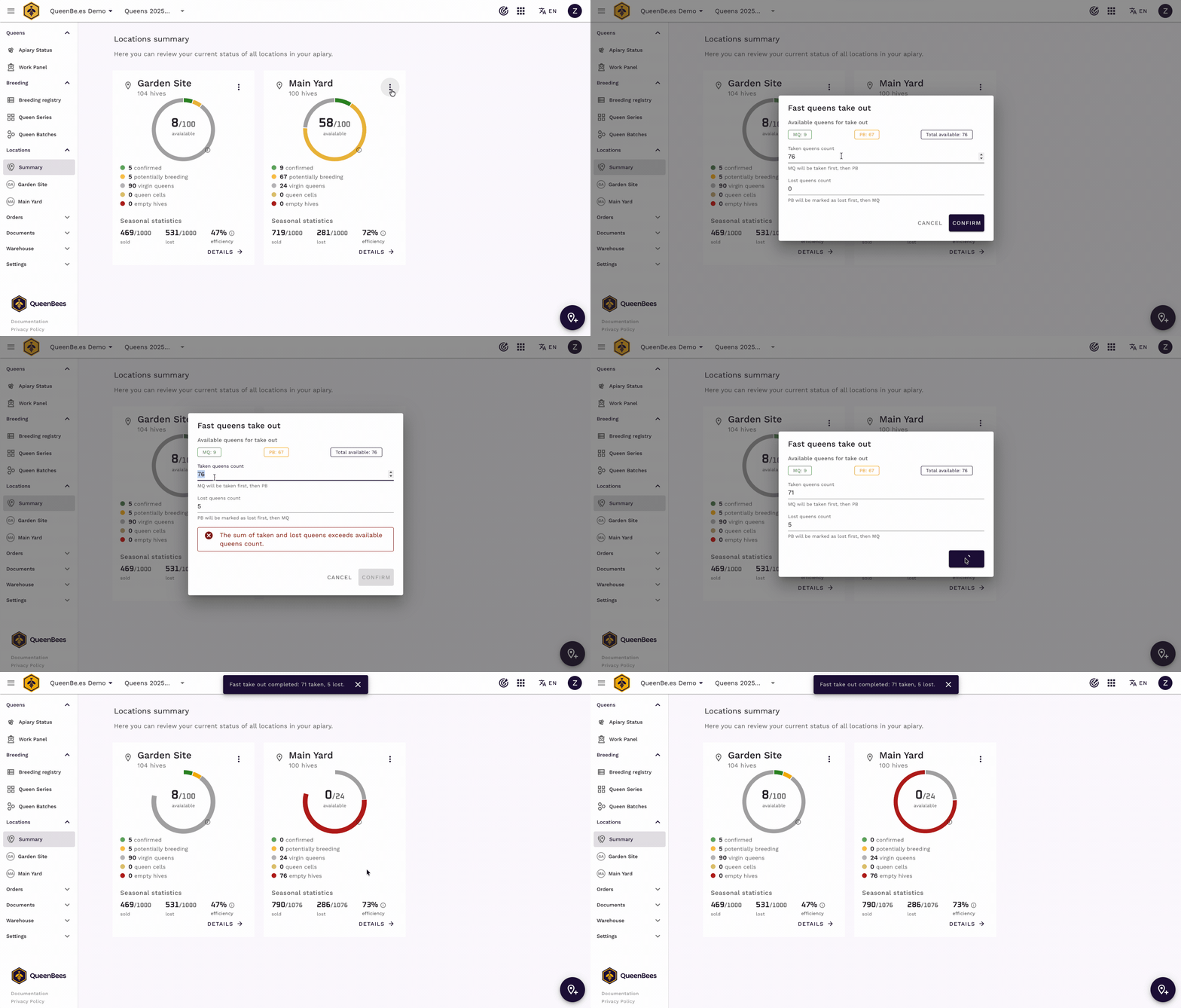
- Choose “Fast queens take out”.
- A modal opens showing:
- Available MQ and PB queen counts for the whole location.
- Total queens available.
- Enter the number to take out (defaults to all available).
- Enter the number lost (defaults to 0).
- Click Confirm — queens are updated instantly.
Step by step — from an area (section)
Use this when you want to collect queens from just one area within a location (e.g. only from the “Section behind the garage” area).
- Open the location details.
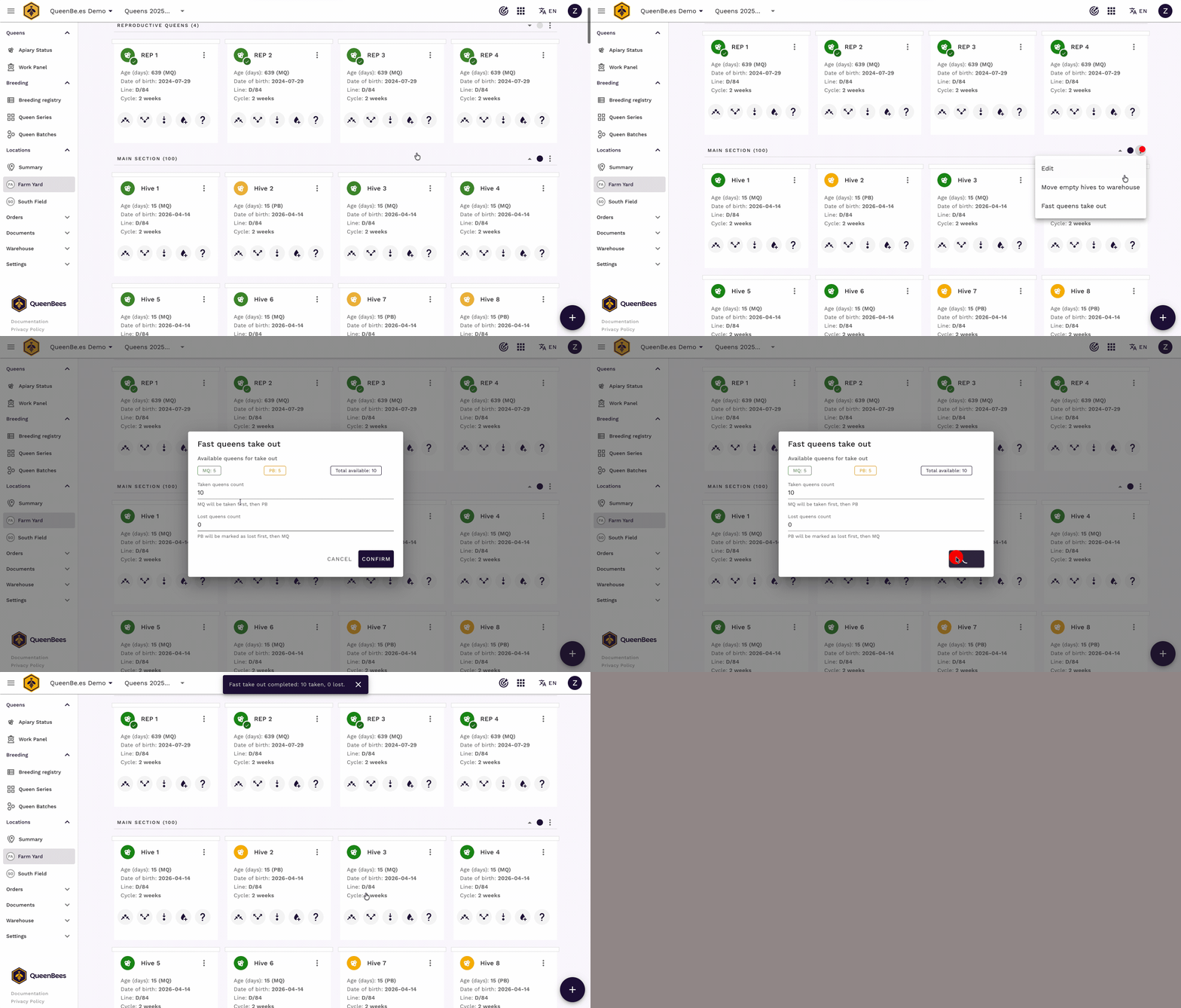
- Open the three-dots menu on the area header.
- Choose “Fast queens take out”.
- Same modal — but the count and operation cover only queens in that area.
Note
This action cannot be undone. Queens marked as taken or lost are updated immediately in your statistics and production forecasts. The sum of taken and lost cannot exceed the number of available queens — the system will block confirmation and show an error message.
Using bulk actions throughout the season
Both bulk actions complement each other to create a full production cycle:
- Create a batch -> set per-location limits -> Distribute -> queens go to empty hives.
- After mating cycle completes: Fast queens take out -> queens are collected or marked as lost and enter your inventory ready for sale.
- Hives are empty again -> ready for the next batch.
This lets you handle a complete production cycle without manually editing individual hives.