Application interface
The QueenBees application interface is designed specifically for professional queen bee breeders. Every element has been carefully positioned based on real-world breeding workflows and feedback from experienced beekeepers.
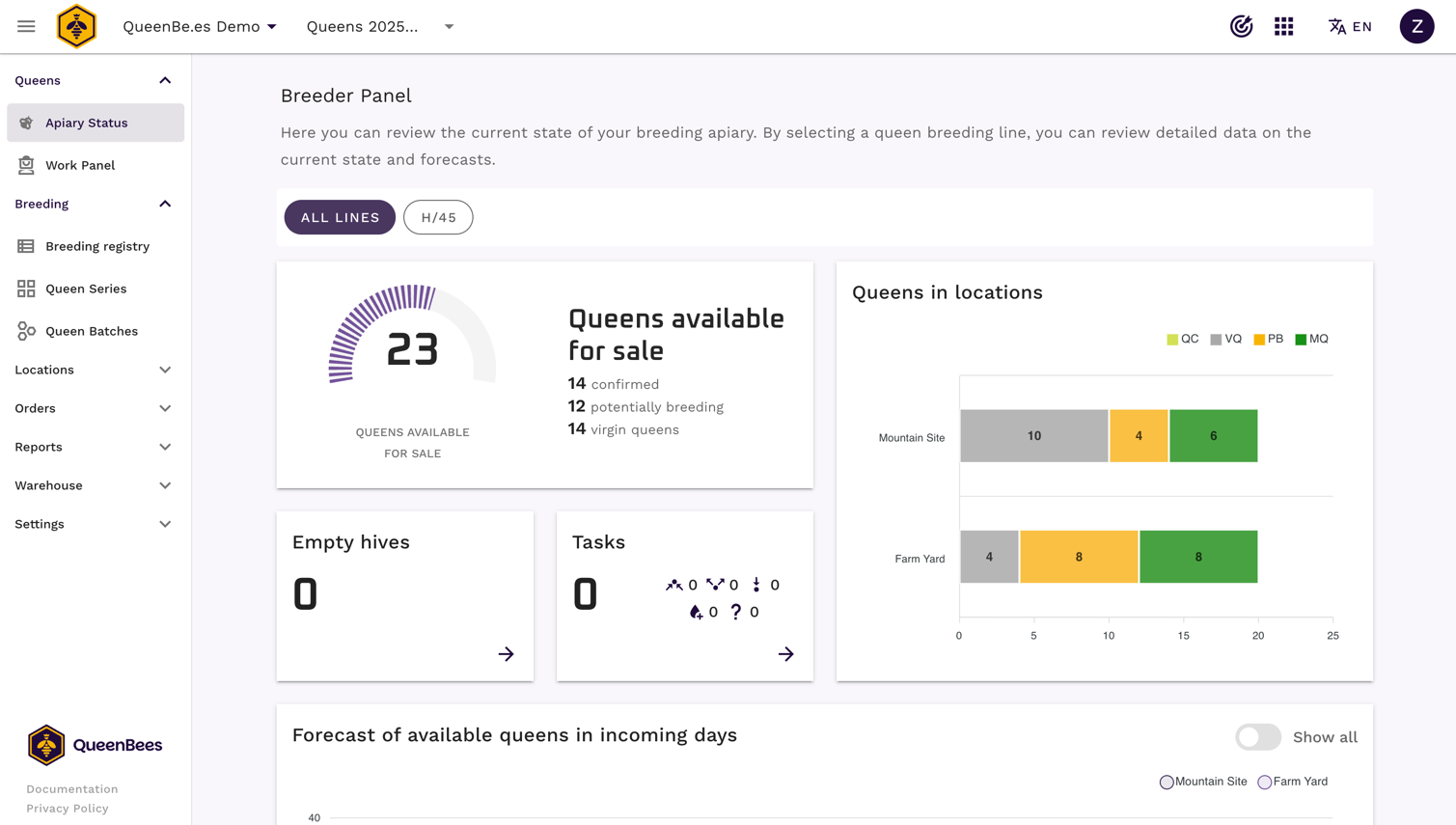
Let’s dividie it into smaller elemenents to make it more clear for you.
Top Navigation Bar
The top navigation bar remains visible throughout your work and contains essential controls for daily operations.
Standard top navigation when you’re using computer or tablet screen contains (from left):
- Main navigation visibility switcher
- Your logo and apiary name within Apiary Selection
- Season switcher
- Apps menu which help you access additional applications form Beekeepers Partner initiative
- Language switcher, where you can choose your preferred language
- Focus mode switcher
- User menu with your information and logout button

For mobile devices, we’re using simplified view with:
- Main navigation visibility switcher
- Your logo
- Refresh button allowing you to quickly refresh page
- Focus mode switcher
- User menu with your information and logout button

Hint
If you’re missing some options in mobile view navigation - don’t worry. Just switch your phone to horizontal mode and additional options will appear.
Main navigation visibility switcher
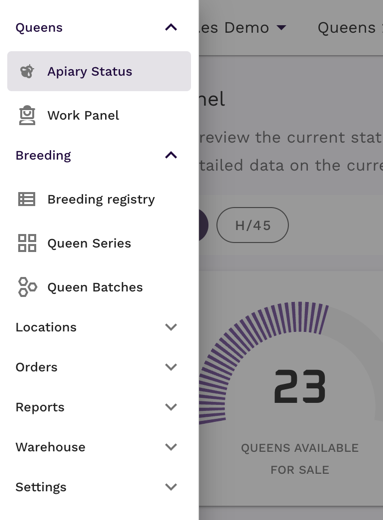
Main navigation switcher (three bars) in top left corner allows you to quickly show and hide left menu. On mobile devices left navigation is hidden by default.
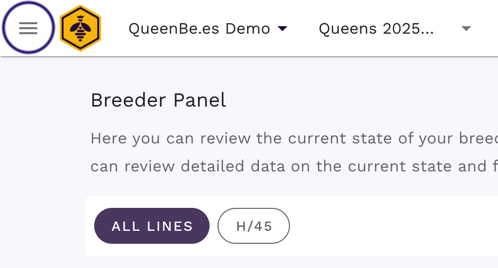
When enabled:
Logo and Apiary selection
On the left side, you’ll find your apiary logo (if uploaded) or the default QueenBees symbol. Next to it is the Apiary Selector dropdown - critical if you manage multiple breeding operations. Click the dropdown to switch between your apiaries or accept invitations to collaborate with other breeders.
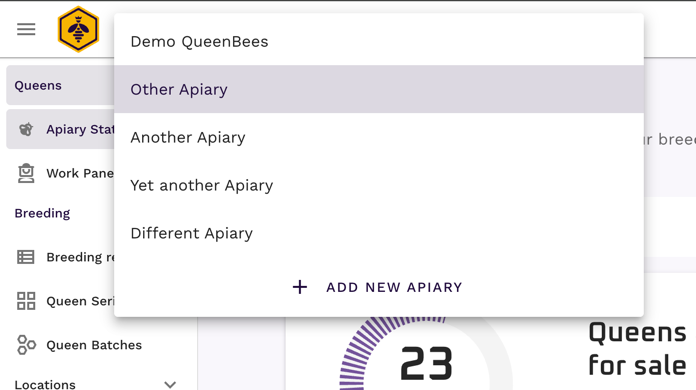
If you see a bell icon next to your apiary name, you have pending invitations from other beekeepers who want to collaborate with you.
From this selector you can also add start additional apiary from your account.
Season Selection
The Season Selector lets you focus your work on specific breeding seasons. This is essential for keeping current year operations separate from historical records. You can:
- View only the current season’s data
- Switch to previous seasons for reference
- Create new seasons for planning ahead
- Choose
--to view data from all seasons
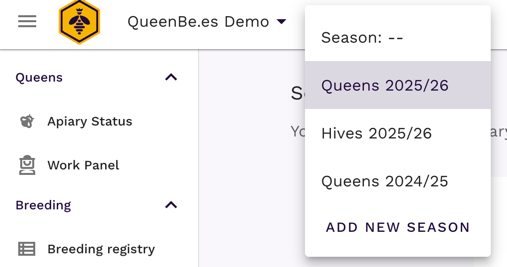
Professional breeders typically work with multiple seasons simultaneously - planning the next while managing the current one.
Hint
If you work not only with queens, for example - sell hives, beekeeping equipment or honey - you can create separate seasons for each of your business section - keeping your data separated into your business division.
Right side controls
The right side of the navigation contains:
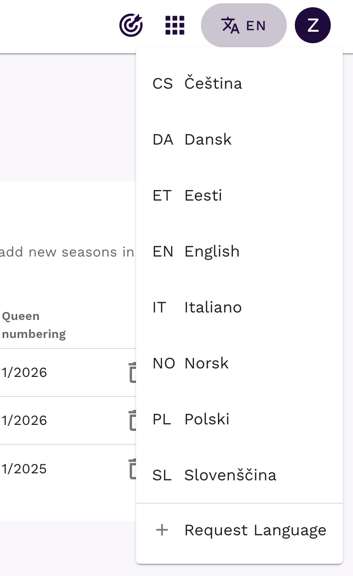
- Application switcher: Allows you to access applications from Beekeepers Partner portfolio. Application list might be different according to your country apiary.
- Focus Mode button: Hides distracting elements when you need to concentrate on specific tasks. Read more about focus mode
- Language switcher: Change the interface language instantly
- User menu: Access your account information and logout action
Left (main) navigation menu
The left sidebar organizes all application features into logical groups that follow your breeding workflow.
Queens Group
- Main Dashboard: Your daily command center showing key metrics, current location status and forecasts of incoming weeks.
- Work Panel: The day-to-day operations center where you manage queen take-out orders, track each location status, and handle routine breeding tasks like marking queens born from series.
Breeding Group
This section contains your core breeding management tools:
- Breeding registry: Complete genealogical records of your queen lines. Track parentage, breeding details and decisions. Essential for maintaining quality bloodlines and meeting certification requirements.
- Series management: Series help you to plan your work from egg to born queen, allowing to track systematic breeding planning. Under this screen you can manage series for season, update your series data and review each serie analytics, including efficiency of each step.
- Queen Batches: Batches come from Series, but can be also created as something standalone. Batches are groups of queens produced and managed together. Queens from Batches can be quickly added to the hives in each location, also in Focus Mode.
Locations
- Location overview: Summary of all your apiary locations with quick access to individual site statistics and current details.
- Individual locations: Each location (apiary site) has its own detailed page showing sections, hives and queens information for each hive. Essential for breeders operating multiple areas.
Orders Management
This comprehensive section handles your entire sales operation:
- Orders Summary: Overview of all customer orders, status and fulfillment tracking.
- Order Calendar: Visual timeline showing when your queens are ordered by customers. Prevents overbooking and helps to plan shipments in advance.
- Daily Panel: Today’s shipping and preparation tasks. Shows exactly which orders need attention each day and how much queens you need to prepare for shipments.
- Shipments: Track shipments by date and manage delivery confirmations.
- Customers: Complete customer records including preferences, personal notes and contact information.
- Analytics: Business summary for your operations - track sales statistics and your seasonal performance.
Reports
- Invoicing (Available in supported countries): Generate professional invoices and track their payments.
- Union reports: Specialized reporting for beekeeping associations and unions. Handle group orders and association requirements.
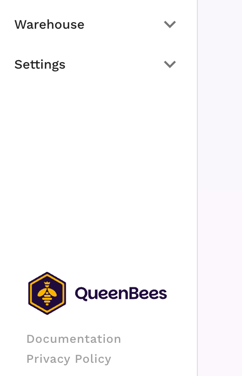
Warehouse
- Hive management: Inventory tracking for hives not in actual use.
Settings
- Account settings: Configure your apiary details, team setup, and business information.
- Subscription management: Handle your QueenBees plan, billing, and feature access.
- Order configuration: Set up products, shipping methods, beekeeping unions and clubs settings.
- eNadawca Integration (Poland only): Direct integration with Polish Post for automated shipping label generation. If you need similar integration in your country, please contact us.
Useful links
At the bottom of the left menu, you’ll find quick links to:
- QueenBe.es main page: Visit our main website for news and updates.
- Documentation: Access the full user manual and guides.
- Privacy Policy: Review our data handling practices.
Main section
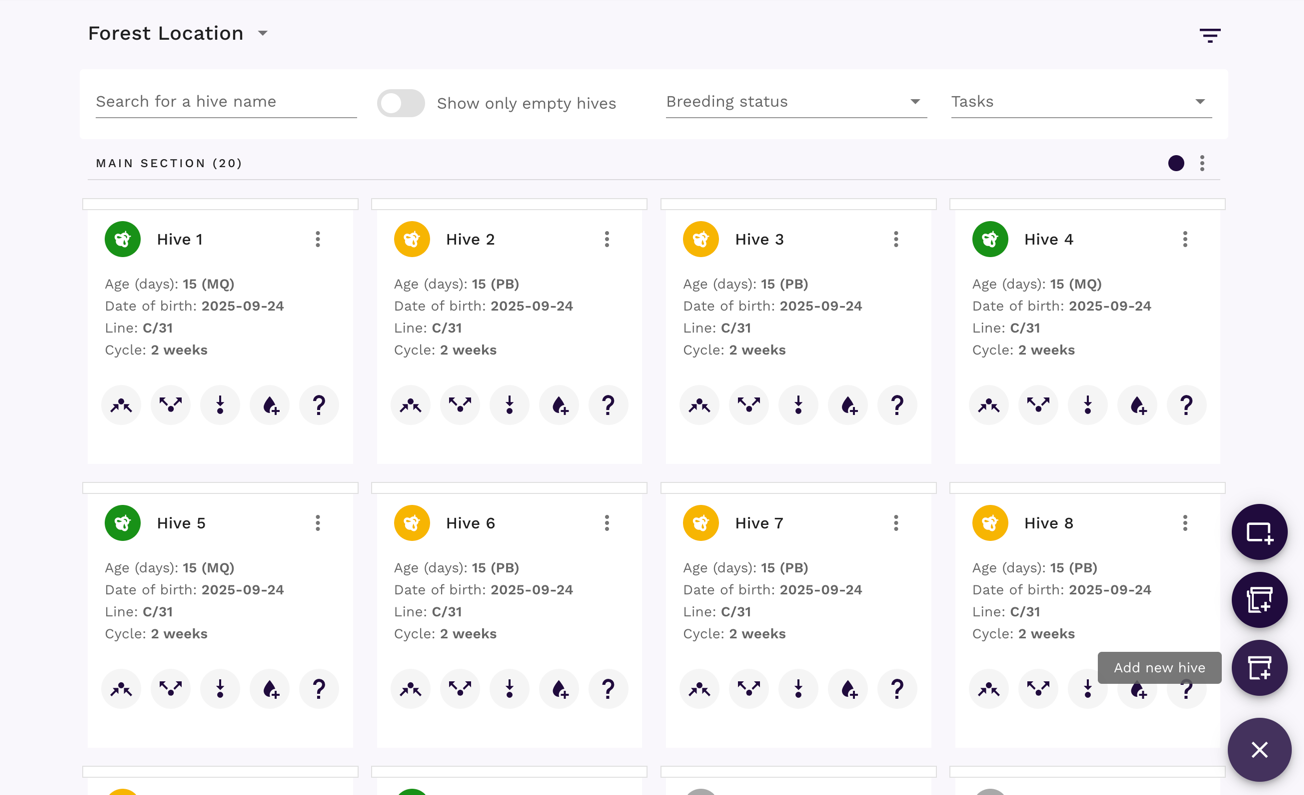
The central area of the interface is where you perform your daily tasks. Each screen is designed to minimize clicks and streamline workflows.
Right bottom action button
A floating action button in the bottom right corner provides quick access to context-specific actions.
For example, on the Orders screen, it allows you to create a new order instantly. On locations screens, it helps you add new hives or sections.
How our interface behaves
Seasonal focus
Every screen can be filtered by breeding season. This prevents confusion between current and historical data - a common problem in seasonal businesses like queen breeding.
Role-based access
The interface adapts based on your role:
- Owners/Administrators see all features including analytics and financial reports
- Breeders focus on production and breeding management
- Logistics staff see order fulfillment and shipping tools
- Technicians access hive management and location data
Mobile responsiveness
While designed primarily for desktop use during detailed breeding work, the interface adapts to tablets and phones for quick checks in the field.