Basic order configuration: before you start
The order management module in QueenBees is an incredibly useful tool that allows for easy and fast order processing. However, before you start using this functionality, you need to configure it to meet your requirements and needs.
Configuring the order module by setting up products, shipment methods, and other parameters will significantly streamline your operations in the future.
The configuration itself is very simple and shouldn’t take you more than 5 minutes.
Most of these steps can also be handled from the individual order screen, but we encourage you to spend time on the initial orders configuration. This will significantly speed up your next steps.
Company data and queen lines
The first step you can start with is adding your apiary’s company data. We use this in various parts of the application related to order handling. If you want to use invoicing, support for e-shipping services, or settlements with beekeeping associations - this data will be useful.
You can find company data settings in Left menu > Settings > General > Apiary.
We also recommend reviewing your Queen Lines settings, where you can set both the full name and abbreviation, as well as choose the breed of your queen bees.
In the image below, you can see of setup of fields related to company and invoicing data:
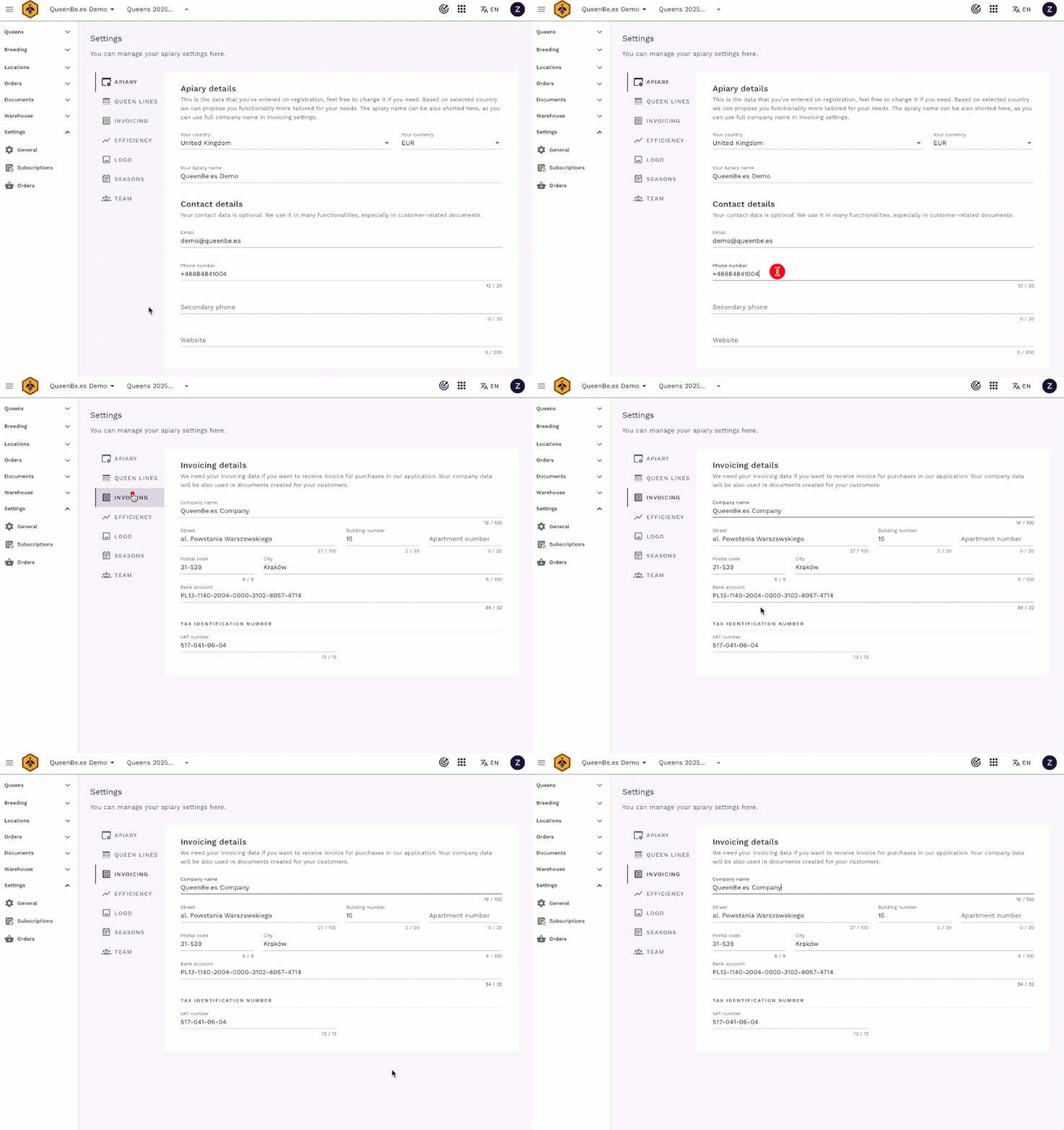
What company data to fill in
- Company Name - your apiary or business name
- Address - full business address for invoices
- Tax ID / VAT Number - if you issue invoices
- Contact Information - phone number and email
- Bank Account Details - for payment instructions on invoices
Setting up queen lines
Queen lines connect your products with specific breeding lines in your apiary:
- Navigate to Left menu > Settings > General > Queen Lines
- Add your breeding lines with full and abbreviated names
- Select the breed - Carnica, Ligustica, etc.
- Save each line
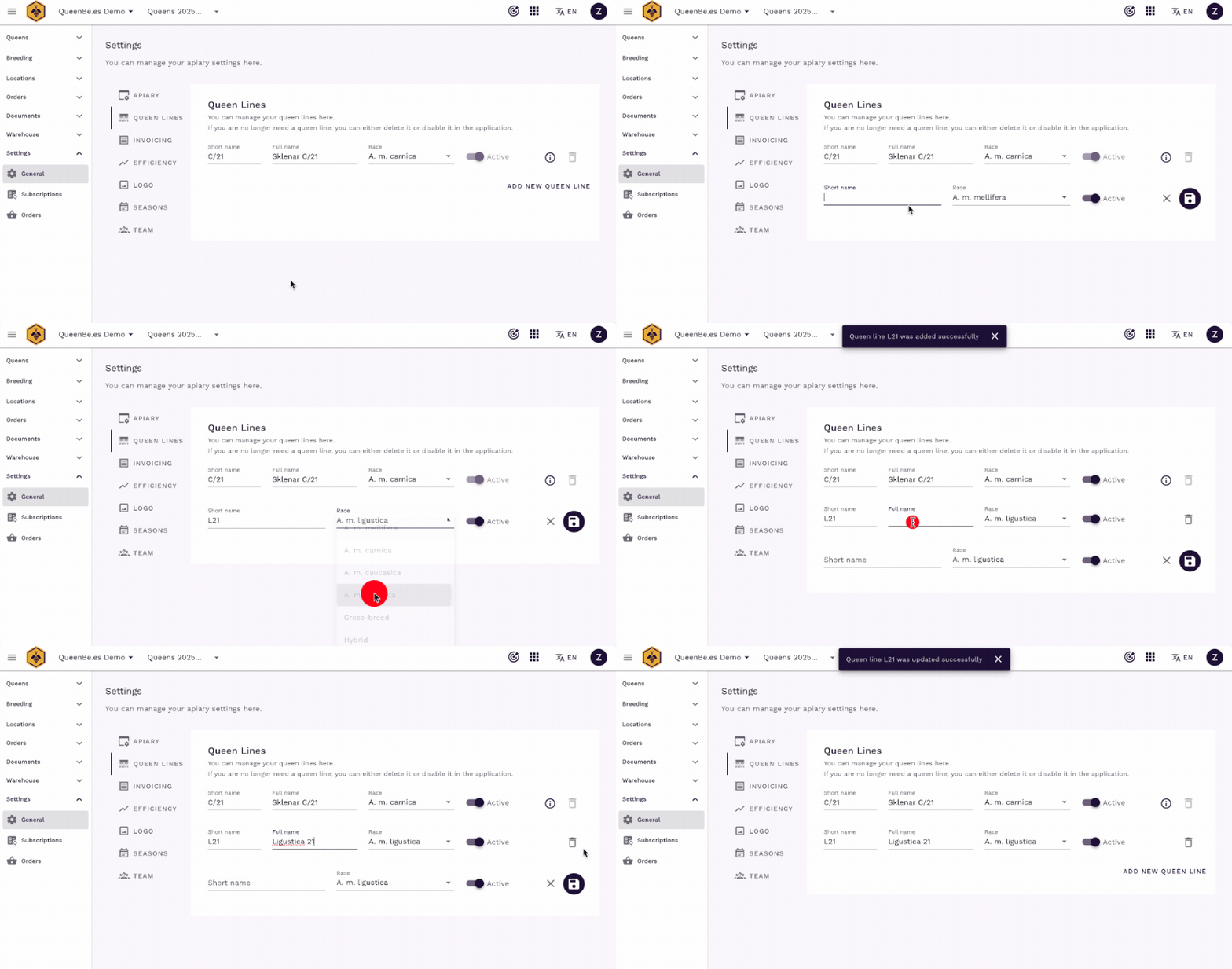
These lines will later be used to track which queens come from which breeding line, helping you maintain accurate records and provide customers with detailed information about their purchase.
Adding products
The next step is adding products sold in your apiary. Our application is focused on supporting queen bee breeding and sales, but this doesn’t mean that only queens can be included in products.
You can define any products: queens, nucleus colonies, or other products produced in your apiary.
Each defined product is later available from the orders screen.
You can find product settings in Left menu > Settings > Orders > Products.
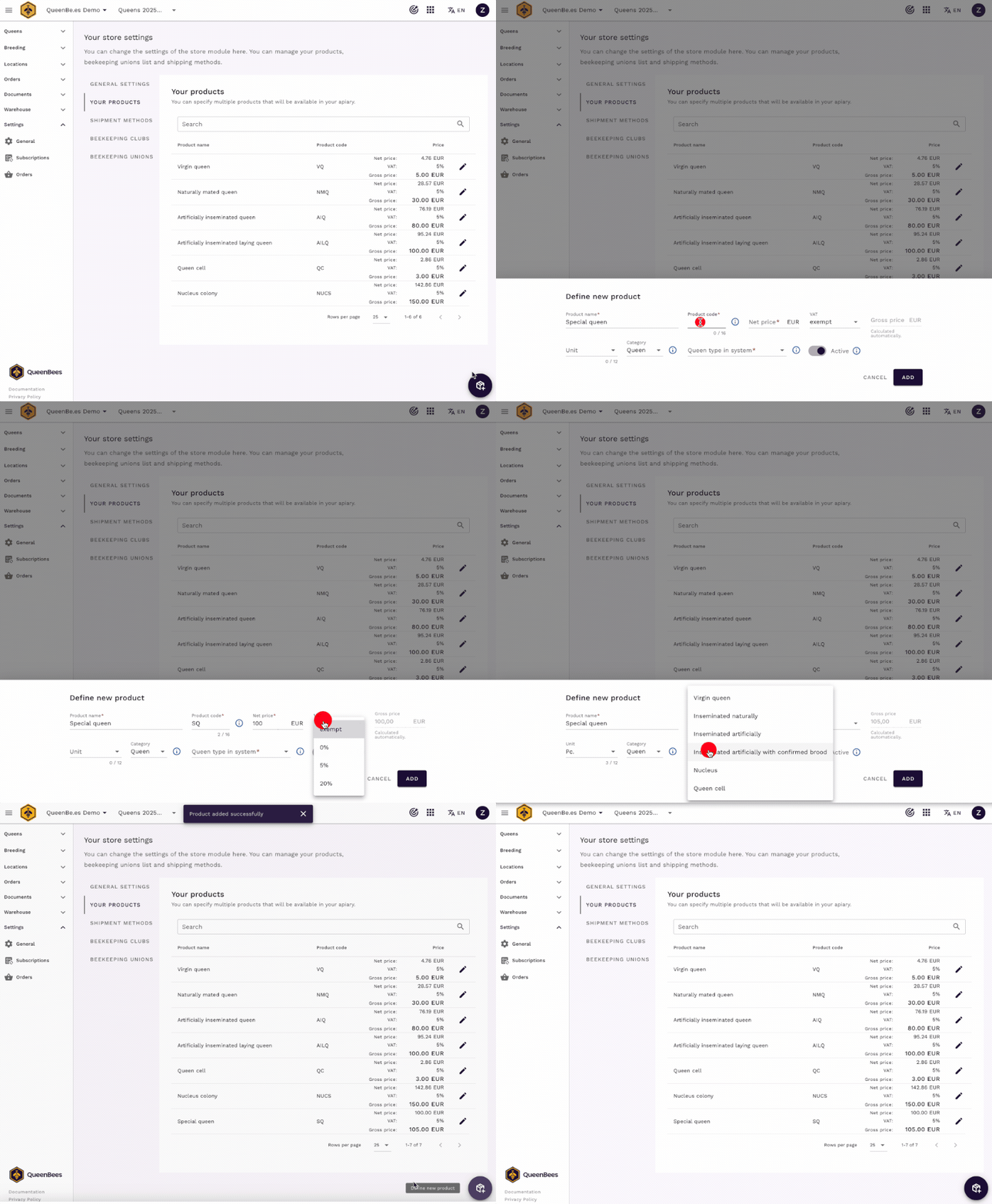
Basic product information
For each product, you can provide basic data:
- Product name - what customers see
- Short code - for quick reference (e.g., “VQ” for virgin queens)
- Net price - base price without tax
- VAT tax rate - applicable tax percentage
- Invoice unit designation - how it appears on invoices (pcs, items, etc.)
Connecting products to queen types
We need information that will allow us to connect your product with other functionalities in our application to let you use its full potential.
Product type: queen or other allows us to establish the connection between the product and the selected queen type in the system. After selecting the “Queen” type, you can mark which selected queen type to connect this product with. Available options are:
- Virgin queens (one-day-old, freshly emerged)
- Naturally mated queens
- Artificially inseminated queens
- Artificially inseminated queens with confirmed laying
- Nucleus colonies
- Queen cells
Active/inactive products
Additionally, you can specify whether a given product is active in the application. If you want to withdraw a product over time but it was used in historical orders - you can deactivate it. This way, it won’t be visible for new orders but will remain in your historical records.
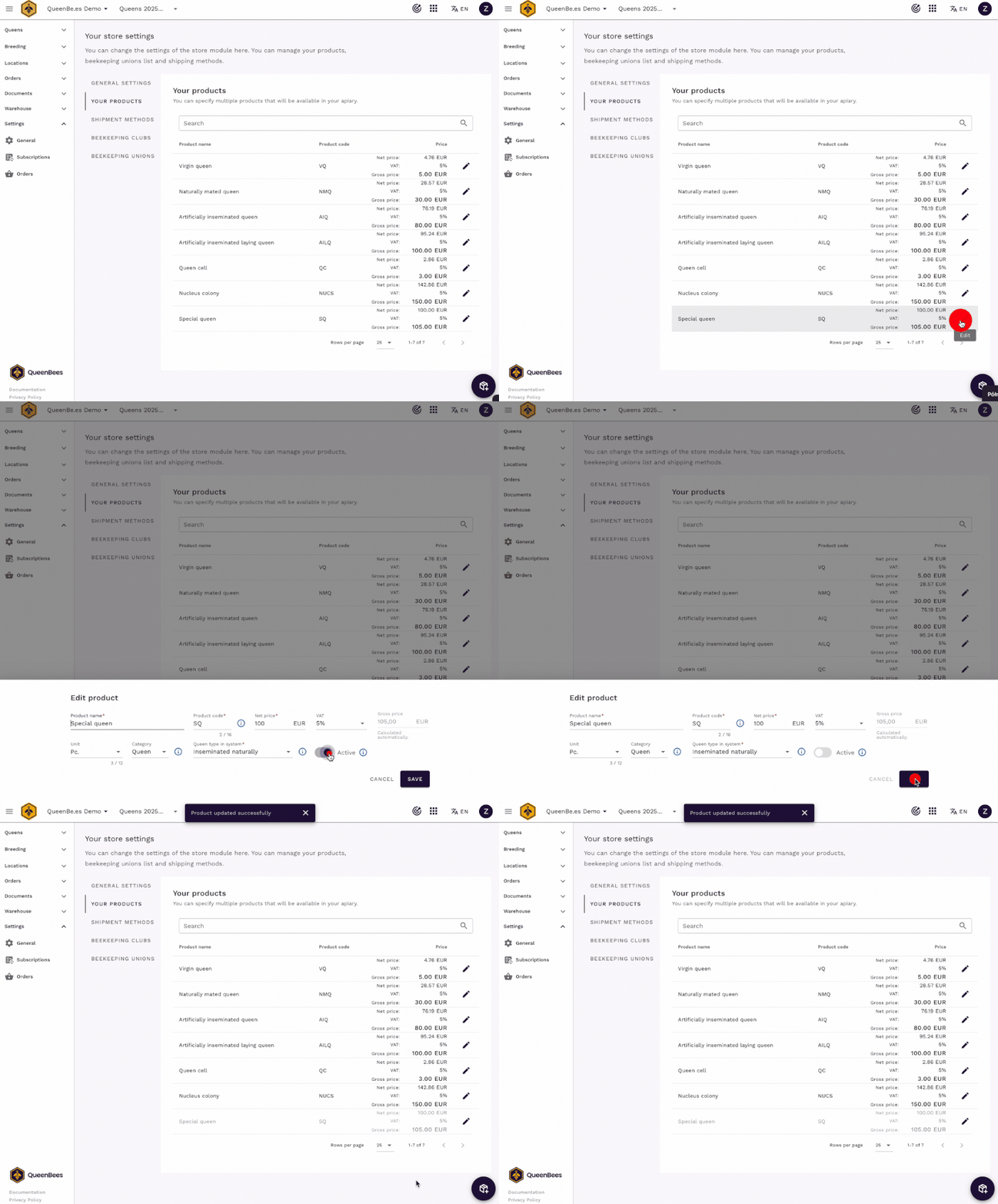
Adding shipping methods
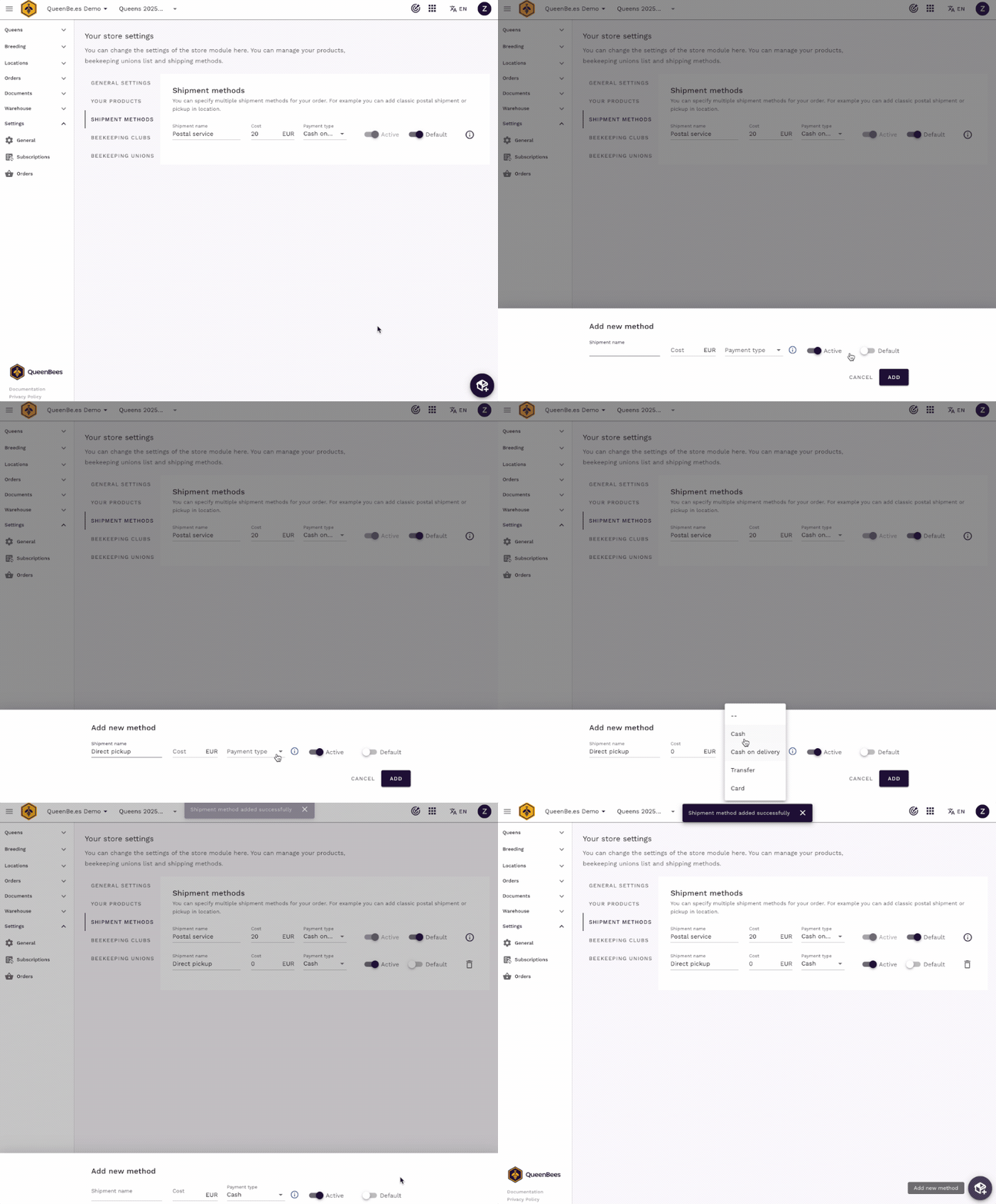
The last step useful before starting to use the order module is configuring the shipping methods used in your apiary.
You can find shipping settings in Left menu > Settings > Orders > Shipping Methods.
You can add both classic shipments and personal pickups. When adding shipments, you can also specify the payment type, which allows us to automatically fill in the appropriate fields in invoices created in our application.
Types of shipping to configure
Courier services:
- Standard courier delivery
- Express shipping
- Priority mail
Personal pickup:
- Pickup at apiary
- Pickup at farmers market
- Pickup at agreed location
Optional steps
Adding beekeeping clubs and unions
If you handle refunded orders in your apiary, you can also enter Beekeeping Clubs and Associations (Unions) into the application. They can also be added later from the individual order level.
You can find circles and associations settings in Left menu > Settings > Orders > Beekeeping Clubs or Beekeeping Unions.
If you have an organized list of Beekeeping Clubs or Unions (e.g., in an Excel file) that you work with - we can import it to the application for you for free.
Contact us to arrange data import.
Your customer data
You can also enter your existing customers into the customer list. This will allow you to enter them faster at the order stage. You can read more about managing customers in our dedicated documentation: Managing clients.
You can find the customer list in Left menu > Orders > Clients.
If you have an organized list of your customers (e.g., in an Excel file or database) that you work with - we can import it to the application for you for free.
Contact us to arrange data import.
Configuration checklist
Before you start processing orders, make sure you’ve completed:
- Company data filled in (name, address, tax ID)
- Queen lines configured with breeds
- At least 2-3 main products added
- Shipping methods configured
Optional but recommended:
- Beekeeping associations added (if applicable)
- Regular customers imported or added
- Product pricing reviewed and confirmed
- Invoice settings verified
Next steps
Once you’ve completed the basic configuration:
- Create your first order - learn the order processing workflow
- Review the orders calendar - plan your production schedule
- Manage clients - organize your customer database
Need help?
Questions about order configuration:
- Contact our support team for setup assistance
- Visit our contact page for personalized consultation
- WhatsApp support for quick questions or new feature requests
We’re here to help you get started with efficient order management for your queen rearing business!