Quick guide to orders - step-by-step scenario
Welcome to the basic order processing guide for QueenBees! This tutorial will walk you through the essential workflow for handling orders in our application, from customer phone to order completion. We’ll cover the key features that make order management efficient and professional.
What you’ll learn
By the end of this guide, you’ll understand:
- Order overview and search - Quickly find existing customer orders
- Creating new orders - Add orders for new or existing customers
- Client management - Add and update customer information
- Product selection - Choose and configure ordered items
- Shipping management - Schedule deliveries and handle multiple shipments
- Order flexibility - Split orders and manage complex customer requirements
This foundation will help you transition from paper-based order tracking to digital efficiency.
Before you start
Prerequisites
Make sure you have:
- Active QueenBees account with order management access
- Basic product catalog set up (queens, hives, honey, etc.)
- Customer database or ability to add new customers. You can always start from scratch or take a look at our demo. Remember that we can import your existing clients from any application - for free. Contact us in such need .
- Shipping methods configured for your operation
Data privacy note
Info
The data shown in demonstrations and examples is entirely fictional and not sourced from any real beekeepers. Customer data privacy is our top priority - we never share or sell customer information with any third parties.
Step 1: understanding the orders overview
The orders section provides a comprehensive view of all customer orders in your apiary. This view might be separated by seasons to limit orders only to the current working time period.
Accessing orders
Navigate to Orders in the main menu to see your order dashboard.
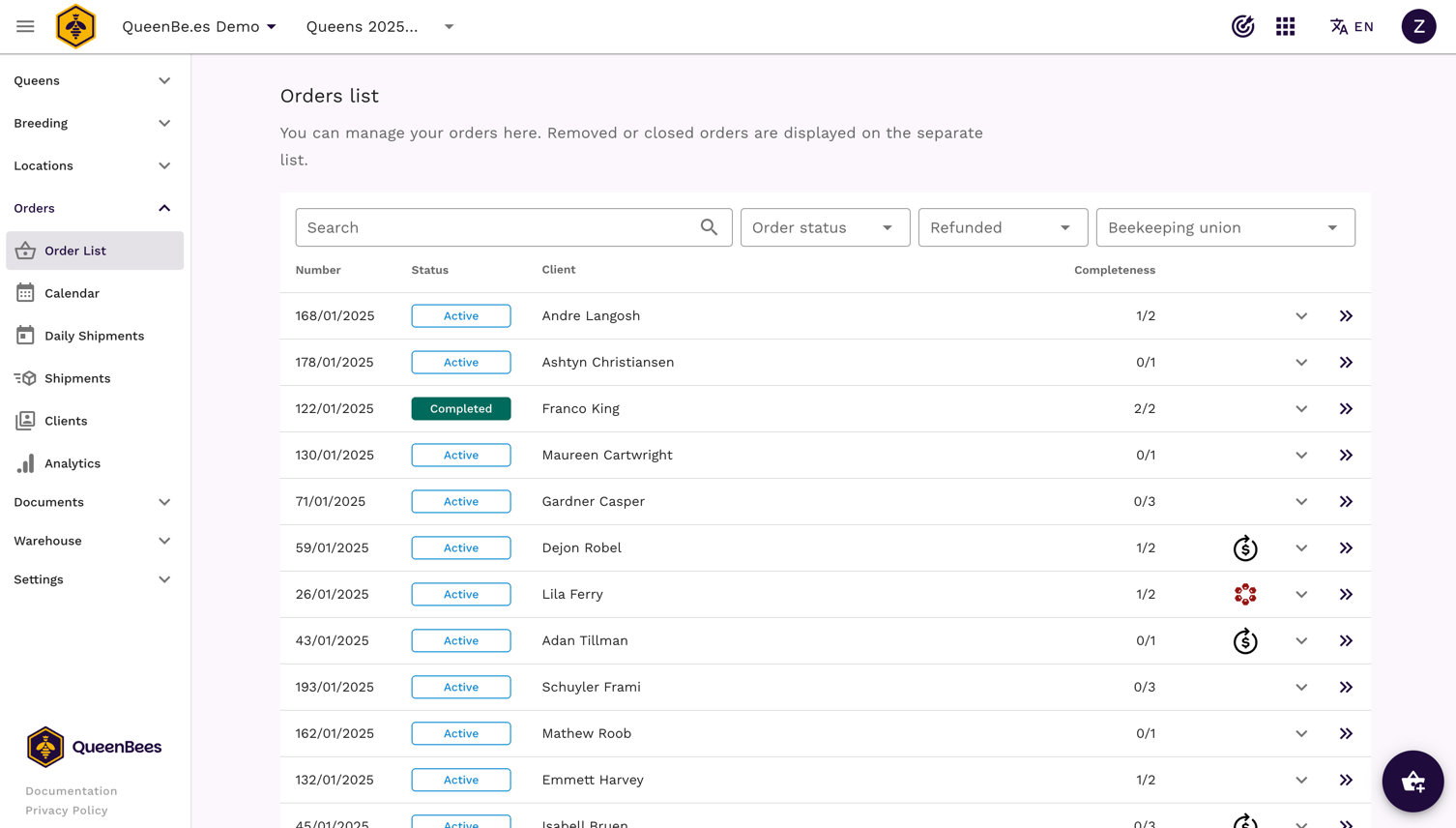
Key features of the orders overview:
- Recent orders summary with status and key shipment progress details
- Order status indicators (active, completed, cancelled)
- Quick search & filter functionality for finding existing customers
Tip
In queen breeding operations, a single customer order often results in multiple shipments. QueenBees supports this complexity with possibility to add and track multiple shipments for one order.
Quick order search
When a customer calls, you can quickly search for their existing orders:
- Use the search bar at the top of the orders screen
- Search by: customer name, phone number, email, or address
- Results show: order history, status and current progress of client shipments

Search & filtering capabilities:
- Real-time filtering as you type
- Cross-reference client details, telephone number or order numbers
- Include completed orders from current and previous seasons for returning customers - allowing you to quickly check if they ordered before
Step 2: creating a new order
Let’s walk through creating an order for a new customer calling in. In most cases when a customer calls, they might be new to your business. In QueenBees, we’ve tailored the order creation process to handle new customers efficiently.
Starting a new order
Most actions in QueenBees begin with the action button in the bottom-right corner.
Click the (+) button and select ‘Create new order’

The order panel opens with sections for client, products, order documents and shipping

Order panel layout:
- Left side: Order basics and customer information
- Right side: Refund options (covered in advanced guides)
- Bottom: Shipments and delivery details
The order is automatically saved every minute, so you don’t have to worry about losing data in progress. Also, manual save is available.
Adding a new customer
Using intuitive client search, you can search for any existing customer in your account. If the customer isn’t in your database, add them directly from the order:
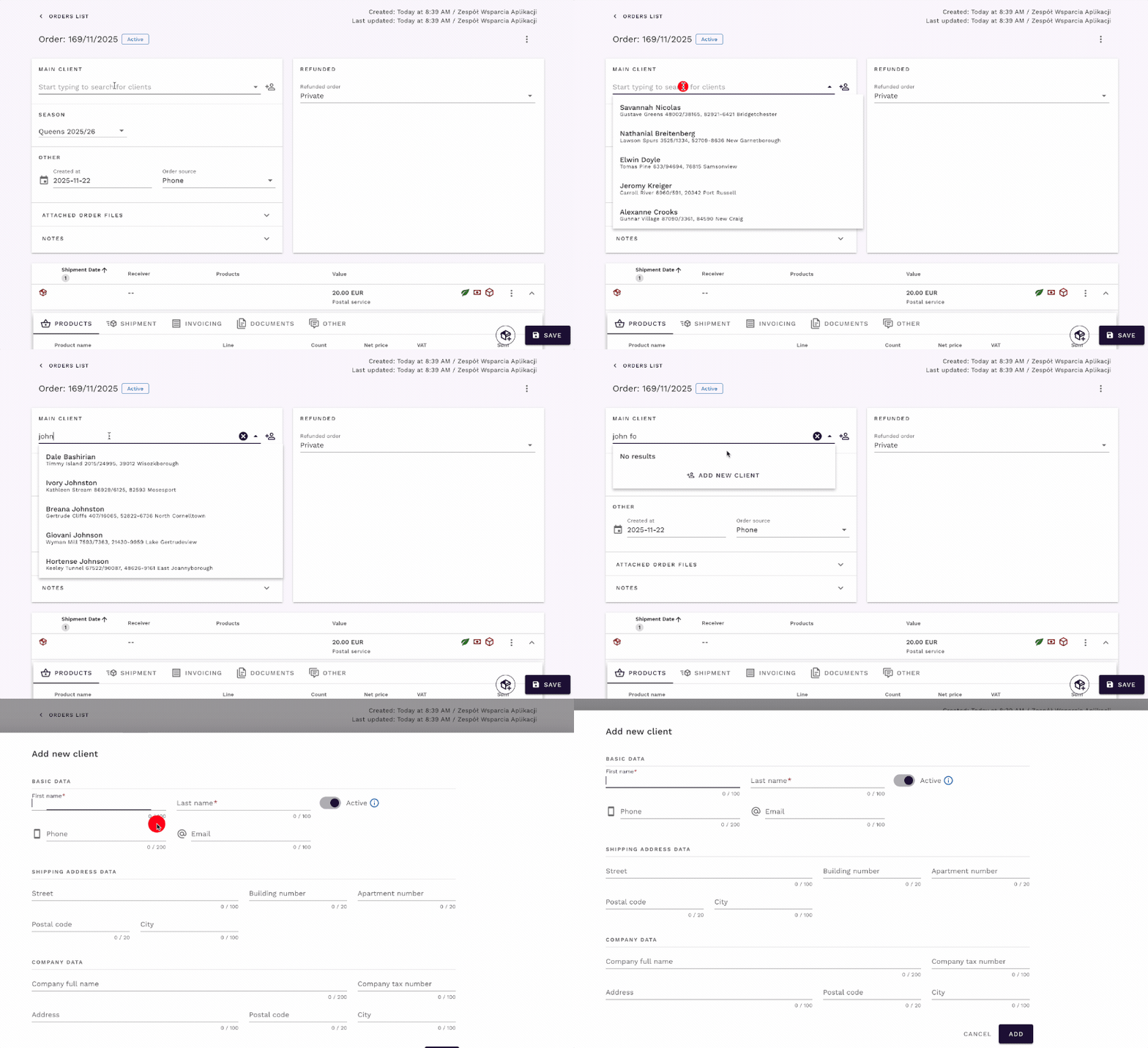
Click ‘Add new client’ in the customer section
Enter basic information:
- Name and surname: required for minimal orders, when client want to pick up queens directly from you
- Phone number (optional): useful for communication
- Address (optional): if shipping is needed
- Email (optional): for sending order confirmations and updates
You can use Tab key to quickly move between fields while entering data.
Tip
For pickup orders, only name and phone may be sufficient. You can always add more details later as the relationship develops.
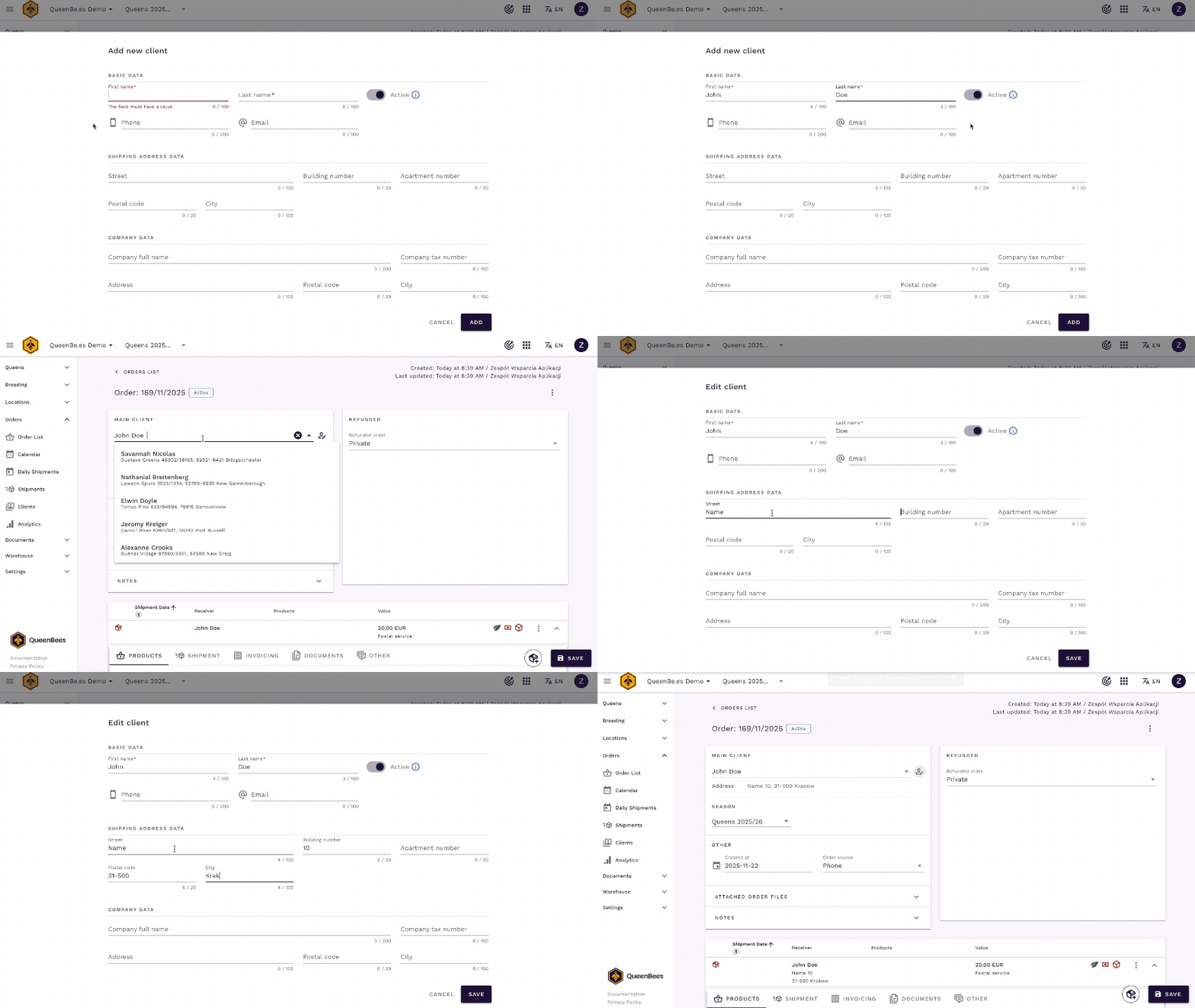
- Save the client - they’re now in your database for future orders. Saved client is immediately added to current order.
Client management features:
- Address editing directly from the order
- Contact information updates without leaving the order
Note
If you have an existing customer list (Excel, other software), we can import it for you at no cost. Contact us for assistance.
Step 3: adding order products
Now let’s add products - what the customer is ordering. For that we need to scroll down to shipment details. When creating order, first shipment is created automatically. You can add more shipments later if needed.
You can already see that default elements are present: shipment receiver based on client data and shipping method (if set).
Selecting products
- In the products section, choose from your catalog. If there is only one queen line in your apiary, it will be preselected for you.
- Enter quantities for each item
- Check the prices - they are calculated automatically based on your product settings
- Add more products as needed for the order
- Save the order to record the products
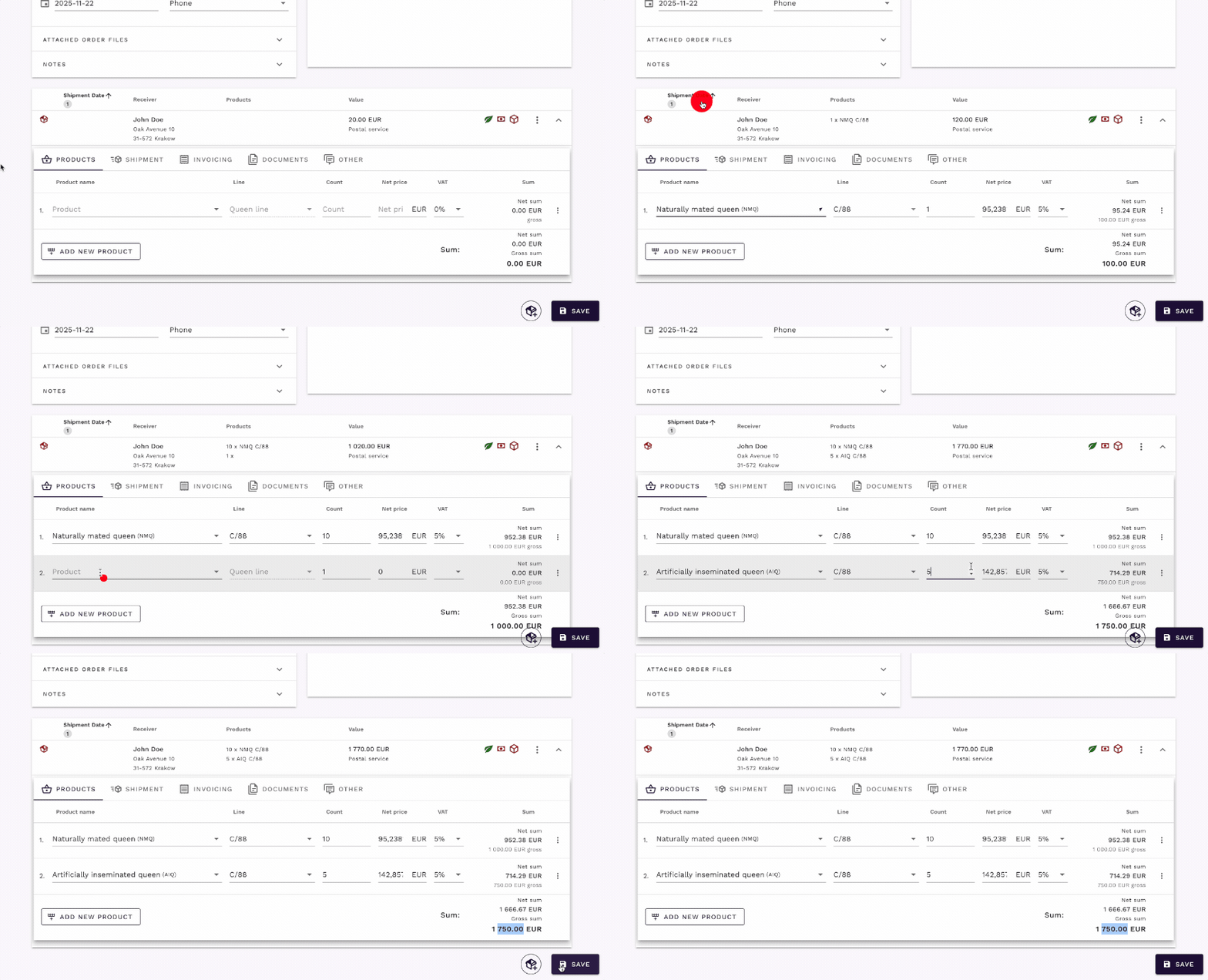
Product flexibility:
- Supporting your country vat rates or tax exceptions: configured in product settings - applied automatically
- Queen types: Naturally mated, instrumentally inseminated, nucleus queens and others
- Other items: Hives, honey, beekeeping supplies - queenbe.es is really flexible here
- Custom products: Add new products directly from order if needed
Tip
Customers often order more than just queens - our flexible product system supports hives, honey, and other beekeeping products in the same order. You can use seasons for better separation and organization of products and orders.
Step 4: managing shipping and delivery
Following the telephone scenario, next question might be: “when can you deliver?”. The shipping section handles this part of conversations.
Accessing shipping options
- Click the ‘Shipping’ tab in the order panel
- Choose shipping method (pickup, courier, etc.). If you have default shipping method set, it will be preselected for you.
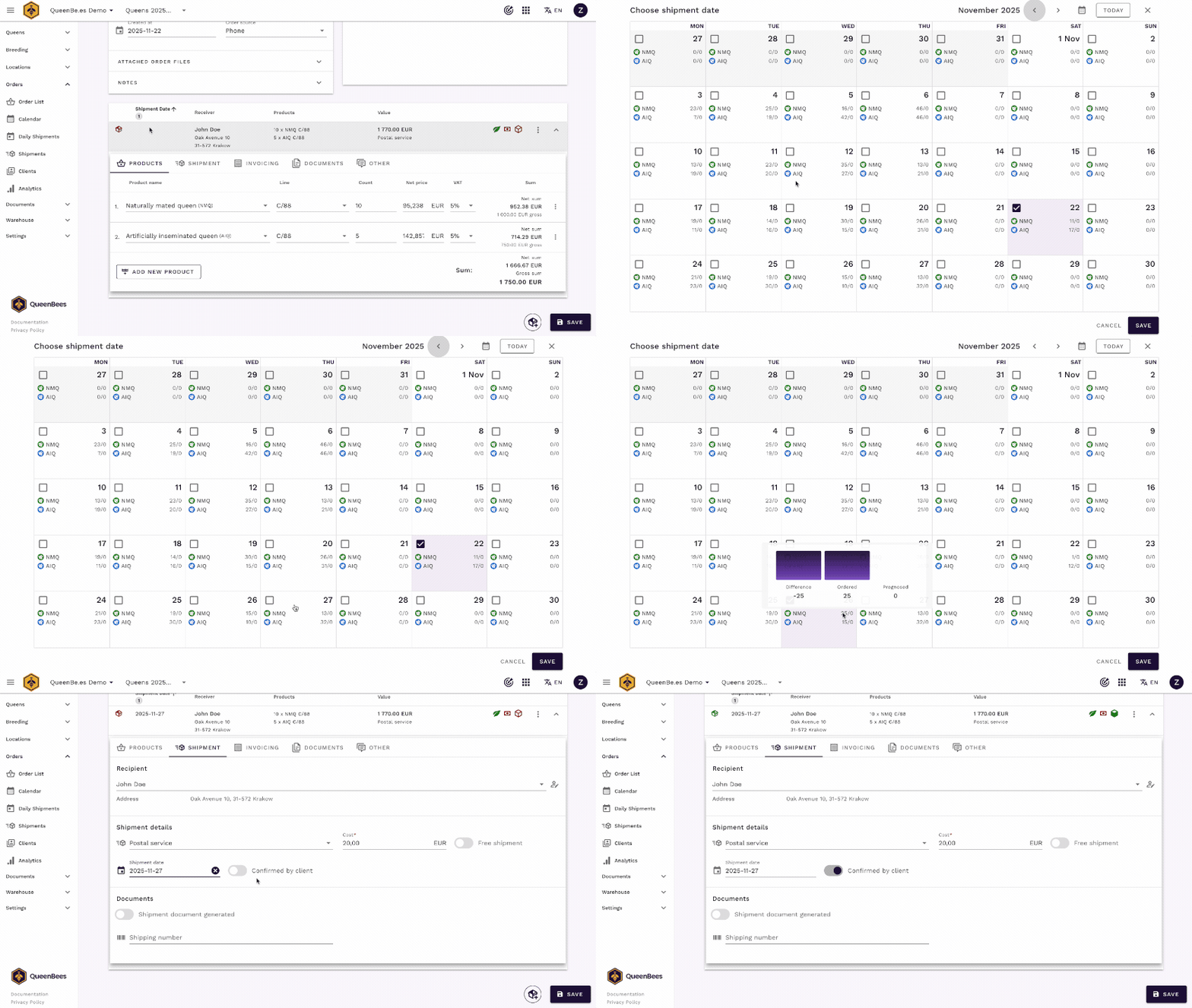
- Select delivery date - interactive calendar will open
- Review possible shipping dates - our smart calendar show you how much products were already committed for each day, allowing you to choose best available date and avoid over-planning.
- Save the shipping date to finalize the delivery plan
Using the delivery calendar
The calendar shows your capacity and helps answer delivery questions:
Calendar features:
- Accumulated orders - See total queens and other products committed per day
- Capacity visualization - Color-coded availability
- Non-working days - Mark days you’re unavailable
- Seasonal planning - Avoid overcommitment during peak times
Tip
During busy seasons, set non-working days to prevent scheduling conflicts and ensure reliable delivery dates.
Splitting orders into multiple shipments
Queen breeding often requires multiple deliveries:
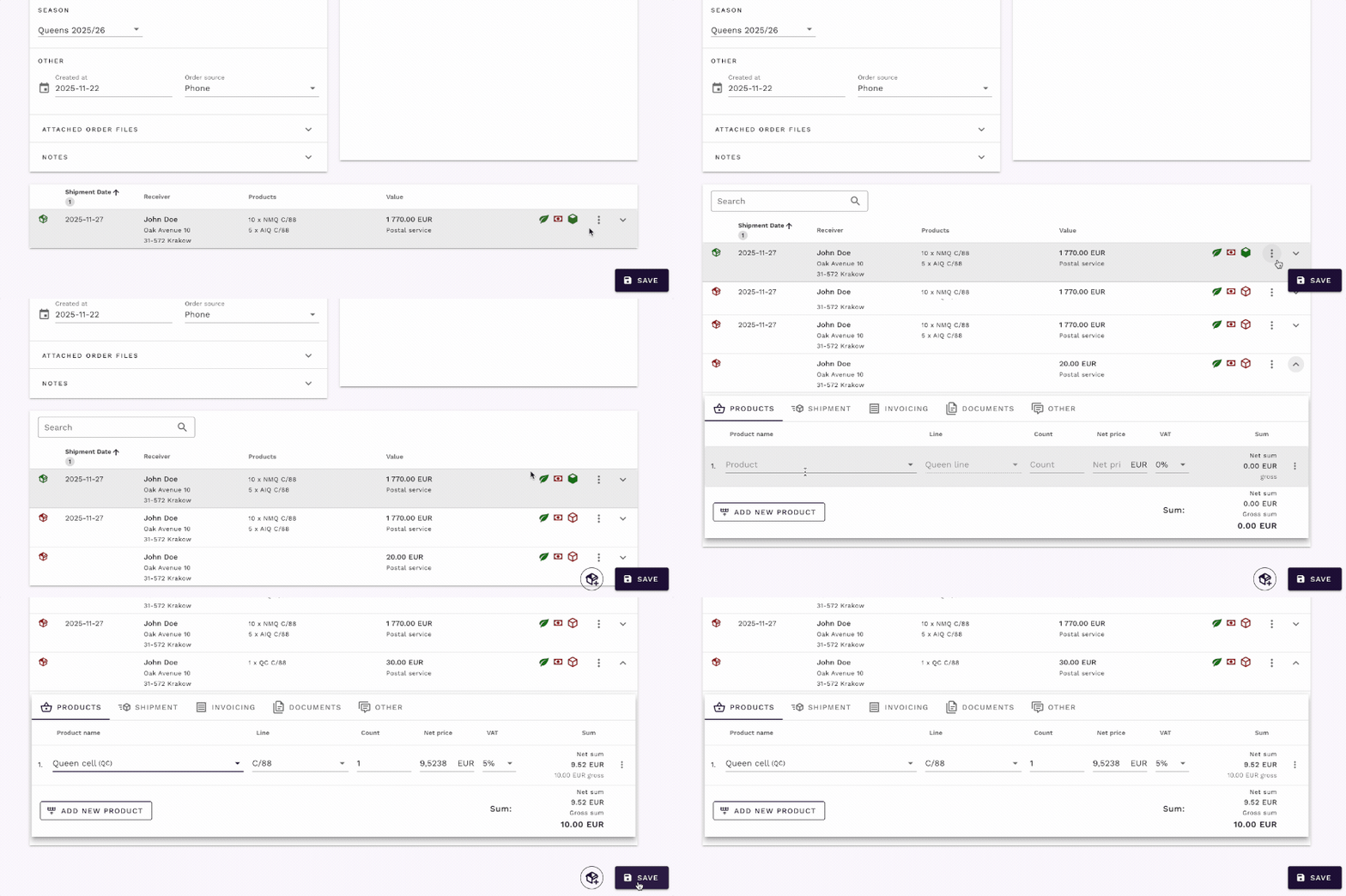
- Create multiple shipments for separate shipments, you can either duplicate existing one or add new shipment from scratch.
- Assign different dates to each shipment, keep all shipments from one order organized in one place.
- Ship to other recipient in case if multiple people are ordering with one package, for example: a beekeeping union order with multiple members.
- Track progress of each delivery independently, while keeping overall order history intact.
Benefits of split orders:
- Flexible delivery - Customer gets queens at optimal times
- Capacity management - Spread deliveries across available days
- Order tracking - Monitor each shipment separately
Mobile and multi-device access
Info
QueenBees works on any device with internet access - phone, tablet, or computer. You can access your orders from the office, field, or home.
Next steps: expanding your order management
Immediate actions
Build your foundation:
- Add all existing customers to the system
- Set up your complete product catalog
- Configure shipping methods and pricing
Explore features:
Support and resources
Getting help
Questions or issues:
- Contact our support team
- Check the Contact page
Congratulations! You now understand the basic order processing workflow in QueenBees. The system is designed to handle the complexity of queen breeding orders while keeping the process efficient and customer-focused.
Remember: QueenBees grows with your business. Start with these basics, then explore advanced features as your operation expands. The platform supports everything from small hobby operations to large commercial beekeeping businesses.