Client management: building your customer database
Client management in QueenBees transforms your customer database from scattered notes into an organized system that streamlines order processing and strengthens your relationship to customer.
QueenBees is designed for queen breeders who juggle individual customers, commercial clients and beekeeping union-wide sales. The client management system ensures you have accurate contact information, shipping addresses, and order history at your fingertips.
Tip
Client management integrates directly with order processing - add customers on-the-fly during order creation, or build your database in advance for faster checkout during busy breeding seasons.
Understanding client management
A client in QueenBees represents anyone who purchases queens or any product from your apiary - individual beekeepers, beekeeping union members, or business customers requiring more formal approach.
What you can track for each client
- Core contact information: name (first and last), phone number for delivery coordination, email address and complete shipping address
- Business details (for commercial clients): Company legal name, tax identification number and separate company billing address if needed
- Organizational connections: beekeeping club membership or union affiliation
- Relationship management: Order history, cooperation status (reliable, issues, blocked) with custom notes and special requirements
Reviewing list of the clients
Info
The data shown in demonstrations and examples is entirely fictional and not sourced from any real beekeepers. Customer data privacy is our top priority - we never share or sell customer information with any third parties.

Creating your first client
Prerequisites
Before adding clients to QueenBees, ensure you have:
- Active QueenBees account with client management access
- Basic customer information (name and at least one contact method)
- Optional: existing customer list for bulk import
Note
If you have an existing customer list (Excel, other software), we can import it for you at no cost. Contact us for assistance.
Step-by-step client creation
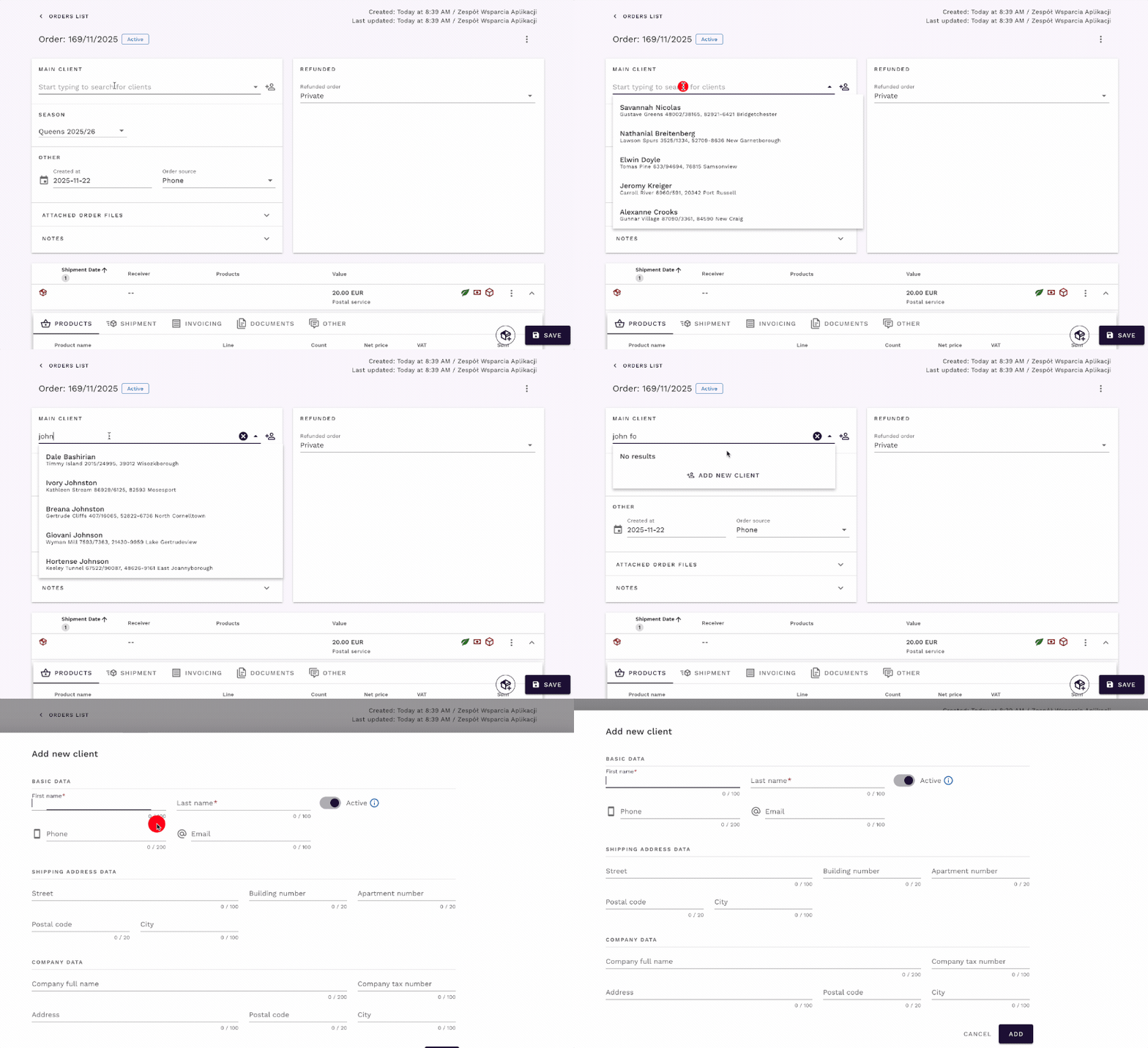
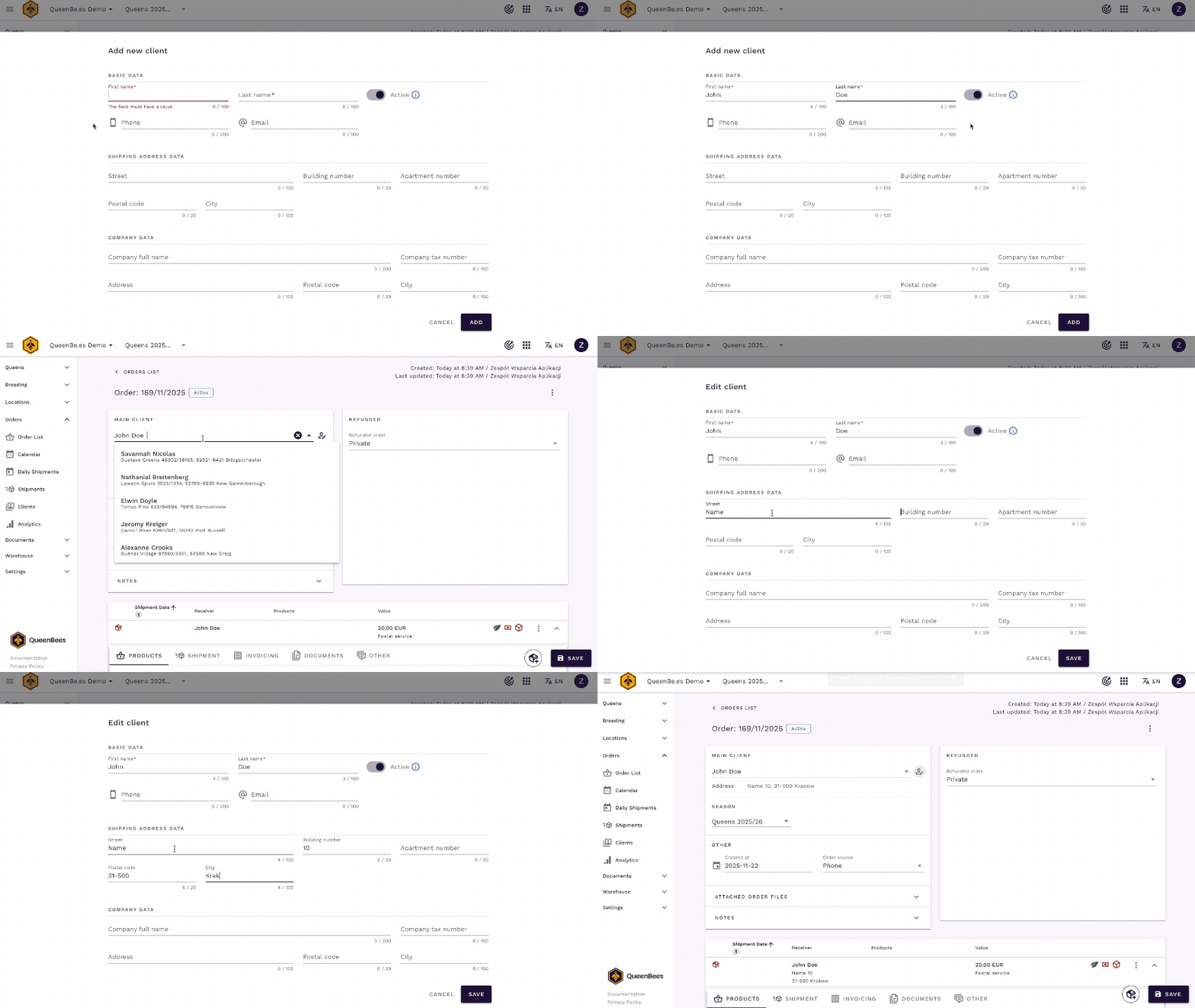
Method 1: Add client during order creation (recommended for new customers calling in)
When creating an order and you don’t find the customer in search:
- Click ‘Add new client’ in the customer section of order panel
- Enter essential information:
- First name and last name (required)
- Phone number (for delivery coordination)
- Email (for order confirmations)
- Address (if shipping required)
- Save the client - they’re instantly added to your database and order
Tip
For pickup orders where customers collect queens directly, only name and phone number may be sufficient. Add more details as your relationship develops or shipping becomes necessary.
Method 2: Add client from client list
For building your database in advance:
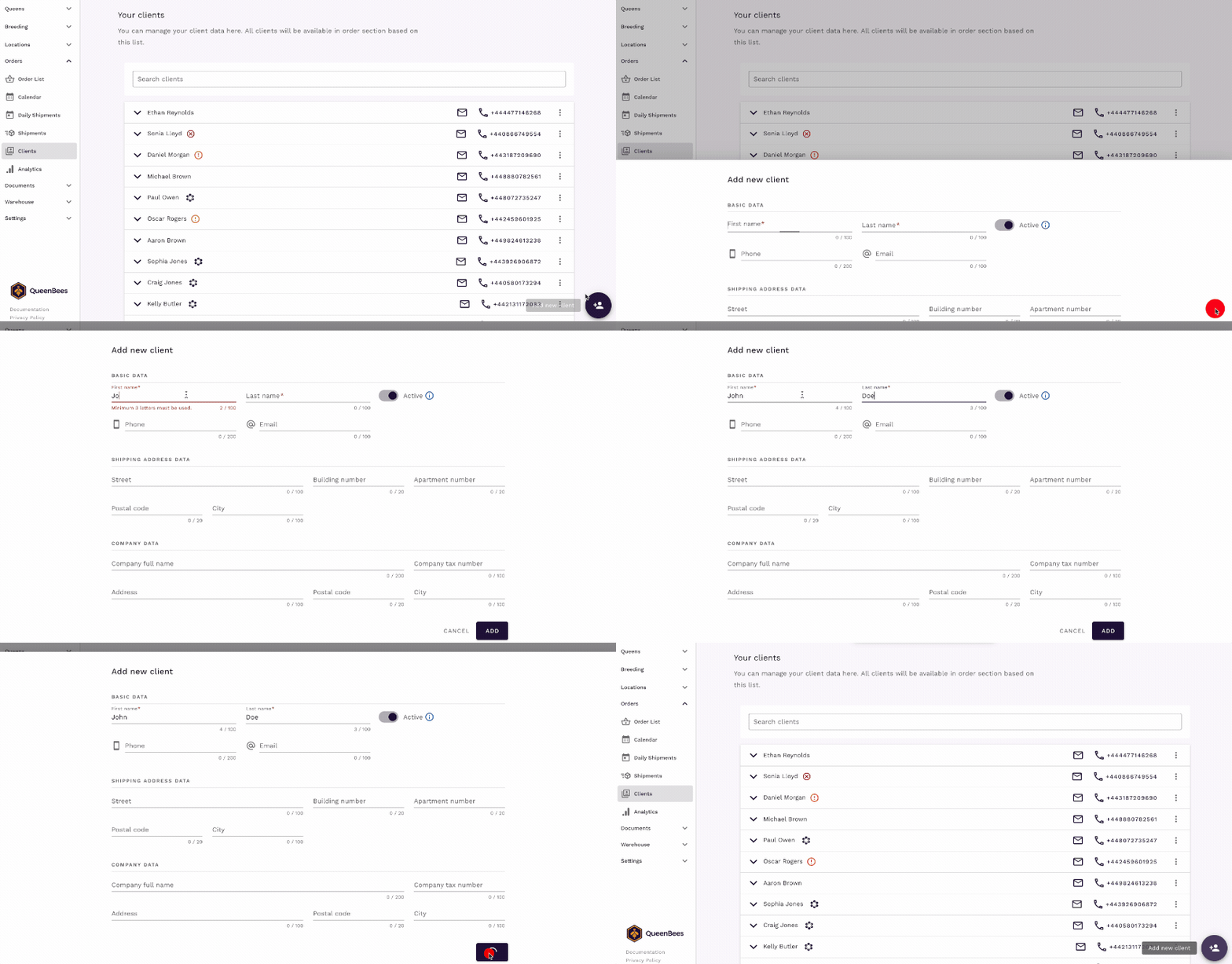
- Navigate to Orders > Clients from main menu
- Click the (+) button in bottom-right corner - ‘Add new client’
- Fill in client details:
- Basic contact information (name, phone, email)
- Complete shipping address
- Company details if business client
- Club/union membership if applicable
- Save the client to your database
Importing existing customer data
If you have existing customer lists from spreadsheets or other systems, we can import that for you.
Info
Free customer import service: Send us your existing customer database in any format (Excel, CSV, other software export), and we’ll import it for you at no cost. Contact us to get started.
Client search and filtering
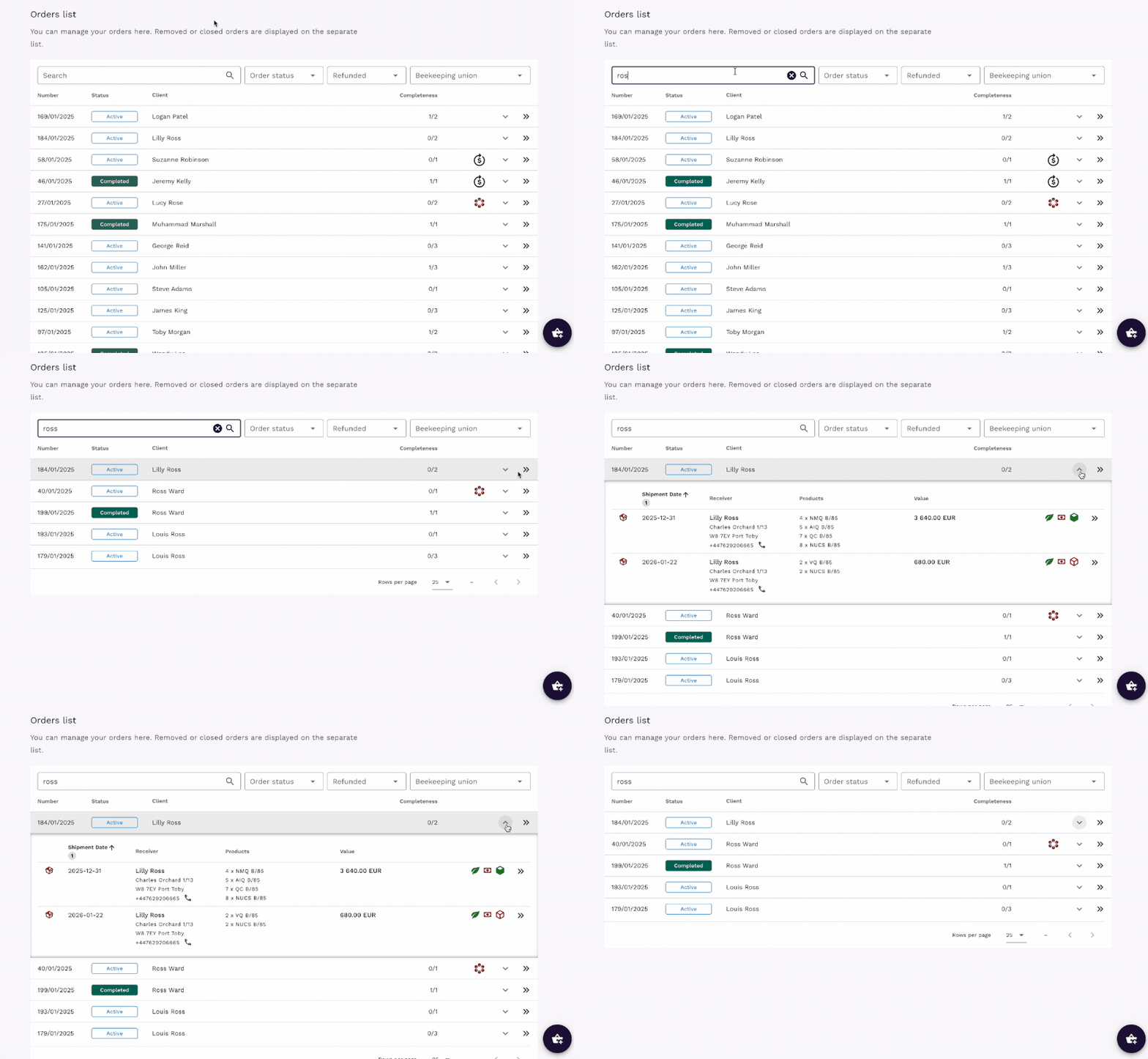
You can quickly find clients using the search bar and filters in Clients list, as well as during order creation.
But the most important part is search for client orders from orders list. You can search by client name, phone number, email, or address details.
Client cooperation status
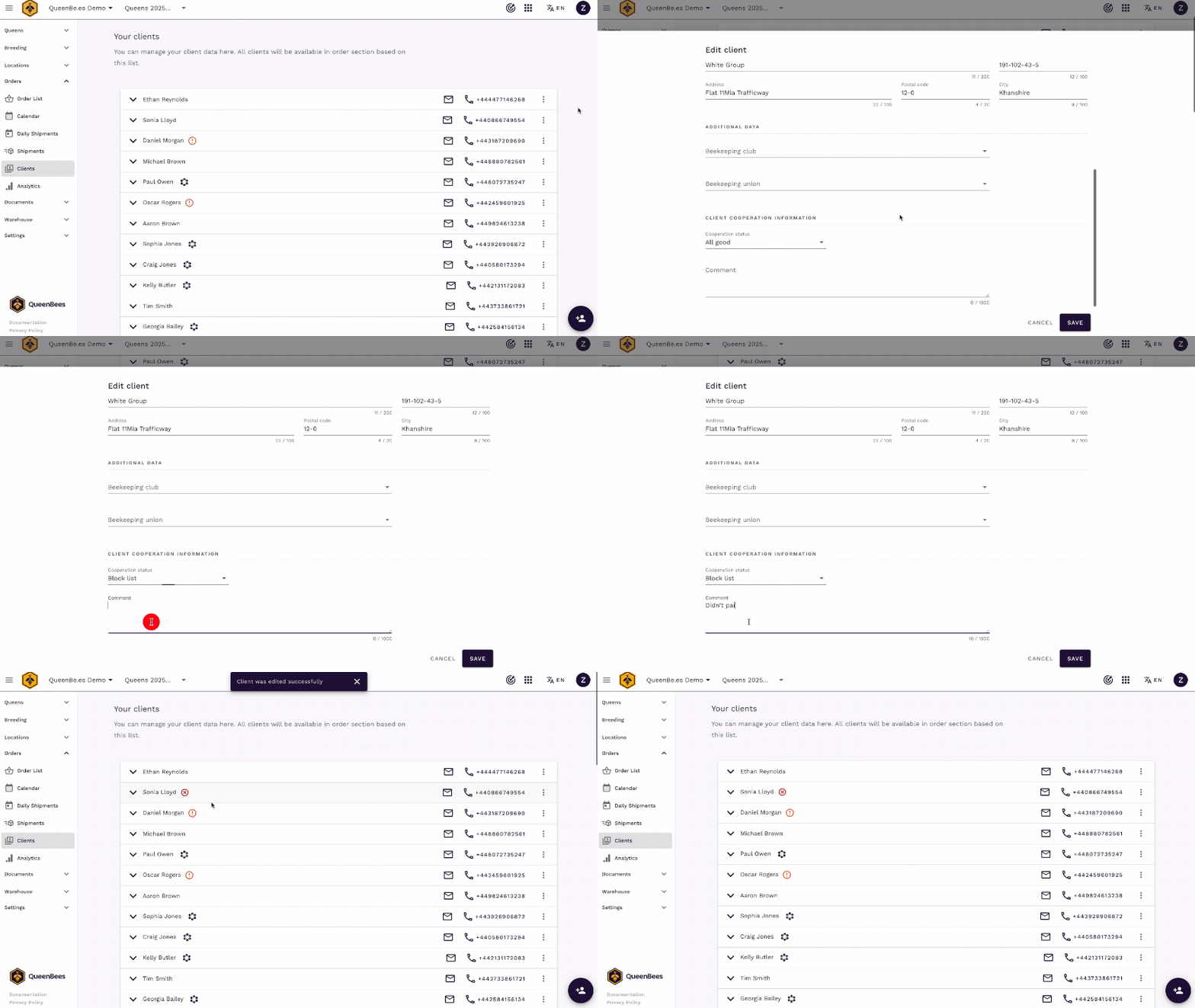
Mark clients based on your experience working with them to streamline future order decisions:
Status levels:
- All good (default) - reliable cooperation, no issues
- Warning - minor issues requiring attention (late payments, special handling)
- Block list - serious problems, avoid future orders
Updating client information
Quick edits from client list:
- Find client in overview
- Click three-dots menu next to name
- Select ‘Edit’ to update details
- Modify any information needed
- Save changes
Editing during order processing:
- Update address directly from order panel
- Modify contact details without leaving order
- Changes save immediately to client list
Assigning clients to organizations
During client creation you can select beekeeping club or union or from dropdown. Union assigned to client will be automatically added when he’s ordering refunded order from union.
Tip
When processing refunded orders through unions or clubs, organizational tracking ensures accurate documentation and reporting for subsidy programs.
Data quality and maintenance
Keeping information current
Regular maintenance tasks:
- Update contact information at any moment - clients might change details during next call
- Add notes about preferences or special requirements
- Verify addresses before shipping to prevent delivery failures
Productivity and data quality best practices:
- Use consistent name formatting for easy searching
- Update phone numbers promptly for delivery coordination
- Record address changes immediately
- Try to store client email addresses for automated confirmations
Privacy and data protection
Protecting client information
QueenBees implements comprehensive data protection measures:
Security features:
- Access control - only authorized team members view client data
- Data separation - client information stored securely and separately from other accounts
- Secure transmission - data transfers use HTTPS encryption
- Regular backups - automatic data backup for disaster recovery
Info
Privacy commitment: We never share, sell, or distribute customer data to third parties. All demonstration data in documentation is fictional and not sourced from real beekeepers.
Troubleshooting common issues
Can’t find a client in search?
Troubleshooting steps:
- Check spelling - try variations of name
- Search by alternative fields - phone number, email, partial address
- Look for similar names - clients might have registered differently
- Check orders from previous seasons - may help identify correct based on order history
- Check if client is active - inactive clients might be in archived
If client truly doesn’t exist:
- Start with order and add new client from order panel
- Double-check with customer their data
- Consider they may have ordered under different name or with a package for other beekeeper
Next steps: expanding your client operations
Explore related features:
- Basic order processing - Create orders using client data
- Refunded orders - Handle subsidy programs with organizational tracking
- Order analytics - Analyze customer patterns and trends
Getting help
Questions or need assistance?
- Contact support team
- Visit Contact page for all support options
- Free client data import service available
Remember: effective client management grows with your business. Start with basic contact tracking, then leverage advanced features like analytics and bulk operations as your customer base expands. The platform supports operations from small hobby breeders to large commercial queen production businesses.