Refunded orders: complete guide to reports for unions
Welcome to the guide for refunded orders. If you’ve ever spent days or weeks preparing settlement reports for beekeeping unions, this feature will transform your workflow. What used to take hours of spreadsheet work can now be completed in minutes with just a few clicks.
Why this matters: the settlement challenge
Imagine this common scenario:
The old way: you’ve received confirmation from your beekeeping union that they’ll refund certain orders. Now you need to:
- Manually filter through all your orders to find the ones eligible for refund
- Match each order to the correct union and club
- Extract product details and quantities
- Calculate totals across potentially hundreds of orders
- Create settlement reports
- Track which orders have been already processed
- Prepare invoices for the unions
- Prepare origin of certificates for the unions
This process could take days or even weeks, especially during peak season when you’re already overwhelmed with private orders fulfillment.
The QueenBees way: Filter refunded orders by union, prepare a complete settlement report in minutes, and generate all necessary documents with a single click. Multiple partial reports throughout the season? No problem.
Understanding refunded orders
In many countries, beekeeping unions or associations provide financial support to their members by refunding a portion of their queen bee purchases. QueenBees supports two types of refunds:
- Union refunds: Orders subsidized through a beekeeping union or association.
- Individual refunds: Orders refunded directly to individual beekeepers outside of union programs.
Filtering refunded orders
You can easily find refunded orders from the main orders list:
- Filter by order type: Select “Refunded” to see only orders eligible for union settlements.
- Filter by specific union: Narrow down to orders from a particular beekeeping union.
- Filter by club: If your unions have sub-groups (clubs), you can filter by those as well.

Visual indicators: refunded orders are marked with distinctive icons in the order list. The icon color indicates whether the refund has been confirmed.
Marking an order as refunded
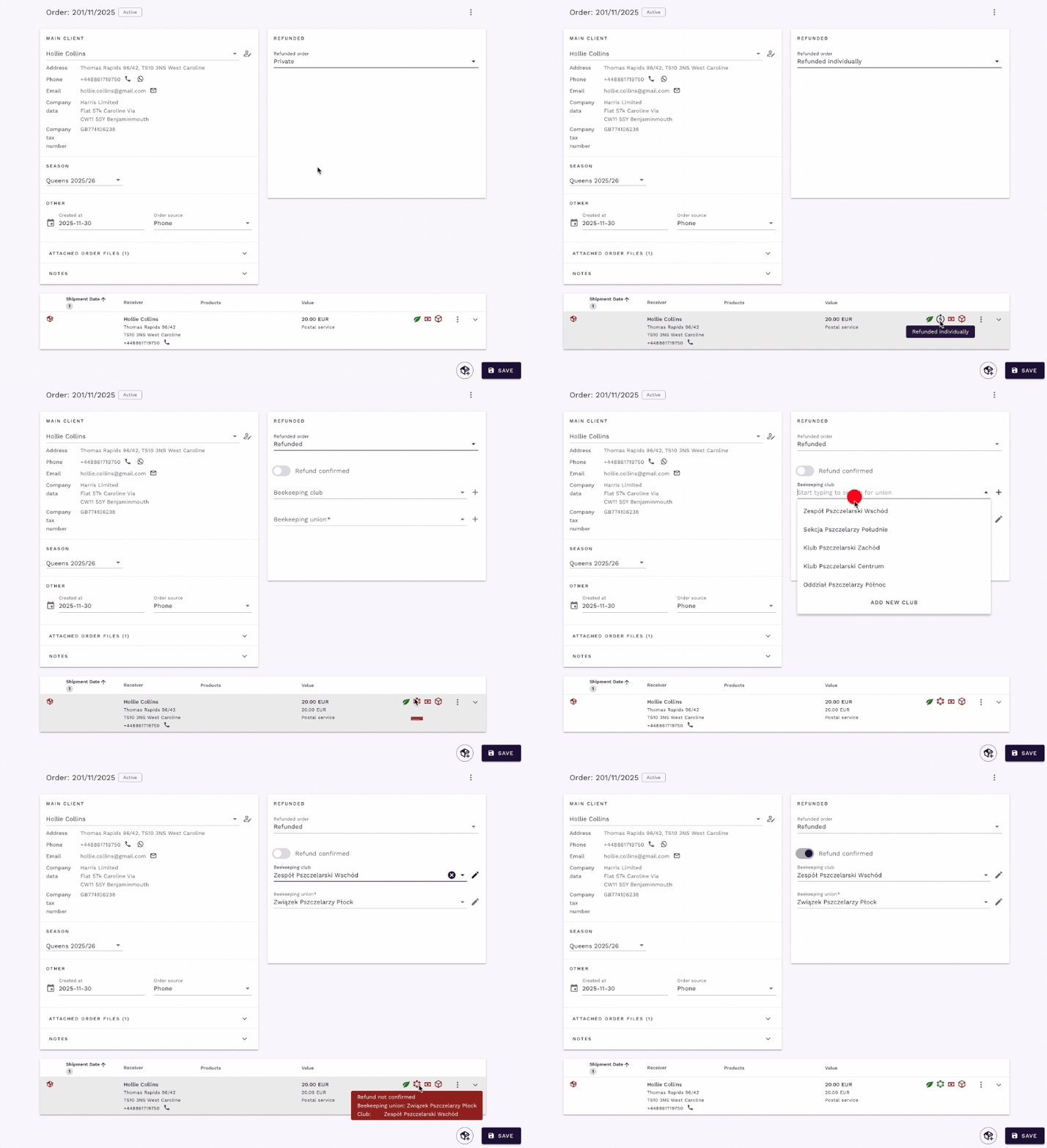
When creating or editing an order, you can designate it as a refunded order:
Step-by-step process
- Open the order you want to mark as refunded.
- Navigate to the “Refunds” section in the order details.
- Select the refund type:
- Union refund: for orders subsidized by a beekeeping union.
- Individual refund: for direct refunds outside of union programs.
- Select the beekeeping union from the dropdown list.
- If the client is already associated with a union in the system, it may be automatically assigned.
- Select the club (if applicable).
- Some unions have sub-divisions or local clubs that need to be tracked separately.
- Mark refund as confirmed (optional).
- Check this box once the union has confirmed the order is eligible for refund.
Shipment-level refund control
Here’s a powerful feature: refund information is automatically applied to all shipments within an order. However, if a customer orders additional items outside of the refund program, you can exclude individual shipments from the refund.
Example: A beekeeper orders 20 queens through their union’s refund program, but also wants to purchase 5 additional queens privately. You can mark the first shipment as refunded while excluding the second shipment from union settlement.
Union reports overview
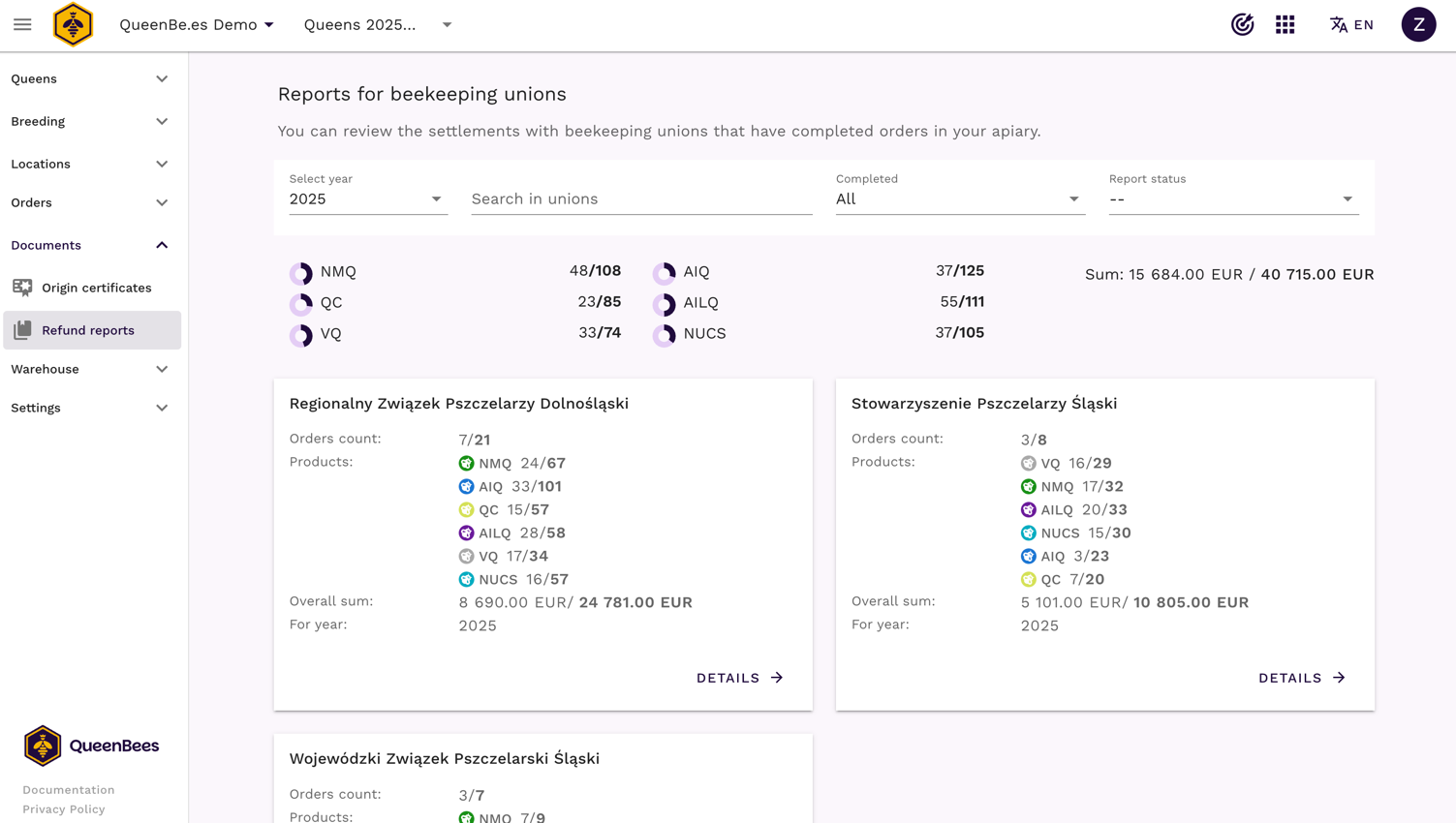
The Reports section gives you a complete overview of all your refunded orders, organized by union.
What you’ll see
- Total summaries: At a glance, see how many products and their total value are completed or pending settlement across all unions.
- Summary by union: Each card shows the total number of orders and their value for a specific beekeeping union.
- Product breakdown: See which products have been ordered and in what quantities.
- Completion status: Track completed vs. pending values at a glance.
- Existing reports: View any settlement reports you’ve already created for each union.
- Year filter: Easily switch between different seasons/years.
- Total values: At the top, see aggregated totals across all unions for the selected year.
Filtering Options
You can quickly find the unions you need using these filters:
- Filter by name: Search for a specific union by name.
- Filter by completeness: Show only unions with all orders completed, or those with pending orders.
- Filter by report status: View unions based on their settlement status.
Tip
The data is sorted by order volume, so unions with the highest order values appear first, helping you prioritize your settlements.
Creating a settlement report
This is where the magic happens. What used to take days now takes minutes.

Accessing union details
- From the Reports dashboard, click on the union card you want to settle.
- You’ll see a detailed view showing all existing reports for that union, organized by year.
- Click “Create new report” or select an existing draft report to continue working on it.
Building your report
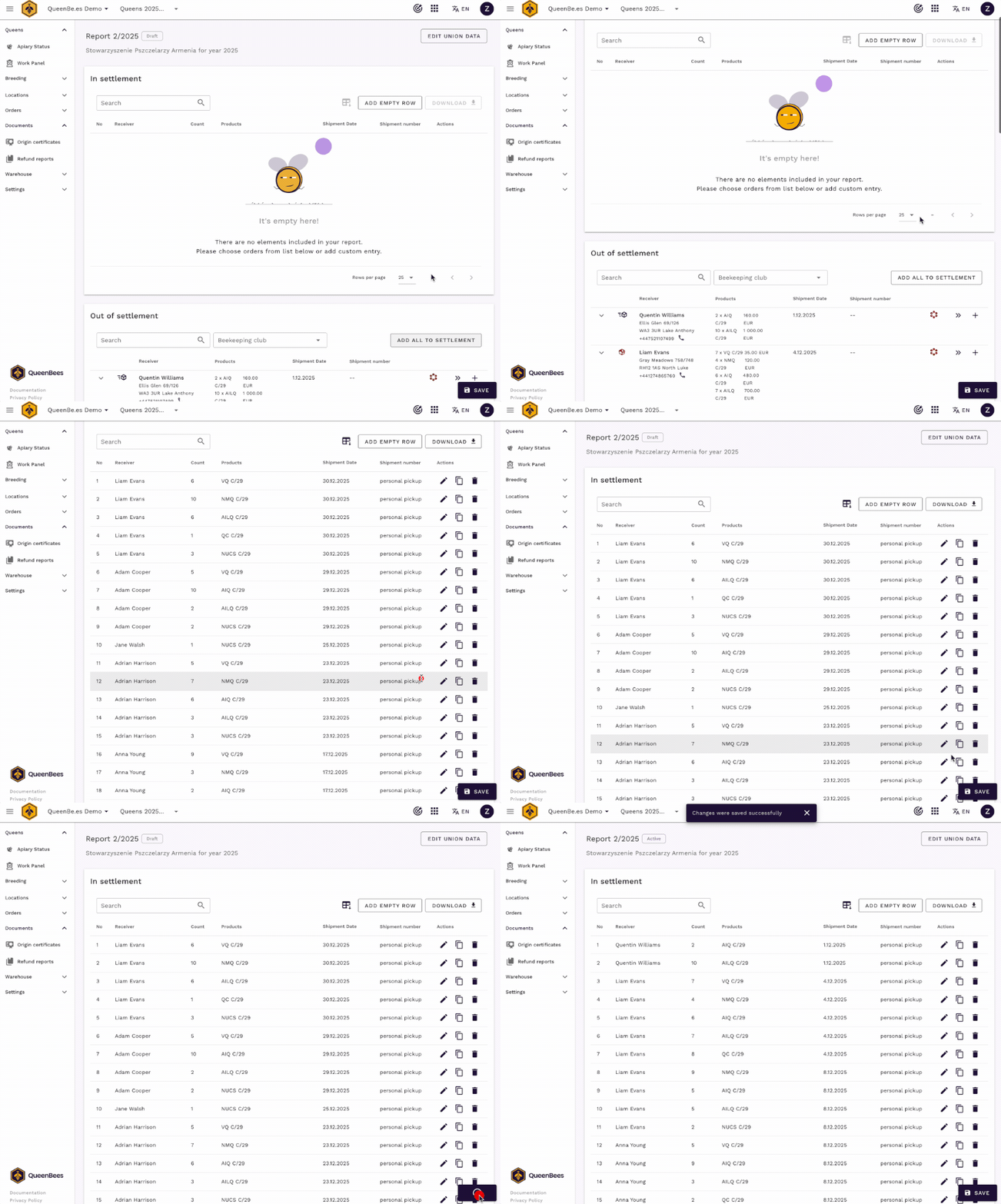
The report page is divided into two main sections:
1. Included in report
This section shows all the items you’ve added to the current settlement:
- Order details: Order number, client information, and shipment date.
- Product breakdown: Each product line shows the item name, code, quantity, price, and total.
- Editable rows: You can modify any details to match your settlement requirements.
- Manual entries: Add custom rows if needed for special cases.
Quick action: Click “Add all eligible orders” to automatically include all refundable items in one click. Items will be divided by client and product type for clarity. Each order available in settlement will be shown with green checkmark icon, to give you clear information that those orders are already included in the report.
2. Orders not yet included
This table shows all orders from the selected union and year that haven’t been added to the report yet:
- Complete order information: Client name, shipment date, products, and totals.
- Add to report: Click the button next to any order to include it in your settlement. Clicking on order already included in the report will duplicate that order in the report.
- Status indicators: Same as in shipments, so you can see which orders are completed and ready for settlement.
Flexible settlements: You can create multiple reports for the same union, allowing you to do partial, more frequent settlements throughout the season instead of one large settlement at the end. This way you can get your money faster and keep better track of your finances.
Settlement summary
At the bottom of the report page, you’ll find:
- Order count confirmation: Visual confirmation showing which orders are included in the report.
- Total amount summary: A clear breakdown of the total settlement value.
- Quick comparison: Verify that the sum of included orders matches your expectations.
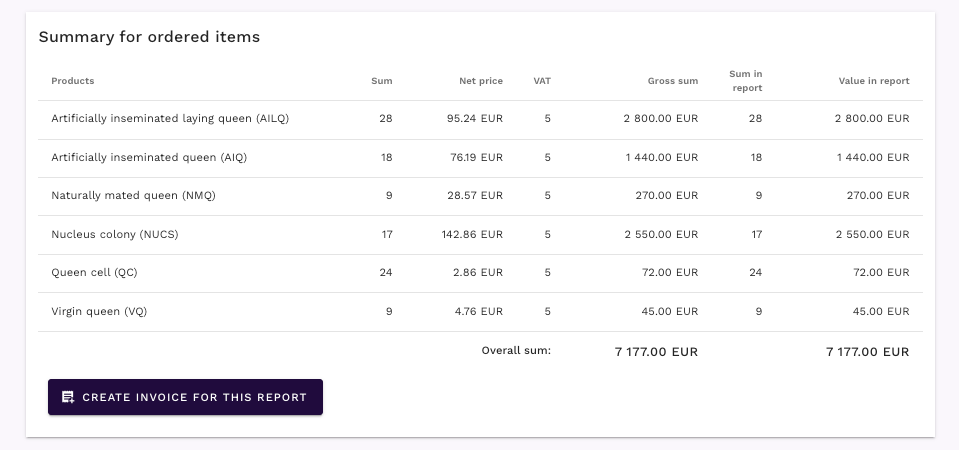
From this view you can quickly create an invoice and download it as a PDF.
Report Options
The report includes several tracking options to help you manage the settlement process:
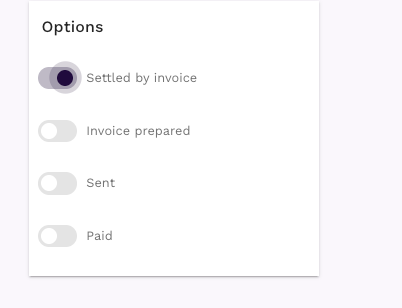
- Is invoiced: Indicates whether you’re generating an invoice or a delivery note.
- Invoice/Delivery note prepared: Mark when you’ve prepared the settlement document.
- Sent/FV-RR received: Track when the invoice has been sent or when you’ve received confirmation from the union.
- Is paid: Mark when payment has been received.
These status flags help you track the entire settlement lifecycle from creation to payment, allowing you also to quickly filter reports based on their status in the main reports dashboard.
Generating documents
Once your report is ready, you can generate all necessary documents with a single click:
Available Documents
- Settlement report PDF: A detailed report showing all included orders, products, and totals.
- Invoice: Generate a professional invoice for the union with all settled products automatically included.
- Certificate of origin: (Coming soon) Issue origin certificates directly from the report view, similar to how it works in individual orders.
- Excel export: export the report data to Excel for your records or further analysis.
How to generate
- Save your report to ensure all data is up-to-date.
- Click “Download report” to generate a PDF of the settlement.
- Click “Create invoice” to generate an invoice for the union.
- All products in the report are automatically available in the invoice.
- The invoice is linked to the beekeeping union as the client.
Multiple reports & partial settlements
One of the most powerful features is the ability to create multiple reports for the same union:
Why this matters
- Frequent settlements: Instead of waiting until the end of the season, settle orders as they’re completed.
- Better cash flow: Get payments from unions more regularly throughout the season.
- Easier tracking: Smaller, more frequent reports are easier to verify and reconcile.
- Flexibility: Handle different product groups or time periods separately if needed.
- Each report maintains its own status tracking, so you can see exactly where each settlement stands in the process.
Country-specific customization
The refund and settlement system is designed to be flexible. While the examples here are based on Polish beekeeping practices, the system can be fully customized for your country’s specific requirements:
- Different union structures: Adapt to your local association hierarchies.
- Custom document formats: Adjust invoice and report templates to match local regulations.
- Specific refund rules: Configure eligibility criteria and calculation methods.
If your country has different requirements, the system can be adapted to match your needs. Contact us to discuss customization options.
Need Help?
If you have any questions about union reports or need assistance with configuration, our team is here to help.
- Contact our support team for setup assistance.
- Visit our contact page for a personalized consultation.
- WhatsApp support for quick queries or feature requests.