Orders management: complete guide
The order management system in QueenBees was designed specifically to address the unique challenges queen breeders face during the busy season. After years of working closely with breeding apiaries, we discovered that one of the most time-consuming bottlenecks isn’t the breeding itself - it’s managing hundreds of customer phone calls, answering “when can I get my queen?”, avoiding over-scheduling, and preparing breeding documentation.
The hidden cost of the telephone
We analyzed 20,000 orders in European apiaries and the results were shocking. The average breeder spends 8 minutes on a single phone order. You check the calendar, calculate queen availability and write down addresses manually. If you take 20 calls a day, that is nearly 3 hours of lost production time.
But the real cost comes after the call. In the traditional workflow, preparing a single shipment: manually typing client data for shipping labels, creating the invoice, preparing breeding documents - takes up to 15 minutes per package. If you ship 20 packages a day, that is 5 hours of office work every single day of the high season.
Generic business tools do not understand the specifics of queen breeding companies. We built QueenBe.es tailored specifically for the queen rearing world. Our system optimizes the unique order management for breeders, giving you an interactive Calendar that instantly checks availability, cutting the order processing time to just 90 seconds. Because the customer data is already in the system, you can generate the invoice and the shipping label in seconds with just a few clicks.
Orders in QueenBees
The orders section is your central hub for handling individual customer orders from initial phone contact through delivery and documentation. This comprehensive interface streamlines the entire customer service process, making it possible to efficiently manage high volumes of orders during peak season.
This page is accessible to users with roles like Owner, Administrator, and Logistics, ensuring your sales team can efficiently process and fulfill customer orders.
Info
The data shown in demonstrations and examples is entirely fictional and not sourced from any real beekeepers. Customer data privacy is our top priority - we never share or sell customer information with any third parties.
Accessing orders
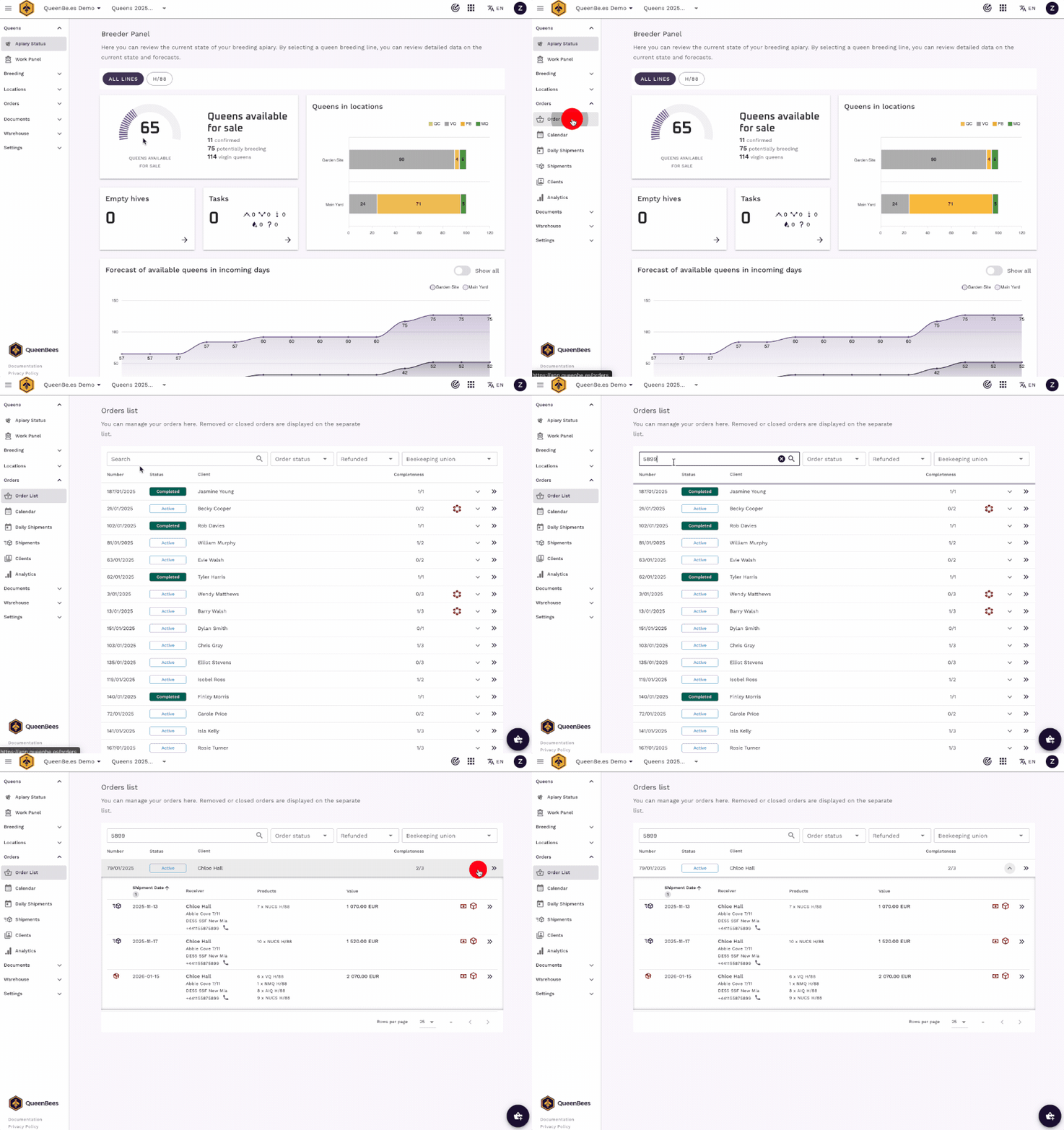
You can access the order listing by:
- Navigating to Left Menu > Orders > Orders list from the main dashboard
- Clicking on any order from the Shipments page
The orders list provides a quick preview of recently placed orders with brief status summaries. From here, you can search for existing customer orders - particularly useful when handling phone calls where you typically start with just a part of phone number.
Creating a new order
When a new customer calls, click the action button (+ icon) in the bottom right corner to create a new order. This opens the streamlined order panel designed specifically for phone conversations with customers.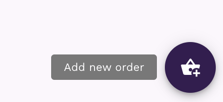
The page displays a unique order number at the top along with the current order status and timestamp information showing when the order was created and last updated.

Order information header
At the top of the order details page, you’ll find key metadata about the order:
- Order number: Unique identifier for the order
- Order status: Current state (Draft, Confirmed, In Progress, Completed, Cancelled)
- Created date: When the order was initially created and by whom
- Last updated: Most recent modification timestamp and team member
- Back button: Return to the orders list
Order actions menu
The three-dot menu in the top right provides access to order-level actions:
- Cancel order: Mark the order as cancelled (available only for non-completed/non-cancelled orders)
Client information section
The first card on the left side contains all customer-related information:
Customer selection
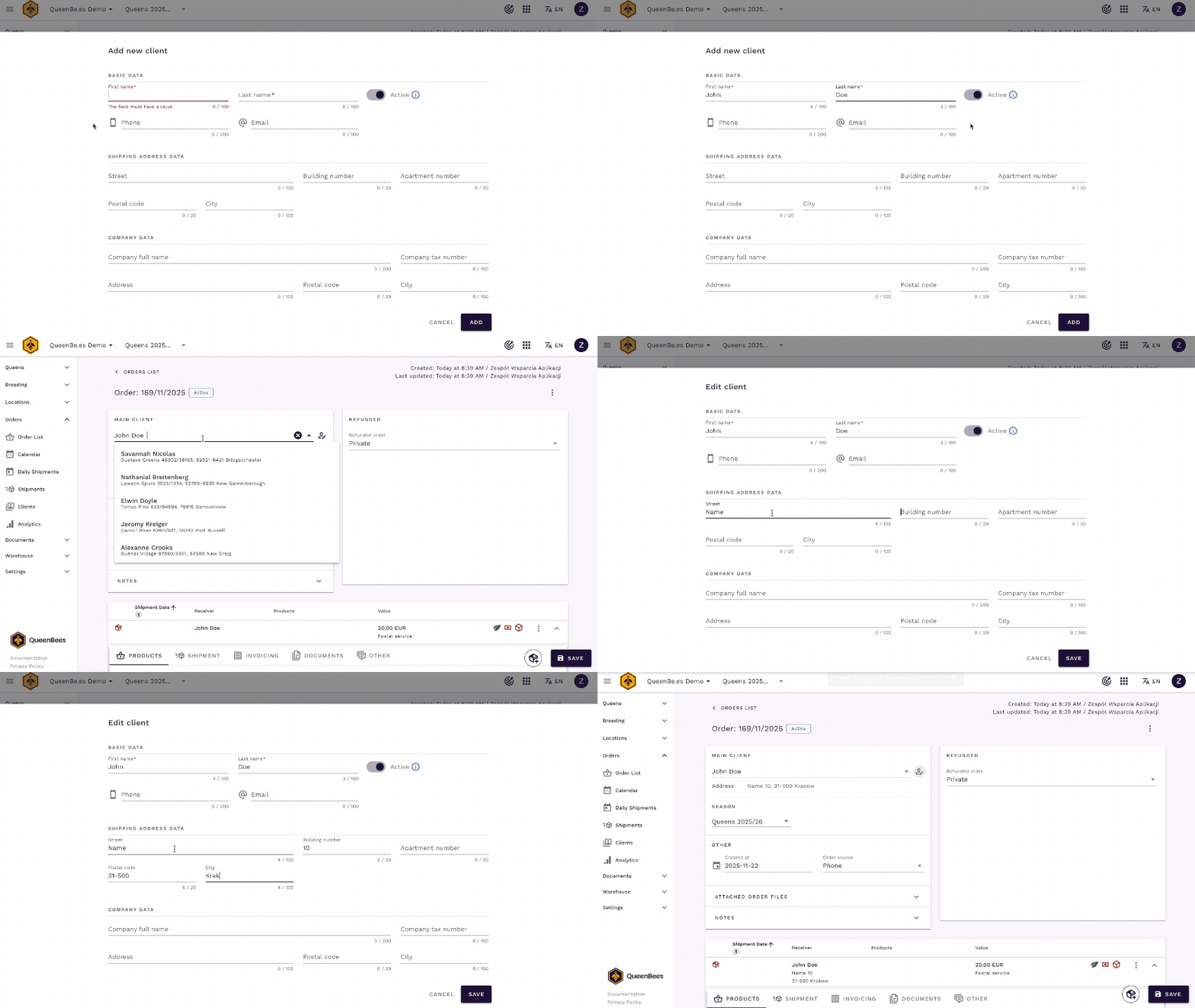
Use the client autocomplete field to search and select a customer for this order. This is optimized for phone call scenarios:
- Quick search: Start typing phone number, name or address to find existing customers. We’re showing the most relevant matches with additional details like address to help identify the right person quickly.
- Add new customer: If not found in database, click “+” icon to add them directly from the order
- Minimal data entry: For pickup orders, just name and surname are sufficient
- Edit details: Click the pencil icon to add or correct address details at any moment
Note
If you have an existing customer list (Excel, other software), we can import it for you at no cost. Contact us for assistance.
Once selected, the system displays:
- Customer address: Full address including street, postal code, and city
- Phone number: With quick-action buttons to call or message via WhatsApp
- Email: With a quick link to send an email
- Tax information / company data: with VAT number if applicable
- Additional notes: Any special information associated with the customer
Season Selection
Associate the order with a specific production season. By default - current season is selected.
This helps with:
- Tracking orders by production period
- Grouping shipments by season
- Reporting and analytics by time period
You can add new seasons directly from this dropdown if you have the appropriate permissions.
Tip
Some of our clients divide departments of their company by seasons. For example: one season that supports hive related products, separate season for queens, honey. This allows them to have separate order flows, focus different employees on each department while still using the same QueenBees account.
Other order data
This section contains additional order metadata:
- Created date: customize the order creation date if needed (useful when manually entering historical orders)
- Order dource: specify how the order was received (phone, mail, direct (in-person), other)
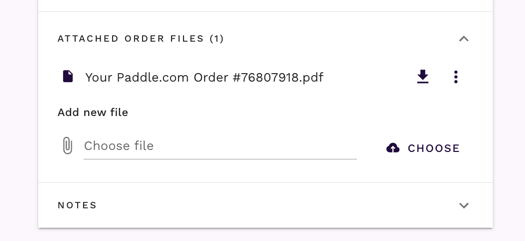
Order files
Attach relevant documents to the order such as:
- Customer correspondence
- Refund documents
- Special instructions
- Payment confirmations
Files are stored securely and accessible to authorized team members.
Order comment (notes)
Add internal notes about the order that are visible only to your team. This is useful for:
- Special handling instructions
- Production notes
- Customer preferences
- Delivery considerations
Comments support up to 1000 characters and are saved automatically. They appear as icons in the shipments lists for quick reference.
Order type and refunds section
The right-side card manages order type and subsidy-related information:
Order type
Select from three order types, each affecting how the order is processed:
- Private: Standard, default customer order without subsidies
- Refunded from Union: Order eligible for beekeeping union subsidies with the following fields:
- Refund confirmed: Toggle to indicate subsidy approval status
- Beekeeping club: Select the customer’s registered club (filtered by union).
- Beekeeping union: Select the union providing the subsidy. If client is connected to a club or union, this populates automatically.
- Refunded individually: individual subsidy not tied to a club
When you select a refunded order type, the system automatically:
- Attempts to populate the club and union based on customer profile
- Links to union subsidy files if configured for the selected season
- Updates all shipments within the order to maintain consistency
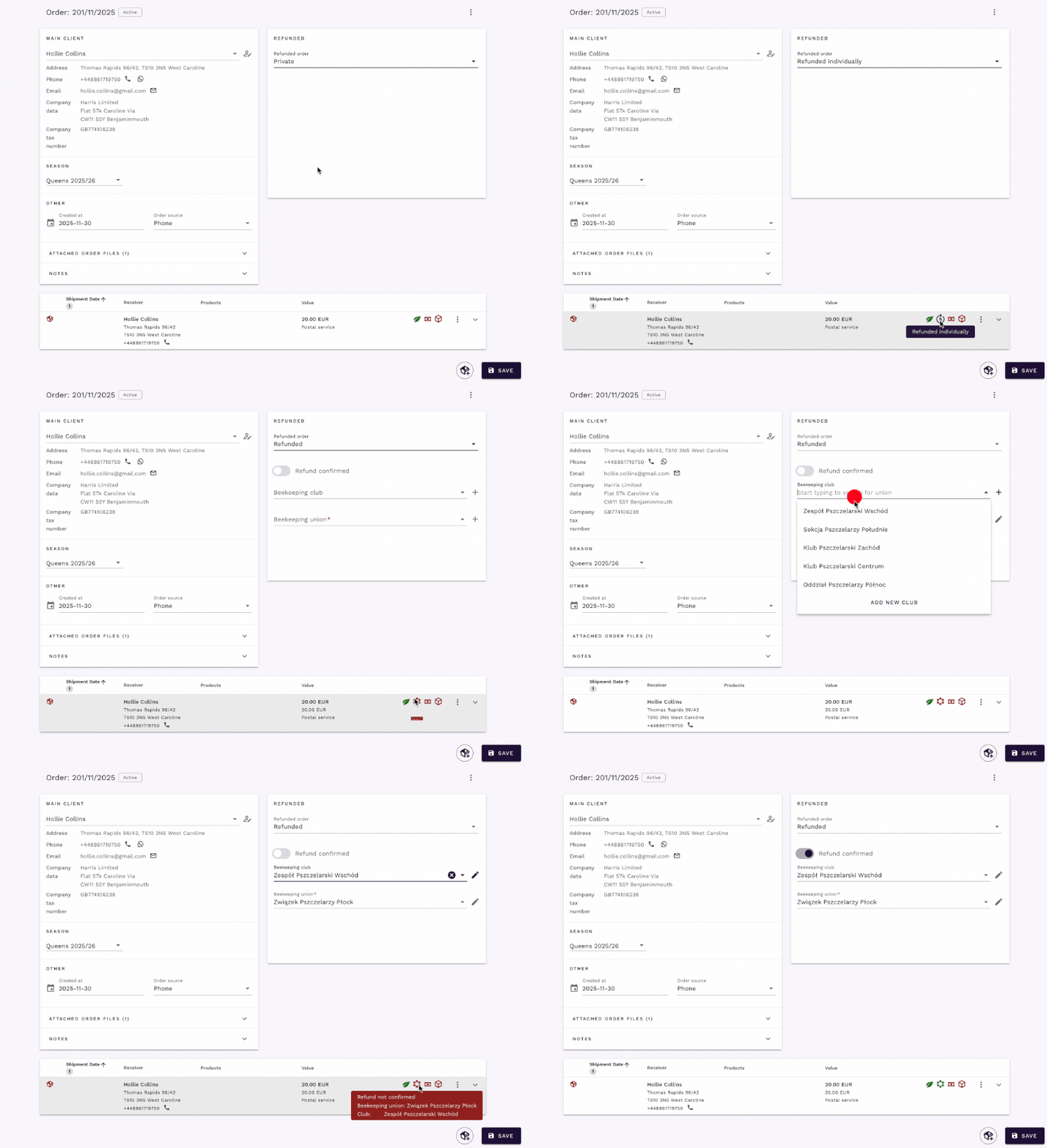
Refunded orders have additional reporting capabilities for subsidy tracking. Also they are marked with special icons in the orders and shipments lists for easy identification.
Union documentation
If the selected union has uploaded subsidy documentation files for the current season, they’ll be displayed in this section for easy reference when processing subsidized orders.
Order items and shipments
The main section of the page displays the Ordered items table, which shows all shipments within this order. Each shipment can contain multiple products (queens, nucleus, honey, queen cells, etc.).
Understanding shipments
An order can have one or multiple shipments, each with its own:
- Shipment Date: When this part of the order will be sent
- Products: Queens and other items included in this shipment
- Shipping method: Delivery method (courier, pickup, etc.)
- Shipping recipient: Who receives the shipment (can differ from billing customer)
- Documents: Invoices, certificates, shipping labels
- Status indicators: confirmation status, payment status, preparation status
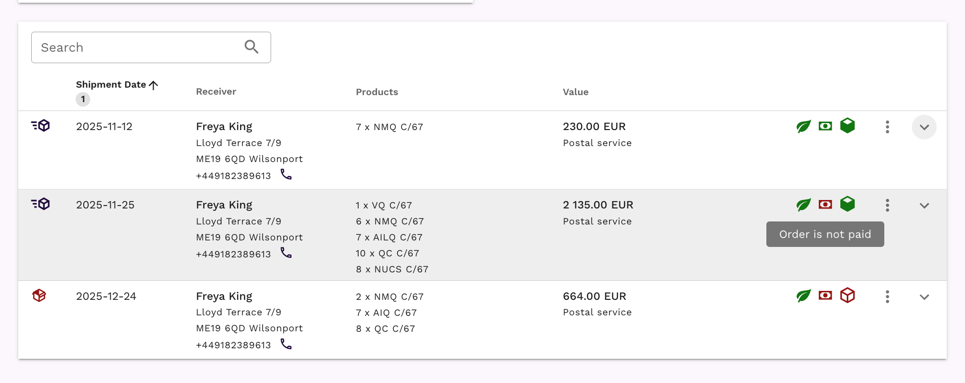
Expanding shipment details
Click on any row in the table to expand and view/edit detailed information for that shipment:
Products tab:
- Add queens by selecting product and queen lines
- Specify quantities, unit prices
- Add other products
- Adjust prices and discounts
- View total products value
Shipment tab:
- Select shipping method
- Choose shipment date using the interactive calendar
- The calendar shows already ordered products for upcoming days
- Avoid over-scheduling by viewing quantities already ordered per day
Tip
When a customer asks “when can you ship it to me?”, the interactive calendar helps you efficiently decide which date to propose based on current order volume and production capacity.
Payments tab:
- Mark order as paid with date of payment
- Switch payer if different from recipient
- For union refunded orders you can select direct order receiver - this person will be used for reporting to union instead of billing customer
- generate invoice directly from this tab
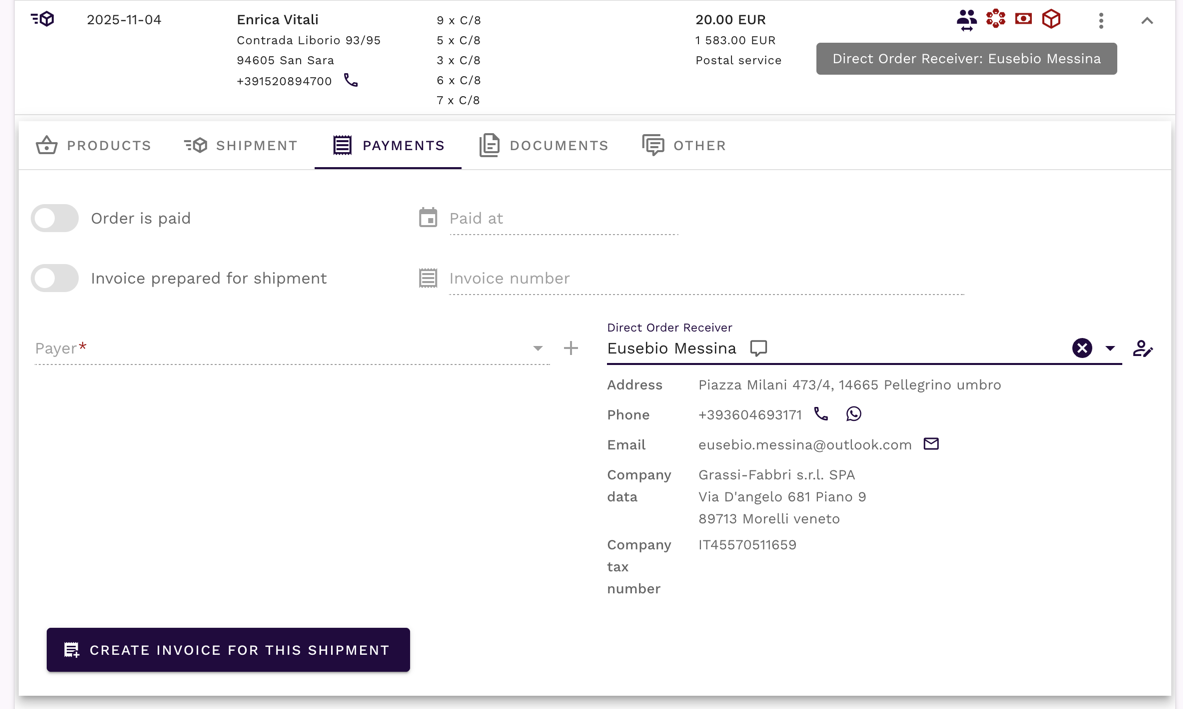
Documents tab: Allowing you to generate and manage breeding documentation such as invoices and certificates of origin directly from the shipment.
Others tab: Add a note specific to this shipment, visible only to your team.
Managing multiple shipments
One aspect specific to the queen breeding world: each order can be divided into multiple shipments. This is crucial for planning and tracking more advanced orders.
For orders that need to be delivered in multiple batches:
- Click the floating “Add Shipment” button (package icon) in the bottom right
- A new shipment is created with the same customer and order details
- Configure each shipment’s date, products, and shipping method independently
- All shipments remain linked to the parent order for easy tracking
- You can also duplicate existing shipments for similar orders
This is particularly useful for:
- Customers ordering queens on different dates within the same order
- Multiple customers ordering for the same address in one package
- Splitting orders across multiple production dates
- Different queen types ready on different days
- Partial fulfillment scenarios
- Managing large orders in stages
The more you use the application with existing customers in the database, the faster this entire process becomes.
Shipment status icons
Each shipment in the order displays status icons that provide at-a-glance information about important attributes. Understanding these icons helps you quickly assess order status during busy periods:

- Order confirmation status: green when order confirmed by customer
- Payment received status: with cash icon, green if paid
- Union refund: green when refund confirmed by union
- Individual refund: marking individual refund
- Different clients/payers/direct recipients: person with arrows, indicates billing client differs from receiving client
- Invoice icon: invoice has been prepared for this shipment
- Truck icon: Shipment number generated
- Order notes: internal comments exist for this shipment
- Recently created: indicates order created within last 12 hours
These icons appear in both the order details table and the shipments list, allowing you to quickly scan order status without opening each one individually.
Breeding documentation
QueenBees streamlines the generation of breeding documentation, allowing you to create required documents in just a few seconds based on information already in the order.
Invoices
Generate professional invoices directly from shipments:
- Open the shipment documents panel
- Click “Add Invoice”
- QueenBees automatically pulls customer data and products
- Review and select items to include
- Generate the invoice
In most cases, creating an invoice takes just a few seconds. You can:
- Download invoice as PDF
- Print it directly from the file
- Send to customer via email
Certificates of Origin
Create queen certificates of origin efficiently:
- Access the shipment documents panel
- Click “Add Certificate of Origin”
- Based on products in the order, the certificate is pre-filled
- Select which products to include
- Enter queen numbers manually (or they’ll be pulled automatically from breeding records - feature in development)
- Generate and include the certificate in the package
All key information is already populated from the order, making documentation preparation fast and accurate.
Saving changes
All changes to the order are saved using the Save Button in the bottom right corner. The system also features auto-save functionality that periodically saves your changes in the background to prevent data loss.
Tip
Keyboard Shortcut: Press Ctrl+S (Windows/Linux) or Cmd+S (Mac) to save quickly
Order status flow
Understanding order statuses helps you track progress:
- Active: For new and active orders being processed
- Completed: All shipments delivered and order fulfilled
- Cancelled: Order was cancelled and will not be fulfilled
Practical use cases
Handling a phone call from a new customer
This is the most common scenario during busy season:
- Click the action button (+ icon) to create a new order
- As the customer provides their information, add them to the system (name and phone number minimum)
- While still on the phone, add their requested products (e.g., “10 naturally mated queens and 5 artificially inseminated queens”)
- Customer asks “when can you ship it to me?” - open the interactive calendar
- Check quantities already ordered for upcoming days
- Propose an available date that fits your production schedule
- Select shipping method (pickup, courier, etc.)
- Save the order
The entire phone call process is streamlined to match the natural flow of customer conversations.
Processing an existing customer order
For returning customers, the process is even faster:
- Navigate to Orders and search by phone number or name
- Review their previous orders if needed
- Create a new order or open existing one and add new shipment
- Add products and select shipment date
- Save
Next steps
After mastering order management, explore these related features to further streamline your operations:
- Daily shipments: Manage and track daily delivery preparations.
- Shipping calendar: Visualize daily order volumes and plan deliveries effectively.
- Refunded Orders: Handle subsidy-related orders and documentation needed by beekeeping unions.
Need Help?
If you have any questions about managing orders or need assistance with configuration, our team is here to help.
- Contact our support team for setup assistance.
- Visit our contact page for a personalized consultation.
- WhatsApp support for quick queries or feature requests.