Adding Queens from Batches to Hives
Once you’ve created a queen batch, the next critical step is distributing individual queens from the batch to specific hives in your locations. This process moves your planned queens into active breeding units, that will be ready for selling at some point of their life.
We know that professional queen breeders often manage hundreds of queens across multiple locations, so we’ve designed a workflow to make batch distribution as efficient, fast and error-free as possible.
Tip
Queen distribution from batches is most efficient when done systematically by location, allowing you to focus on one area at a time while maintaining overview of available inventory.
Using Focus Mode when you are working at a location you can quickly identify empty hives and assign queens with minimal taps, speeding up the entire process.
Distributing batch from location view
The system intelligently determines which batches are available for each location.
Access your target location
- Go to Locations from the main navigation menu
- Select the specific location where you want to place queens
- (Optional) Use
Show only empty hivesfilter to focus on hives without queens - The system displays a grid of hive cards showing current status
- Choose a hive and click the button with batch name
- Button will show count of available queens, still left in the batch for this location
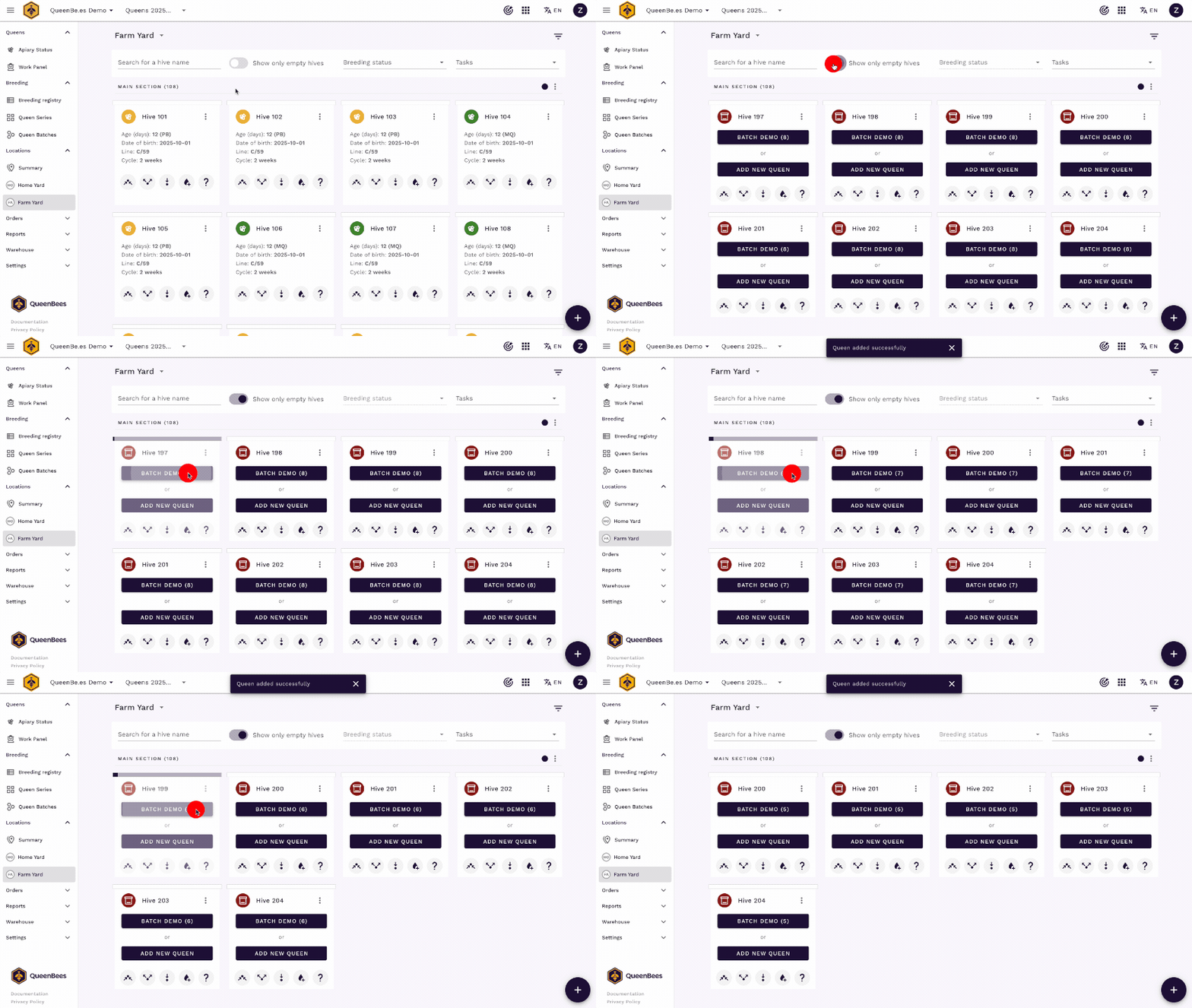
Multiple active batches for one location
When your location has multiple batches with available queens, hive will display a dropdown selector with all available batches for the location.
Select your preferred batch to trigger automatic queen assignment.
Distributing batch from Focus Mode
Focus Mode is optimized for working in the field, making it ideal for distributing queens from batches when you’re physically at the apiary.
Steps to distribute queens in Focus Mode
- Enter Focus Mode by tapping the target icon in the top toolbar
- Select your location from the tabs at the top
- Switch to add queen mode by tapping the arrow down at the bottom of the screen, for this view only empty hives are shown
- Check available batches - the system will show only batches with available queens for the selected location, for each batch a progress bar indicates how many queens are left
- Tap the button on selected hive to automatically assign a queen to the empty hive
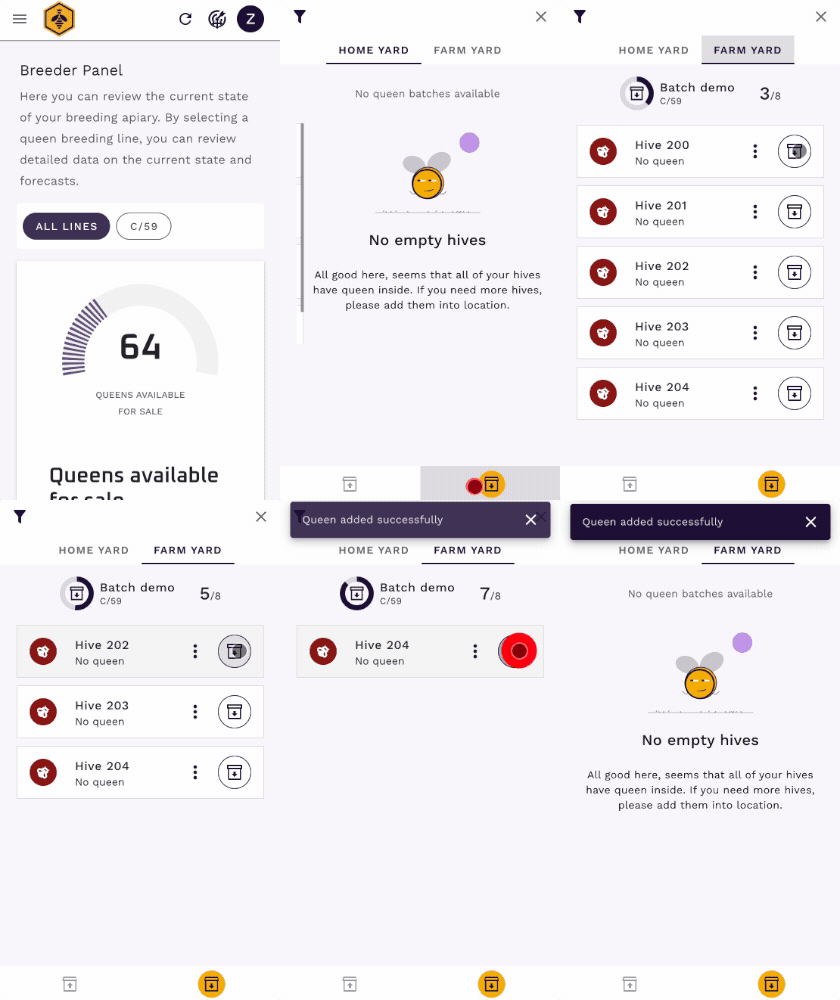
Distributing batch from batch card
For the biggest efficiency, you can distribute all available queens from a specific batch to a location with empty hives in one click.
You can start the distribution process directly from the batches list in the Queen Batches overview.
- Go to Queen Batches from the main navigation menu
- Locate the batch you want to distribute queens from. Make sure that location you want to distribute has empty hives.
Note
In case when count of empty hives is higher than available queens for location, system will assign queens to first empty hives taken by name.
If there are more queens than empty hives, system will assign queens to all empty hives and leave remaining queens in batch for future distribution. - Click the Distribute button under three dots menu on the right side of the batch
- Available queens were distributed in empty hives, you should see fresh statistics and confirmation message

Next steps
After you’ve learn how to distribute queens from batches to hives, you can explore additional features to move your breeding operations to the next level:
- Managing Queen Series - Plan and track seasonal breeding strategies with series feature
- Using Focus Mode - Optimize field operations with distraction-free, mobile friendly interface
- Breeding registry - Maintain detailed genetic records and lineage tracking for your queens