Queen Breeding Registry: comprehensive genealogy and lineage tracking
The Queen Breeding Registry is the foundation of professional queen rearing operations in QueenBees - a comprehensive system for documenting genealogy and maintaining complete breeding records for your reproductive queen stock.
Designed for professional breeders who need to maintain genetic lineage, document parentage, track insemination data, and integrate breeding records with client or union orders, the Breeding Registry transforms queen rearing from basic record-keeping into professional genetic management.

Tip
The Breeding Registry is essential for professional queen breeders who need to maintain genetic lines, document breeding programs for certification, track reproductive queen lineage, and generate official documents of origin.
Understanding the Breeding Registry
The Breeding Registry serves as your digital herd book - a comprehensive database of all queens in your apiary, allowing you to track lineage and create origin documentation.
Key components of breeding records
Each queen in the registry maintains:
- Identity information: Unique numbering, marker colors, birth dates
- Genetic lineage: Queen line, subspecies, race confirmation status
- Parentage data: Mother queen and father (drone mother) tracking
- Insemination records: Artificial insemination or natural mating markers
- Lifecycle tracking: Current status, location usage, active/archived state along with crucial dates for each queen
Creating your first breeding registry entry
Most of the queens in the registry will be added automatically when you use Queen Series or Queen Batches.
However, you can also add queens manually to document queens marked as reproductive or in evaluation that can help you later on build full lineage history.
Prerequisites
Before adding queens to the Breeding Registry, ensure you have:
- Active QueenBees account with breeding registry feature enabled
- At least one queen line configured in apiary settings
- Understanding of queen genealogy and parentage terminology
- Optional: Existing reproductive queens for parentage documentation
Step-by-step queen creation in registry
Navigate to Breeding Registry
- Go to Queen Breeding > Breeding Registry from the main menu
- If this is your first entry, you’ll see an empty registry table
- Click the floating action button (+) in the bottom right corner
Open the breeding queen modal
- The comprehensive breeding queen form will open
- Form is organized into logical sections for efficient data entry
- All fields are preserved when switching between sections
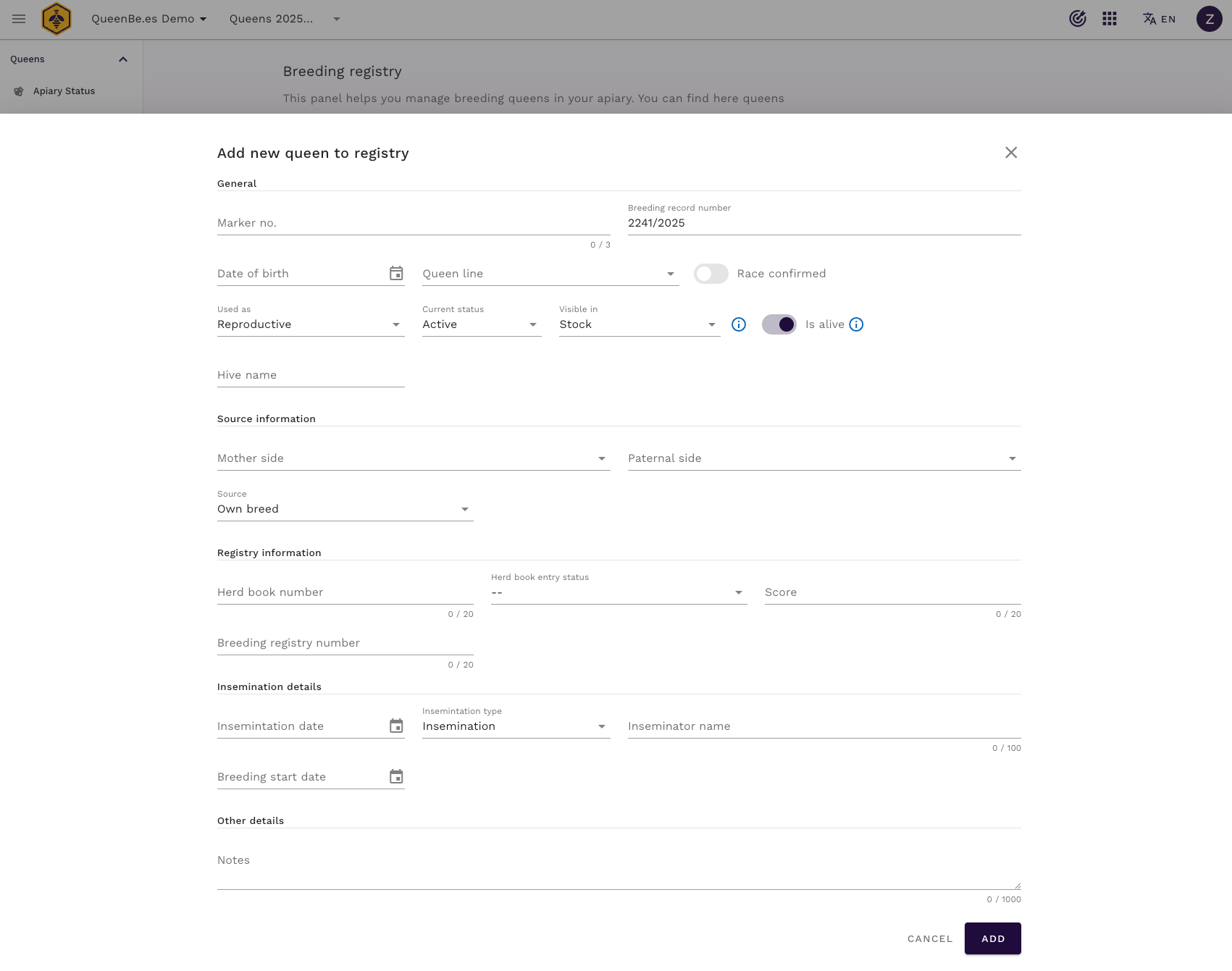
Configure general information
Identity fields:
- Marker number: 1-3 character marking code (e.g., “A”, “B1”, “X12”)
- Queen number: Unique identifier (auto-suggested based on birth year/sequence)
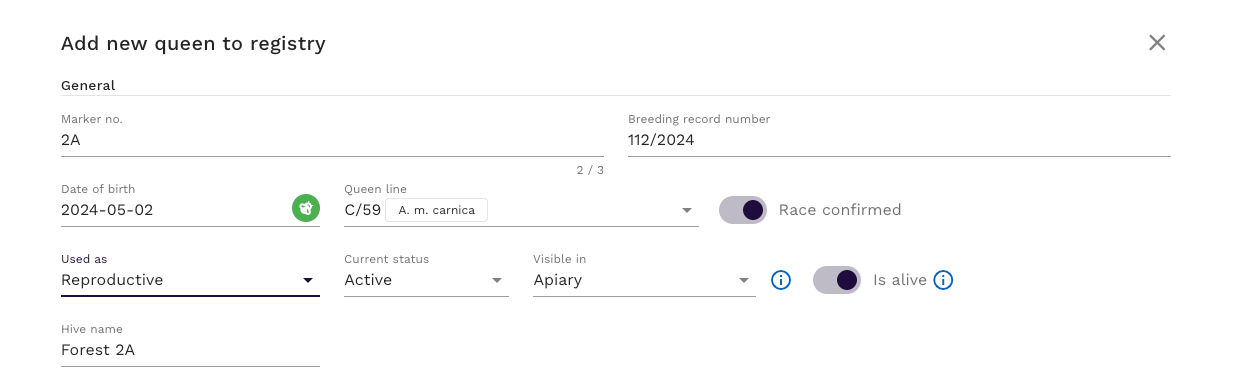
- Birth date: Date queen emerged - determines marker color by international standards
- Queen line: Select genetic line (required)
- Race confirmed: Toggle if subspecies has been verified/certified
Usage classification:
- Used as: Choose “Reproductive” or “In evaluation” for breeding stock, “Other” for honey production
- Current status: Active, Lost, or Sold
- Used in: “Apiary” (in your hives) or “Stock” (for selling)
- Is alive: Toggle affects status calculations
- Custom hive name: Optional identifier for location reference
Note
Birth date automatically determines the international marker color (white, yellow, red, green, blue) based on the year ending digit. The color avatar displays next to the date field.
Document origin and parentage
Mother queen (Queen Mother):
- Select from existing reproductive queens in registry
- Autocomplete shows queen number, marker, line, and birth date
- Creates maternal lineage link for pedigree generation
Father source (Drone Mother):
- Select the queen whose drones inseminated this queen
- Essential for paternal lineage in pedigree certificates
- Leave empty for unknown parentage or open mating
Queen source:
- Own: Bred in your operation (enables parent selection)
- External: Purchased or received from outside (requires source name)
Source name (if external):
- Name of breeder, supplier, or breeding station
- Up to 255 characters for complete documentation
Enter official registry information
Herd book registration (Traditional breeding programs):
- Number in herd book: Official registration number from breeding association
- Status in herd book: Select “Draft” (provisional) or “Main” (full registration)
- Registry score: Breeding evaluation score or performance rating
Alternative registry (Modern systems):
- Number in register: Modern database/digital registry identifier
- Mutually exclusive with herd book fields to prevent duplicate registration
Warning
Herd book and modern registry fields are mutually exclusive. Entering data in one section disables the other to maintain registration integrity.
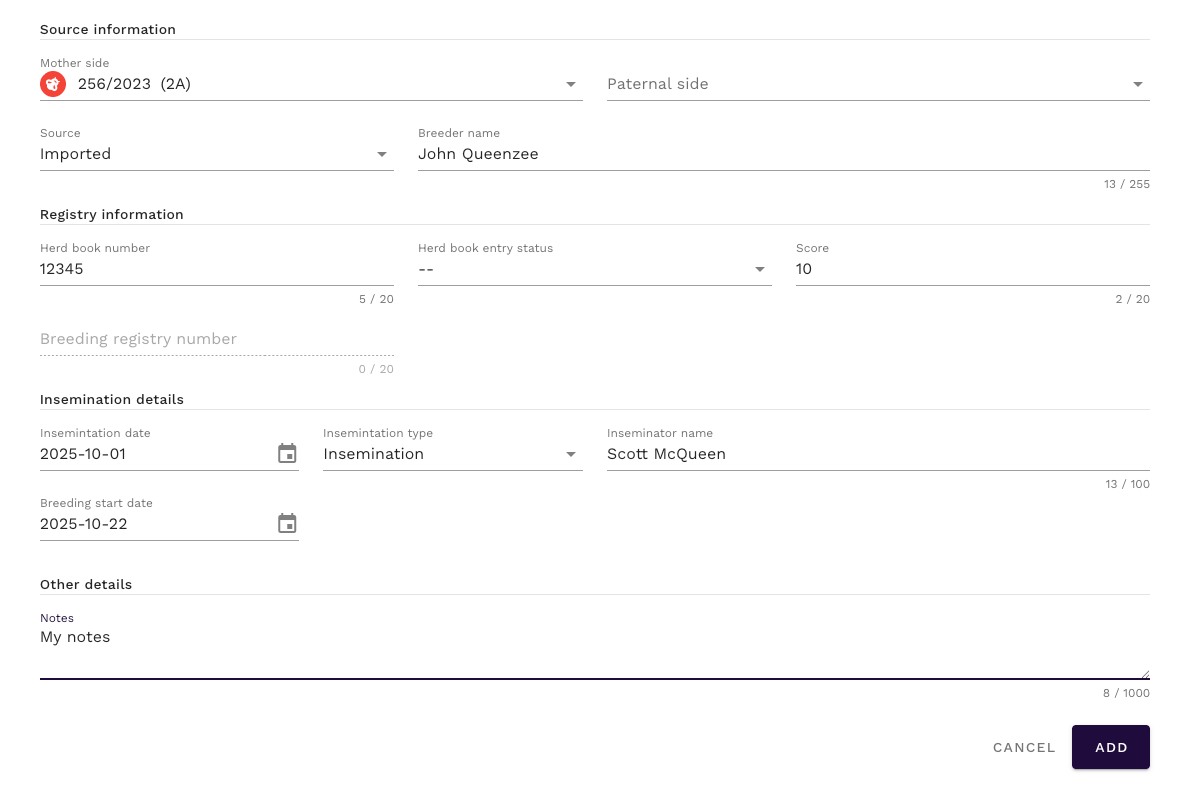
Record insemination and mating data
Insemination date: Documents when queen was inseminated or mated Insemination type:
- Artificial insemination: Controlled breeding with selected drones
- Queen mating station: Natural mating at controlled mating location
Inseminated by (contextual label):
- For artificial insemination: Name of inseminator/technician
- For mating station: Name of mating station location
Breeding started date:
- Date when queen began active egg laying for breeding purposes
- Tracks productive breeding period start
- Optional but recommended for performance analysis
Add notes and observations
Notes field:
- Free-text area for breeding observations, performance notes, or special characteristics
- Up to 1000 characters
- Useful for temperament, productivity, or health observations
Save the breeding registry entry
- Click “Add” button to create the registry entry
- System validates all required fields
- Queen appears immediately in the registry table (check the season filter if not visible)
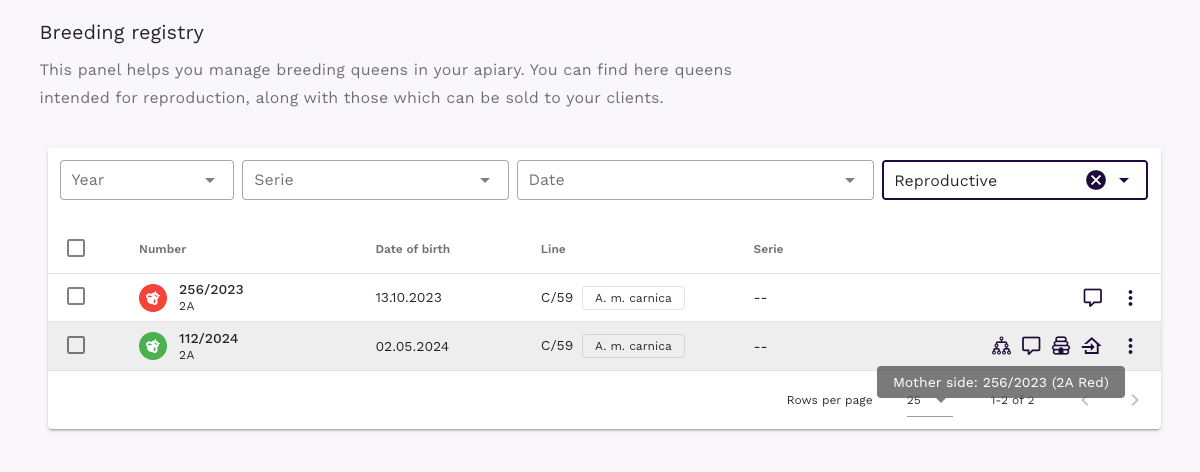
Working with the Breeding Registry
Once you’ve populated your registry, the system provides powerful tools for managing, filtering, and analyzing your breeding stock.
Registry table overview
The breeding registry table displays comprehensive information at a glance:
Column information:
- Queen number with marker: Visual color avatar showing marker number and queen identification
- Birth date: Date queen emerged, formatted for quick scanning
- Queen line: Genetic line name with subspecies chip indicator
- Serie: Associated breeding serie if queen came from systematic production
- Status icons (right side)
- Action menu (three-dot icon):
- Edit queen breeding record
- Duplicate entry for similar queens
- Download lineage certificate PDF
- Add offspring queen with auto-filled parentage
Filtering and searching the registry
The registry provides powerful filtering options for finding specific queens:
Year filter:
- Dropdown of available birth years in your registry
- Quick access to queens born in specific dates within a season
Serie filter:
- Autocomplete showing serie name and birth date
- Filter queens associated with specific breeding series
- Shows only series matching selected year range
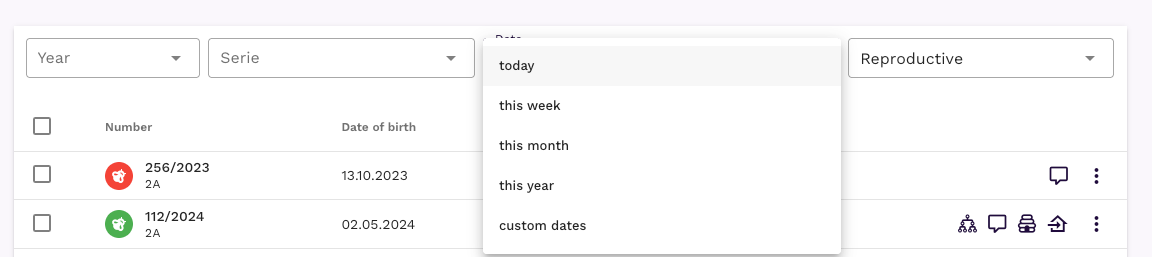
Date range filter:
- Predefined ranges: Today, This Week, This Month, This Year
- Custom date range with from/to date pickers
- Useful for finding queens born in specific breeding windows
Used as filter:
- Filter by “Reproductive”, “In evaluation” or “Other” classification
- Quickly isolate reproductive stock from production queens
Editing existing registry entries
To modify a breeding queen record, just click the three-dot action menu for the queen and select Edit.
Duplicating registry entries
For quickly adding similar queens (e.g., sisters from same mother), use the Duplicate feature:
- Click the three-dot action menu for the template queen
- Select “Duplicate” from the dropdown
- Modal opens with copied information except:
- Queen number (cleared for new auto-suggestion)
- Marker number (cleared - each queen needs unique marking)
- Herd book/registry numbers (cleared - each queen needs independent registration)
- Modify specific fields for the new queen
- Save to create the duplicate entry
Tip
Duplication is ideal for adding multiple queens from the same breeding - parentage, line, insemination data all copy automatically, you only update identifying information.
Generating lineage certificates
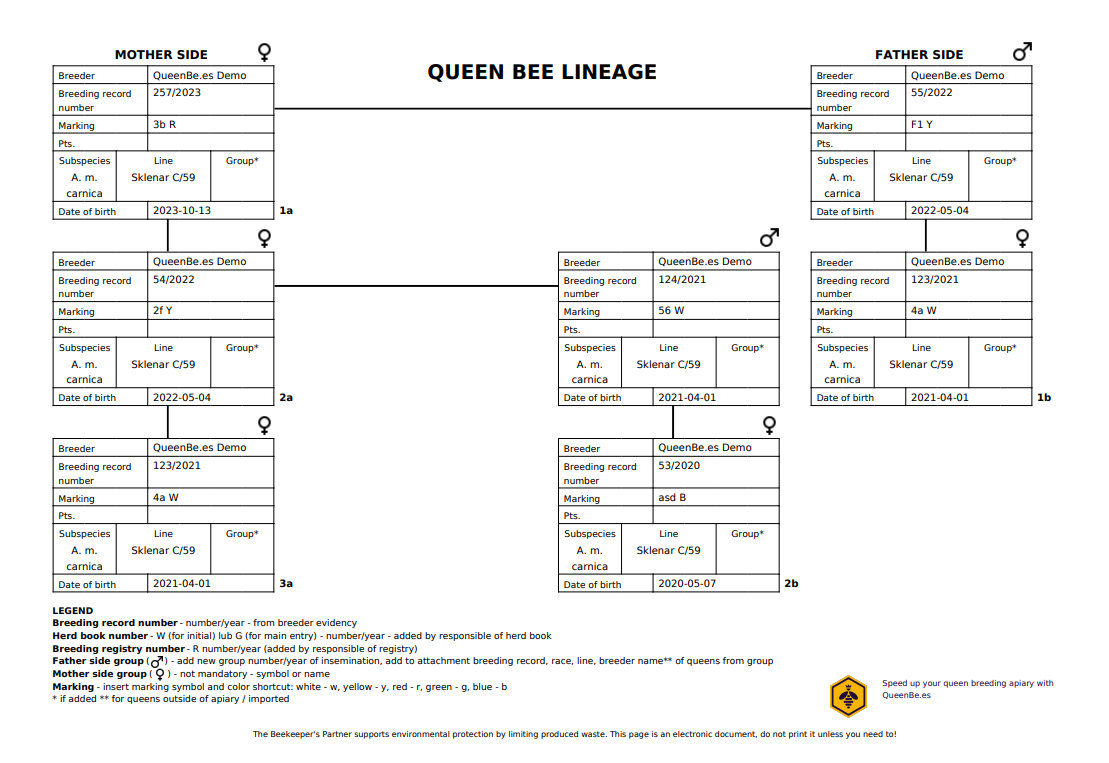
QueenBees generates professional lineage PDF certificates with complete genealogical information:
- Click the three-dot action menu for the queen
- Select “Download lineage”
- System generates PDF with:
- Complete queen identification
- Multi-generation parentage tree
- Genetic line documentation
- Registry/herd book numbers
- Insemination and breeding data
- PDF downloads automatically with formatted filename and apiary branding
Next steps
After mastering the Breeding Registry, explore related features to optimize your complete breeding operation:
- Queen Series - Plan systematic breeding cycles from registry reproductive stock
- Queen Batches - Manage production queens from registered mothers
- Breeding Seasons - Organize registry entries by breeding seasons